

How to Integrate Teams in Outlook – Setting Up the Connection Correctly

Integrating Teams in Outlook sounds like a small step — until the add-in is missing from the ribbon, refuses to activate or quietly disappears after an update. That is exactly where many Microsoft 365 environments stall. In practice, all it takes is the right steps, the right licensing and a clear view of the most common causes of failure.
Integrating Teams in Outlook: The Essentials at a Glance
- To integrate Microsoft Teams with Outlook you typically need a Microsoft 365 business account with an Exchange mailbox; classic Outlook usually requires the Teams add-in, while the new Outlook generally does not.
- In classic Outlook for Windows, the Teams integration is delivered through the Teams Meeting Add-in. In the new Outlook, on Mac and in Outlook on the web, the Teams meeting feature is integrated in a client-specific way.
- When Teams integration in Outlook does not work, the cause is usually a disabled add-in, an outdated Teams version or misconfigured OAuth and Exchange policies.
- The Teams–Outlook integration covers meeting scheduling but not absence management. absentify closes that gap with automatic calendar entries and leave approvals directly inside Microsoft 365.
What Are the Prerequisites Before Linking Teams With Outlook?
Before you start the setup, check three things:
- License and account: Integrating Teams in Outlook for Microsoft 365 works with an active Microsoft 365 work or school account that includes Microsoft Teams and a supported Exchange mailbox. Pure Teams Essentials plans without an Exchange mailbox do not fully support calendar integration.
- Exchange connection: A supported Exchange mailbox is required for calendar integration. This can be Exchange Online or a properly configured on-premises or hybrid environment. Incompletely configured on-premises Exchange environments can limit the Teams–Outlook integration.
- Installed software: In classic Outlook for Windows, the Teams meeting feature usually requires the installed Teams client and its associated add-in. On other supported clients — such as the new Outlook, Outlook on the web or Outlook for Mac — the Teams integration may be delivered differently.
| Requirement | Windows | Mac |
|---|---|---|
| Microsoft 365 account with Exchange Online | ✅ | ✅ |
| Teams desktop app installed | ✅ | ✅ |
| Integrate Teams in Outlook with classic Outlook | ✅ | ✅ |
| Integrate Teams in Outlook with new Outlook | ✅ | ✅ |
| COM add-in support | ✅ | ❌ |
| Admin rights for organisation-wide deployment | Optional | Optional |
How Does the Teams–Outlook Integration Work Technically?
In classic Outlook for Windows, the Teams integration is delivered through the Teams Meeting Add-in. In other Outlook clients — the new Outlook, Outlook on the web or on Mac — the Teams meeting feature is integrated in a client-dependent way.
Outlook, Teams and Exchange work together for meeting scheduling. When you create a Teams meeting, the meeting data is written into the calendar entry and made available through the organiser's supported Exchange environment. Depending on configuration, that includes Exchange Online as well as supported hybrid or on-premises Exchange scenarios.
What the integration does:
- Schedule Teams meetings directly from the Outlook calendar
- Automatically generate the meeting link in the invitation
- Show the Teams join status inside the Outlook calendar
What the integration does not do: it does not replace absence management, leave planning or cross-departmental capacity planning. Companies that want to manage absences in Outlook in one place need a complementary tool for that.

Integrate Teams in Outlook: Step-by-Step Guide (Windows)
How Do You Manually Activate the Teams Meeting Add-in in Outlook?
If the add-in is already installed but does not appear, first check whether it has been disabled inside Outlook:
- Open Outlook and click File → Options → Add-Ins.
- In the dropdown menu, choose "COM Add-ins" and click Go.
- Tick the box next to Microsoft Teams Meeting Add-in for Microsoft Office.
- Click OK and restart Outlook.
If the add-in does not appear in the list at all, the Teams desktop app is not installed correctly or has not been started yet. Teams must have been opened at least once so that it can register itself with Outlook.
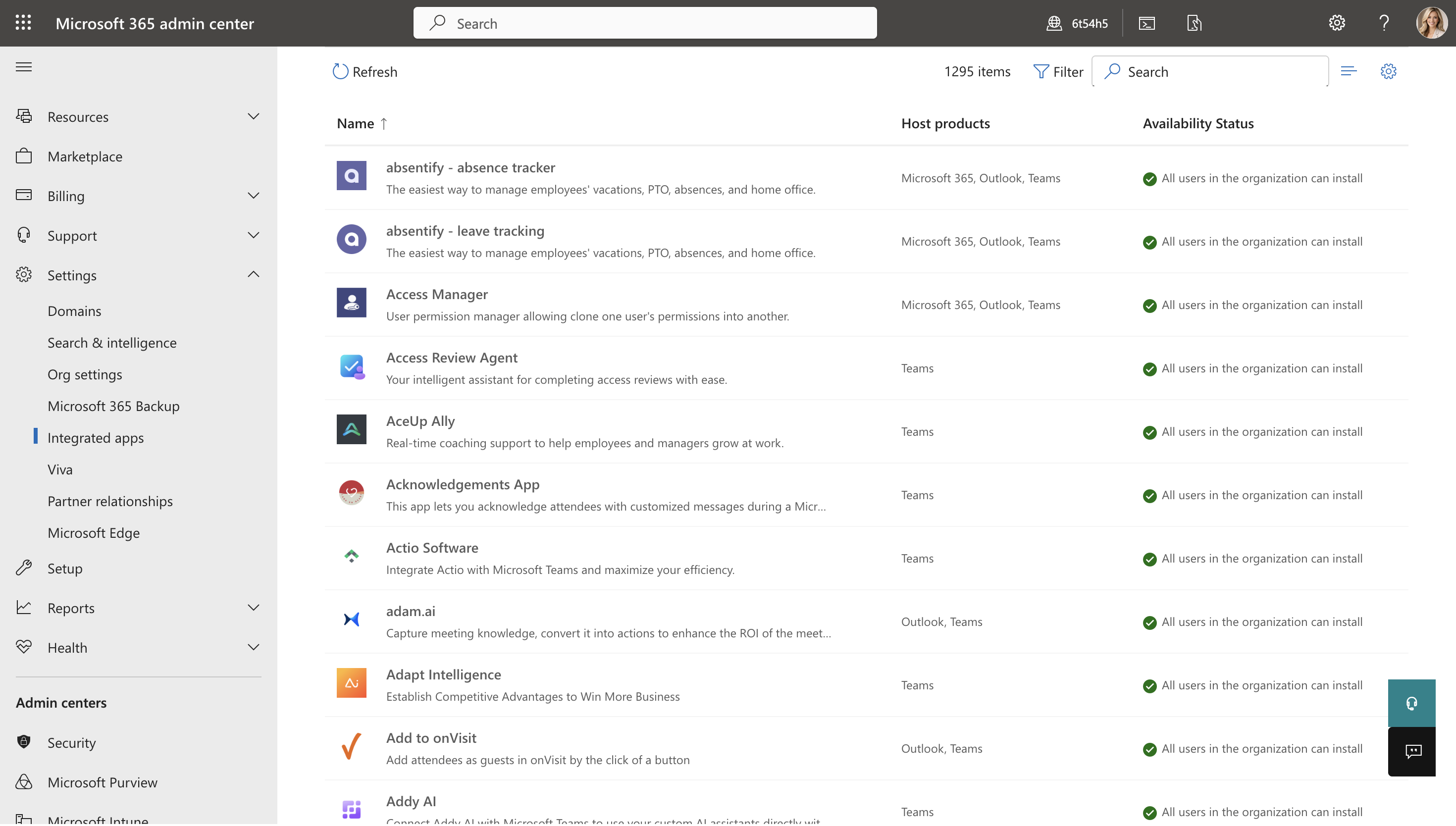
How Do You Roll Out the Add-in to All Users via the Microsoft 365 Admin Center?
The available deployment options depend on the Outlook client and on your Microsoft 365 environment. For centrally deployed Outlook add-ins, you can use the Microsoft 365 Admin Center under Settings → Integrated apps.
The Teams Meeting Add-in for classic Outlook for Windows, however, follows its own prerequisites and is typically delivered together with the matching Teams client. In the new Outlook for Windows, the Teams meeting feature is integrated client-side.
How Is Teams Integrated in Outlook on Mac?
On Mac, the Teams meeting feature is generally available in Outlook for Mac. The exact appearance depends on your Outlook version, your account and your organisation's Microsoft 365 configuration. The blanket statement that Teams in Outlook on Mac is only available in classic Outlook is no longer accurate.
To integrate Teams in Outlook on Mac, the following requirements should be met:
- You are using Outlook for Microsoft 365 for Mac with a supported Microsoft 365 work or school account.
- For scheduling Teams meetings, the organiser needs an Exchange mailbox. IMAP or POP-based accounts do not support this feature.
- On supported Mac versions, the Teams feature appears directly in Outlook — for example as a Teams Meeting button or as the corresponding option when creating an appointment.
How to Set Up Teams in Outlook on Mac
- Open Outlook for Mac and switch to the calendar view.
- Create a new appointment or meeting.
- Enable the "Teams meeting" option, or pick the corresponding Teams toggle if it is available in your environment.
- Add attendees, date and time, then send the invitation. The Teams link is added to the appointment when it is sent.
When the Teams Option Is Missing on Mac
If the Teams feature is missing in Outlook for Mac, check these points first:
- Is Outlook connected to a supported Microsoft 365 account?
- Is there an Exchange mailbox in the Outlook profile?
- Are Outlook and Teams up to date and signed in with the same work or school account?
- Has the Teams feature been restricted by policies or by your organisation's Microsoft 365 configuration?
What to Do When Teams Integration in Outlook Doesn't Work
Add-in Doesn't Appear in the Outlook Ribbon
This is the most common case. Possible causes and direct fixes:
- Teams not installed or never opened: Install the Teams desktop app and launch it once before opening Outlook.
- Add-in is disabled: Under File → Options → Add-Ins → COM Add-ins, check that the add-in is ticked.
- Outdated Teams version: Update Teams via your profile picture → Check for updates.
- Outlook version too old: The add-in requires Outlook 2016 or newer. Older versions are not supported.
Meeting Link Is Not Created Correctly
If the add-in is visible but the generated link is broken or empty, the issue is usually deeper:
- OAuth authentication failed: Sign out of Teams and sign back in. If the problem persists, consult the current Microsoft documentation on clearing the Teams cache, since the procedure and storage locations differ between Teams versions.
- Conditional Access blocks access: In Microsoft Entra ID, check whether policies are restricting access to the required Microsoft 365 services.
- EWS blocked by Exchange policy: Admins can use Get-CASMailbox in Exchange PowerShell to verify whether EWS is enabled for the affected user.
Teams Add-in Missing After an Update or Reinstall
Updates can reset the registry entry. Proceed as follows:
- Open Registry Editor (regedit) and navigate to HKEY_CURRENT_USER\SOFTWARE\Microsoft\Office\Outlook\Addins\TeamsAddin.FastConnect.
- Set LoadBehavior to 3 (DWORD value).
- Restart Outlook. If the entry is missing, repair the Teams installation via Windows Settings → Apps → Microsoft Teams → Modify → Repair.
How Do You Use Outlook and Teams Optimally Together?
Aligning Calendars, Absences and Meetings
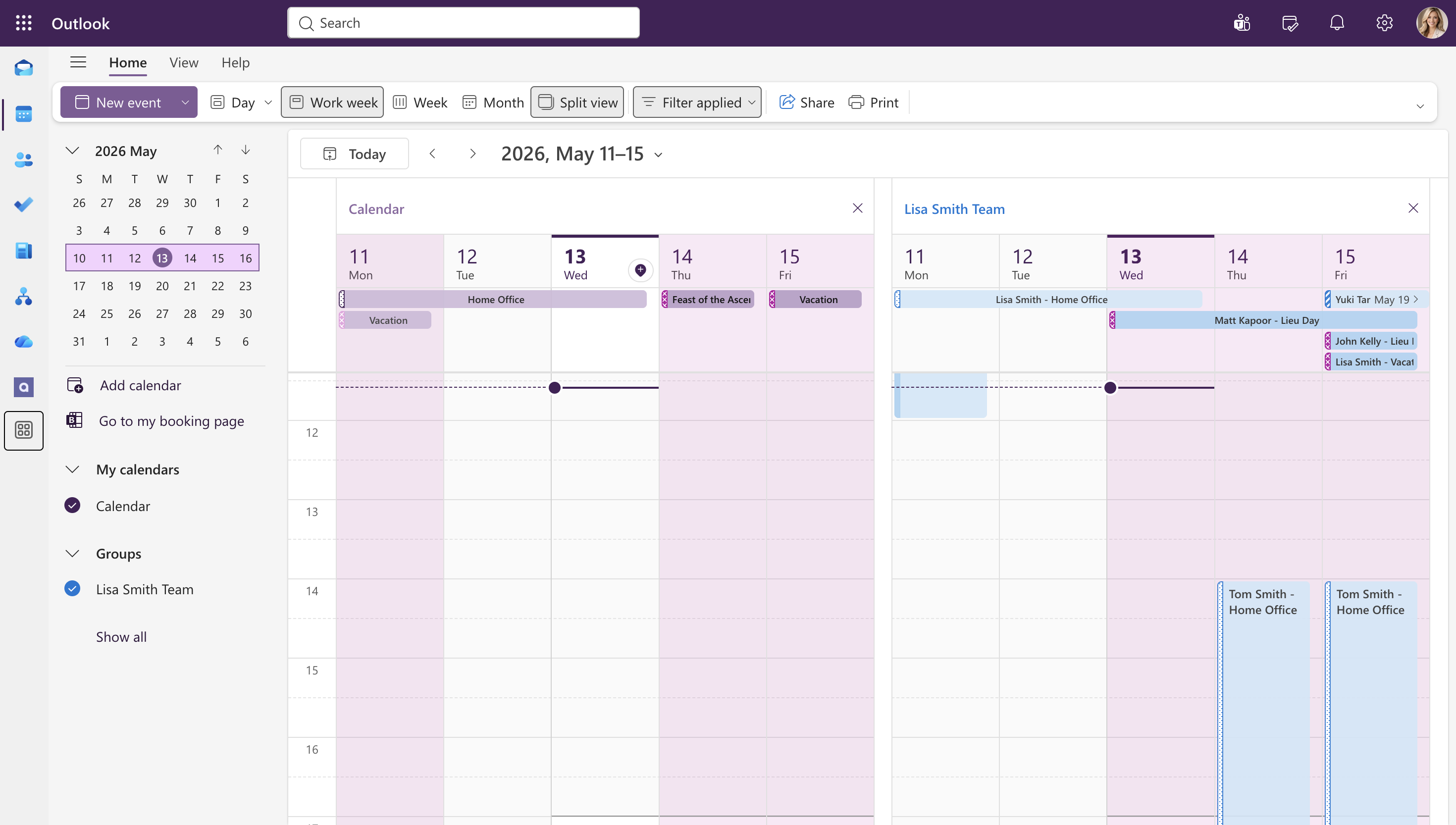
Technically integrating Teams and Outlook is the first step, but the integration only delivers its full value once you have a clean calendar structure on top of it. Teams meetings appear automatically in the Outlook calendar, but absences, leave days and overlaps in the team only show up there if that data is actually entered.
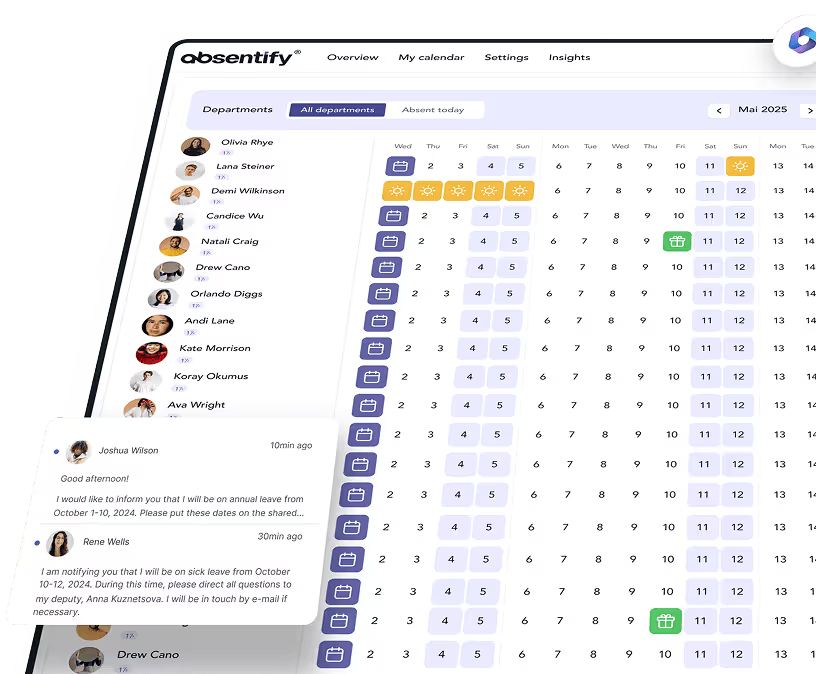
A group calendar in MS Teams and the option to view another person's Teams calendar quickly hit the limits of Microsoft's native features in practice. Absences can be entered manually, but absentify offers automated, rule-based absence management directly in Teams and Outlook — without a separate platform.
absentify can plug absences automatically into Microsoft 365 calendar processes and support notifications when changes occur. Which data is synced and how availability appears in any given case depends on the product configuration in use and on your Microsoft 365 settings.

How Do You Keep Working Hours Consistent Across Outlook and Teams?
Outlook is the primary place for working hours and work location. Maintain these settings in Outlook so that availability information and scheduling features stay as consistent as possible. Teams can additionally show the work location and mirror changes to Outlook in supported environments.
- Outlook (Windows): Maintain working hours and work location in the new Outlook for Windows or Outlook on the web
- Teams: Optionally set the work location directly in your profile, where the feature is supported in your environment
Keep working hours, time zone and absences consistent so that scheduling suggestions and free/busy displays stay as accurate as possible. Correctly entered absences improve visibility across the company, but they do not always automatically prevent invitations during that period.
Which Security and Compliance Aspects Apply to the Teams–Outlook Integration?
The Teams–Outlook integration processes calendar, identity and meeting data through Microsoft 365 — primarily through Teams and Exchange Online. For a stable and secure setup, authentication, policies and tenant configuration need to line up.
Key points for IT admins:
- Authentication: Supported authentication methods and matching Teams meeting policies are required. Which specific requirements apply depends on the Microsoft 365 and Exchange configuration in use. MFA is sensible in many environments but is not technically mandatory in every environment.
- Conditional Access: Policies in Microsoft Entra ID can restrict access to Teams, Exchange and other Microsoft 365 services.
- Data protection and data residency: Teams meetings process metadata such as attendees, subject and timing. In regulated industries you should review which data-protection and storage-location rules apply to your tenant — for example under the GDPR and the EU Data Boundary.
Connecting Teams to Outlook: What's Left Once the Plumbing Works?
Integrating Teams in Outlook runs reliably as soon as licensing, Exchange configuration and add-in deployment are set up cleanly. What's still missing afterwards is the layer above: who is available when? Who is on leave? Who is missing when the next meeting gets scheduled?
That is exactly what absentify answers — directly inside the tools you already use every day.
Your benefits with absentify:
- Absences can be plugged automatically into Microsoft 365 calendar processes
- Leave requests can support defined approval flows in Microsoft Teams
- Depending on the configuration, conflict and team-availability hints can be surfaced
- The Microsoft 365 connection can reduce administrative effort for user-related processes, depending on the configuration in use and the existing systems

Manage absences directly in Microsoft 365
See at a glance who in the team is available — without a separate platform or manual upkeep.


Want to simplify absence management in Microsoft 365?
- No credit card required
- Unlimited free access
- Upgrade or cancel anytime
Integrating Teams in Outlook – Frequently Asked Questions
About the author

Anna Keller
Content manager at absentify
As a blog author at absentify, Anna Keller explains how companies can efficiently manage absences, vacations, and working hours. In her articles, she combines HR practice with Microsoft 365 tips for Outlook and Teams and provides templates, step-by-step instructions, and software comparisons for modern, digital processes.
Share article
More interesting articles

Workplace leave policies: what employers need to consider
A leave policy sets out how employees request time off and how the company approves it. Some provisions may form part of the employment contract; collective agreements, works agreements and internal procedures can add further requirements. This article explains the German framework, where the Federal Leave Act (Bundesurlaubsgesetz, or BUrlG) provides the legal baseline. Together, these rules create a consistent process for workplace leave planning.
Anna Keller
Content manager at absentify

How to request annual leave: process, approval and rules
A leave request records the dates an employee would like to take off. It provides the basis for approval and team absence planning. Employers can check the dates against existing absences and operational requirements. Approval gives employees clarity about their holiday. This guide covers annual leave in Great Britain: the Working Time Regulations 1998, relevant agreements and the company's procedures determine the rules.
Anna Keller
Content manager at absentify

Remaining leave: calculation, carryover and German legal rules
How many days of leave are still available, and how long can they be used? A remaining leave balance answers precisely these questions. It shows which days from the current or an earlier leave year are still outstanding. For companies, this figure also matters for future leave planning. In Germany, whether unused days can be carried over or expire later depends primarily on section 7 of the Federal Leave Act (BUrlG) and the employer's duties to cooperate.
Anna Keller
Content manager at absentify