

View Teams Calendar of Others: Step-by-Step Guide (2026)

The easiest way to coordinate appointments within the company is if you can directly view other people's Teams calendar. With the right settings, you save yourself annoying follow-up questions, avoid scheduling conflicts, and keep track of the availability of all participants.
Viewing other people's Teams calendars: The essentials at a glance
-
Outlook allows for full integration of other people's calendars into Teams and viewing them with the appropriate permissions.
-
External calendars will be visible in Teams once they are shared and integrated in Outlook. Users can then activate shared calendars from colleagues or groups.
-
Access on mobile devices is restricted. For full calendar functionality, the Outlook app or Outlook Web should be used.
-
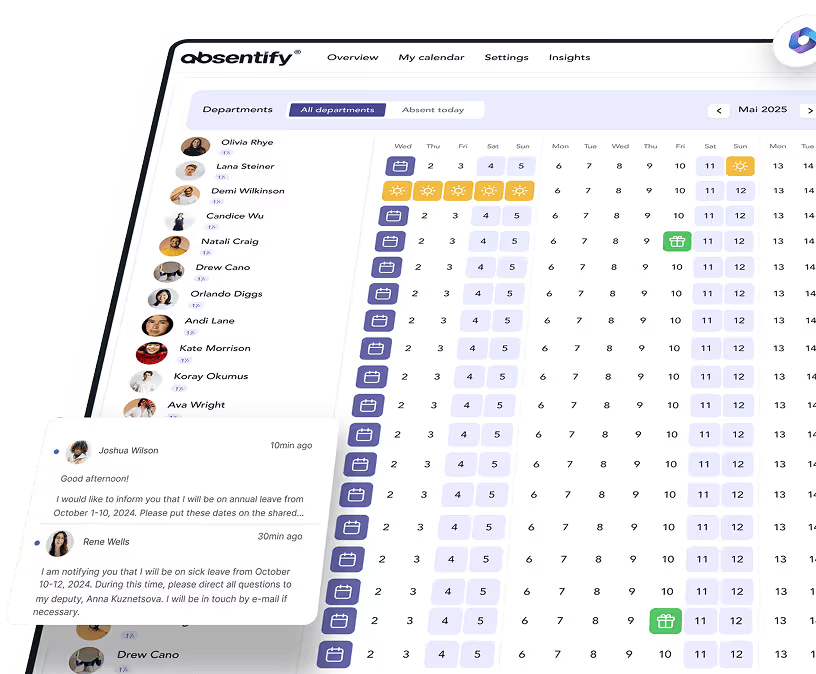
absentify makes sickness, shift, and holiday planning automatically visible in the Teams calendar and integrates it directly into the scheduling.
How can you integrate the calendar in Teams?
Calendars of other people must be integrated via Outlook and will then automatically be displayed in Teams as well. In Teams itself, you can only show or hide calendars that have already been integrated, but you cannot add new ones.
Here's how to add a calendar in Outlook:
Since the Teams calendar is based on Outlook, you add calendars there:
-
Open Outlook (Desktop or Web) and click on “Calendar”
-
Select “Add Calendar”
-
Enter name or email and select the desired calendar if permission has been granted

Once the calendar has been added to Outlook, it will automatically appear in Microsoft Teams. You can choose to show or hide it in the calendar view there.

How can you share your team's calendar?
To allow others to see your calendar in Microsoft Teams, you need to set up sharing through Outlook. The reason is that the Teams calendar is technically based on Exchange Online as well as Outlook, and permissions are managed there.
Step-by-step in Outlook (Desktop version)
-
Open Outlook and switch to the calendar
-
Right-click on your calendar and select Share or Calendar Permissions
-
Add person and enter name or email address
-
Set permission level, e.g.:
-
Only Availability: shows only Free/Busy
-
Details restricted: shows subject and time
-
Complete details: shows all the contents of the appointment
- Confirm with OK
Step-by-Step in Outlook Web (OWA)
-
Open in the browser Outlook Web App
-
Click on 'Calendar' at the bottom left
-
Click on 'Share' at the top and select 'Recipient'
-
Adjust permissions and send invitation
As soon as the sharing in Outlook is active, your calendar will automatically become visible in Teams for that person. There is no additional step required in Teams. This works directly, as the Teams calendar accesses your Outlook calendar directly.
View calendar on mobile or in browser
If you want to view the Teams calendar of others, you can do so on mobile or in the browser, though with a few limitations:
In the Microsoft Teams app (mobile)
-
Open the Teams app
-
Go to Calendar
-
Tap on an existing appointment to see participants
-
The mobile Teams app only displays the main calendar (the Outlook mobile app is required to view multiple shared calendars)
In Outlook Mobile
-
Open Outlook app
-
Select calendar
-
Tap on 'Add to Calendar' and select 'From Contacts'
-
Search for a contact, tap it, and add to Microsoft Teams Calendar – the calendar will appear in your view
In the browser (Teams & Outlook Web)
Just like in the desktop version, a calendar can be added from the directory using Outlook Web. Teams in the browser supports the same calendar features as the desktop version, provided that the new Teams calendar is used. However, for adding new calendar shares, the Outlook method should still be used.

What are the prerequisites for viewing other people's Teams calendar?
Before you open a team member's calendar, certain **technical and organizational conditions **must be met and the new Teams calendar installed. Without this preliminary work, access will be either limited or not possible at all.
1. Correct Microsoft 365 License
Access to calendars in Teams is based on Outlook integration. Both you and the other person need a Microsoft 365 license that includes Exchange Online. Without an Exchange mailbox, a calendar view in Teams is not possible.
2. Sharing Settings in the Outlook Calendar
By default, access only shows whether someone is “Free” or “Busy.” To see appointment details, the person must explicitly share their calendar. Sharing permissions can be configured in the Outlook desktop client or via the browser (Outlook Web App).
3. Belonging to the Same Tenant
If team members work in different Microsoft 365 environments, calendar sharing becomes more complicated. In most cases, IT needs to enable cross-tenant guest access.
4. Check Permissions
Common reasons why access might not work:
-
The person has removed the sharing permissions.
-
Access is limited to “Free/Busy” status only.
-
Old invitation links or connections no longer work.

Start for free now
No credit card required—enjoy unlimited access with our free plan. You can upgrade or cancel anytime.
Common issues and quick fixes to view the Teams calendar of others
Even when the steps are clear, there are situations where the Teams calendar does not display as desired compared to others. The most common causes and what you can do:
No permission to view
-
**Reason: **The colleague has not shared the calendar
-
**Solution: **Request sharing in Outlook (Home → Share Calendar → Add Person)
Calendar is not displayed
-
Reason: Synchronization between Teams and Outlook is lagging
-
Solution: Close Outlook and restart it or open it in a browser and check if the calendar appears there
The wrong calendar is displayed
-
**Reason: **Person has multiple calendars and shared the wrong one
-
**Solution: **Request the release of the correct calendar (e.g., “Default Calendar”)
The Teams app is missing features
-
**Reason: **Teams does not support full calendar sharing
-
**Solution: **Use Outlook app or Outlook web
Best Practices for Transparent Scheduling in Teams
Being able to view a team's calendar is just the first step. To ensure that scheduling goes smoothly, it's worth establishing a few basic rules:
Establish uniform release standards
Decide as a team which **level of access **everyone uses (e.g., availability only or details including the subject). This way, there are no gaps in the overview.
Clearly mark appointment blockers
Use** clear subject lines** such as “Project XY – Coordination” or “Focus Time”. This makes it easier for others to identify free slots.
Create shared calendars for projects
For larger projects, it's worth having a separate calendar, which can be shared in Teams or Outlook. This keeps project-related appointments in one place.
Regularly check and update
An outdated calendar leads to double bookings and misunderstandings. At least review your own entries once a week.
Control Teams Calendar through absentify
Scheduling in Microsoft Teams reaches its full potential with Absentify. By default, the Teams calendar only shows limited information about who is available. With absentify, vacations, sick days, home office, and shift plans are automatically created in Teams and directly reflected in the calendar. This transforms a simple calendar into a true capacity management tool.
Benefits of absentify in the Teams Calendar:
-
Holiday and sickness notifications appear automatically in the Teams calendar, without additional tools or coordination
-
Executives can immediately see who is available and where bottlenecks may occur
-
Approval processes for absences run directly in Teams, without emails or external systems
-
Employees request absences in their usual environment and keep track of their appointments
-
Shift schedules, absences, and working hours are consolidated in a calendar view
Those who use Microsoft Teams as a platform can manage the Teams calendar with absentify reliably, transparently, and in compliance with the law and avoid scheduling errors from the start.
Would you like to simplify your absence management?
- No credit card required
- Unlimited free access
- Upgrade or cancel anytime
Viewing Other People's Team Calendars – Frequently Asked Questions and Answers
About the author

Anna Keller
Content manager at absentify
As a blog author at absentify, Anna Keller explains how companies can efficiently manage absences, vacations, and working hours. In her articles, she combines HR practice with Microsoft 365 tips for Outlook and Teams and provides templates, step-by-step instructions, and software comparisons for modern, digital processes.
Share article
More interesting articles

Reducing overtime: rights, duties and the process for employers and teams
Reducing overtime means offsetting accumulated extra hours with time off or payment. Under German employment law, the six calendar months or 24 weeks specified in the German Working Time Act apply solely to offsetting an extended working day against the statutory eight-hour average. Employment contracts, works agreements or collective agreements determine how an overtime balance can be reduced. Where these rules permit time off in lieu, the employer determines its timing and process within the scope of their right to give instructions.
Anna Keller
Content manager at absentify

When does unused leave expire? Deadlines and exceptions that determine your entitlement
Under German law, unused leave expires only under certain conditions: entitlement generally lapses on 31 December, or after the carryover period on 31 March, only if your employer has given you timely and specific notice of the impending expiry and you still do not take the leave. An exception applies in cases of continuous illness.
Anna Keller
Content manager at absentify

Employee Self Service (ESS): Definition, Features, and Benefits for Leave and Absence Management
Employee Self Service (ESS) gives employees access to manage their personal data, leave requests, or absences themselves without coordinating every step with HR. The term originally comes from SAP HR modules and has become an umbrella term for self-service features in human resources. Its benefits are particularly clear in leave and absence management.
Anna Keller
Content manager at absentify