

Structuring Microsoft Teams correctly – Your options for better organization
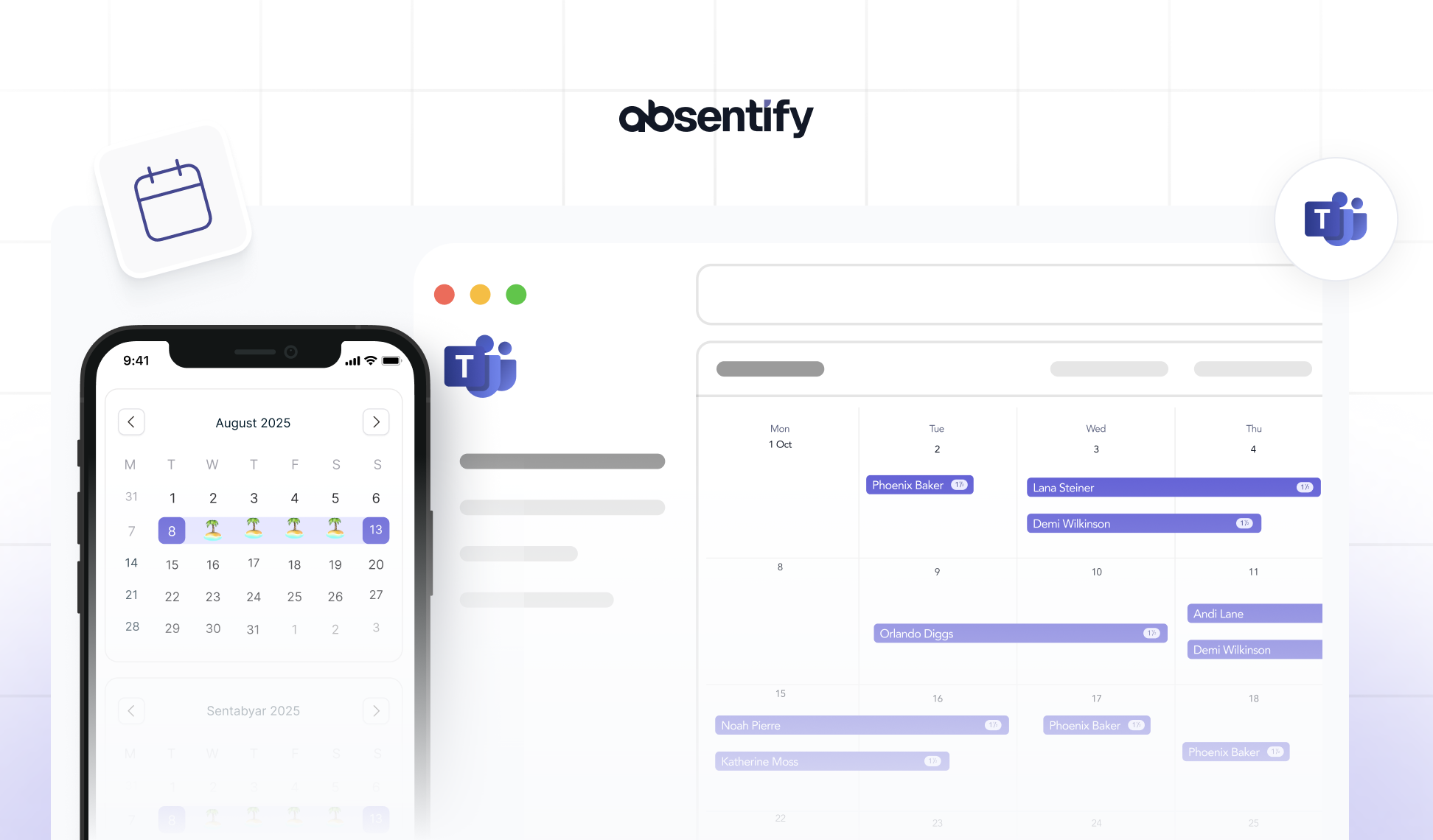
Countless teams, duplicate files, endless messages – and when you're looking for something, you can't find it? If you're new to Teams or have been using it haphazardly, now is the right time to bring much more order to the interface. Here you'll learn about the options for structuring Teams, what they offer you, and how to implement them.
What basic structures does Microsoft Teams provide?
The actual core of Microsoft Teams is located in the Teams section. Here you can:
-
Create teams: for departments, projects, or specific topics.
-
Add channels: to organize content and discussions within a team effectively.
A team is in the process of being the overarching unit (e.g., 'Marketing' or 'Project Müller GmbH') and channels form the subareas (e.g., 'Campaigns', 'Social Media', or 'Strategy'). In addition to these main units, Teams offers additional features:
-
Chats & Calls: Direct messages or group conversations without team affiliation.
-
Meetings & Calendar: Integration of Microsoft Outlook for meetings and video conferences.
-
**File management: **Collaborative work on documents with Microsoft 365 (e.g., Word, Excel, PowerPoint).
-
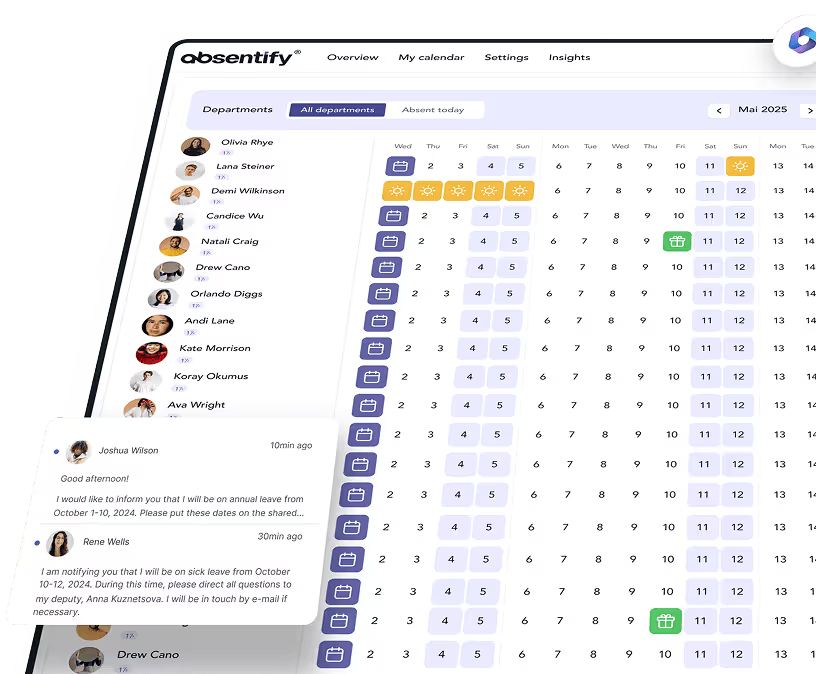
**Apps & Automation: **Here you can extend the functionality of Teams, for example, with vacation and absence management, notes, or whiteboards.
Possible structural concepts for Microsoft Teams
Here we show you various ways in which you can create your own structure.
Organize teams by departments
-
Team "Marketing" – channels such as "General", "Campaigns", "Social Media", "Events".
-
Team "Sales" – channels such as "General", "Lead Management", "Customer Projects".
-
Team "Development/IT" – channels such as "General", "Support", "Projects", "Knowledge Base".
**Typical mistake: **Creating too many channels per department from the start. Begin with the essentials and allow the structure to grow organically.
Divide teams by processes or subject areas
-
Team "Strategy & Planning" – channels such as "Annual Planning", "Strategic Objectives", "Budget Planning".
-
Team "Internal Communication" – channels such as "Company News", "Feedback Session", "Celebrating Successes".
Typical mistake: Too many general channels like 'General', 'Miscellaneous', or 'Filing'. Usually, one is enough. Then it's also clear where memes and personal stuff should go.
Use the "General" channels effectively
Every team automatically has a channel named 'General'. Many let this channel lie fallow – or use it for all sorts of things. It's better to discuss only overarching topics here that concern the entire team.
Tip:
-
Define clear rules for what is discussed in the "General" channel – such as important announcements or brief team updates.
-
Always refer to the appropriate specialized channel for detailed discussions.
**Typical mistake: **"General" becomes a "dumping ground" – everyone posts everything, and no one can find relevant information anymore. If you designate “General” specifically for fun and personal content, then all important topics should consistently be located elsewhere.

Step-by-step instructions for creating new teams and channels
-
Open Microsoft Teams: Navigate to 'Teams' in the left sidebar.
-
**Create new team: **Click on "Join or create a team" below.
-
**Choose a team: **Select "Create Group" (public/private), depending on how restricted you want the team access to be.
-
**Team name and description: **Assign a unique name ("Marketing Team 2025") and a brief, clear description.
-
**Add team members: **Invite the relevant people directly.
-
Create channels: Click on the '...' menu (three dots) next to the team name → 'Add channel' → Assign a concise channel name ('Events') and optionally add people or apps.
**Tip: **Plan ahead before creating a large number of channels to consider if you really need them all. Less is often more.
Organize files
In every channel, there is a "Files" tab. Pay special attention to a sensible folder structure and coordinate with your team:
-
Uniform Filenames: For example, use the date and a brief description: “2025-04-01_TeamMeetingMinutes.docx”.
-
**Folders by topics: **"Presentations", "Offers", "Images" etc.
Typical mistake:
-
Place everything in the main folder: this is how you quickly lose track.
-
Filenames that no one understands, e.g., “final_lastVersion_2.docx” or “master_new_5(1).docx”.

Start for free now
No credit card required—enjoy unlimited access with our free plan. You can upgrade or cancel anytime.
More structure and functionality through apps in Teams
In Microsoft Teams, you can install apps to add more features. It works just like apps on your smartphone, which allow you to add a level, photo plant identification, or a guitar tuner.
Here's how to install extensions and apps like absentify in Microsoft Teams:
-
**Step 1: **Open Microsoft Teams and click on “Apps” in the left navigation.
-
**Step 2: **Search for “absentify” in the search bar.
-
**Step 3: **Click on 'Add' to add the app to your Teams account.
-
**Step 4: **Select the team or channel where Absentify will be used.
-
**Step 5: **Configure the absence rules – e.g., vacation days, training, workation, etc.
-
Step 6: Your team members can now record absences, request vacation, and see who is available when. You can approve or reject vacations directly in Teams.

Common mistakes in team structuring – and how to avoid them
Too many channels with no content
-
**Error: **Everyone creates a channel on suspicion, but no one posts anything there.
-
**Solution: **Create channels only when there is a clear topic and a need.
Ambiguous Nomenclature
-
**Error: **Channels are named "XYZ_1234" or "Afternoon", which no one understands.
-
Solution: Always choose self-explanatory names, e.g., 'Marketing Campaigns Q2'.
Lack of moderation
-
**Error: **Anyone can create, delete, or rename anything.
-
**Solution: **Define roles and utilize the settings for ownership rights.
No regular maintenance
-
Error: Old channels and files remain for years – no one knows if they are still current.
-
Solution: Schedule fixed appointments to tidy up teams and channels.
Would you like to simplify your absence management?
- No credit card required
- Unlimited free access
- Upgrade or cancel anytime
Structuring Microsoft Teams – Frequently Asked Questions and Answers
About the author

Anna Keller
Content manager at absentify
As a blog author at absentify, Anna Keller explains how companies can efficiently manage absences, vacations, and working hours. In her articles, she combines HR practice with Microsoft 365 tips for Outlook and Teams and provides templates, step-by-step instructions, and software comparisons for modern, digital processes.
Share article
More interesting articles
Reducing overtime: rights, duties and the process for employers and teams
Reducing overtime means offsetting accumulated extra hours with time off or payment. Under German employment law, the six calendar months or 24 weeks specified in the German Working Time Act apply solely to offsetting an extended working day against the statutory eight-hour average. Employment contracts, works agreements or collective agreements determine how an overtime balance can be reduced. Where these rules permit time off in lieu, the employer determines its timing and process within the scope of their right to give instructions.
Anna Keller
Content manager at absentify
When does unused leave expire? Deadlines and exceptions that determine your entitlement
Under German law, unused leave expires only under certain conditions: entitlement generally lapses on 31 December, or after the carryover period on 31 March, only if your employer has given you timely and specific notice of the impending expiry and you still do not take the leave. An exception applies in cases of continuous illness.
Anna Keller
Content manager at absentify
Employee Self Service (ESS): Definition, Features, and Benefits for Leave and Absence Management
Employee Self Service (ESS) gives employees access to manage their personal data, leave requests, or absences themselves without coordinating every step with HR. The term originally comes from SAP HR modules and has become an umbrella term for self-service features in human resources. Its benefits are particularly clear in leave and absence management.
Anna Keller
Content manager at absentify