

Synchronize Teams with absentify and Entra ID
Sync selected Microsoft Entra ID groups with the right absentify departments automatically and eliminate duplicate maintenance.
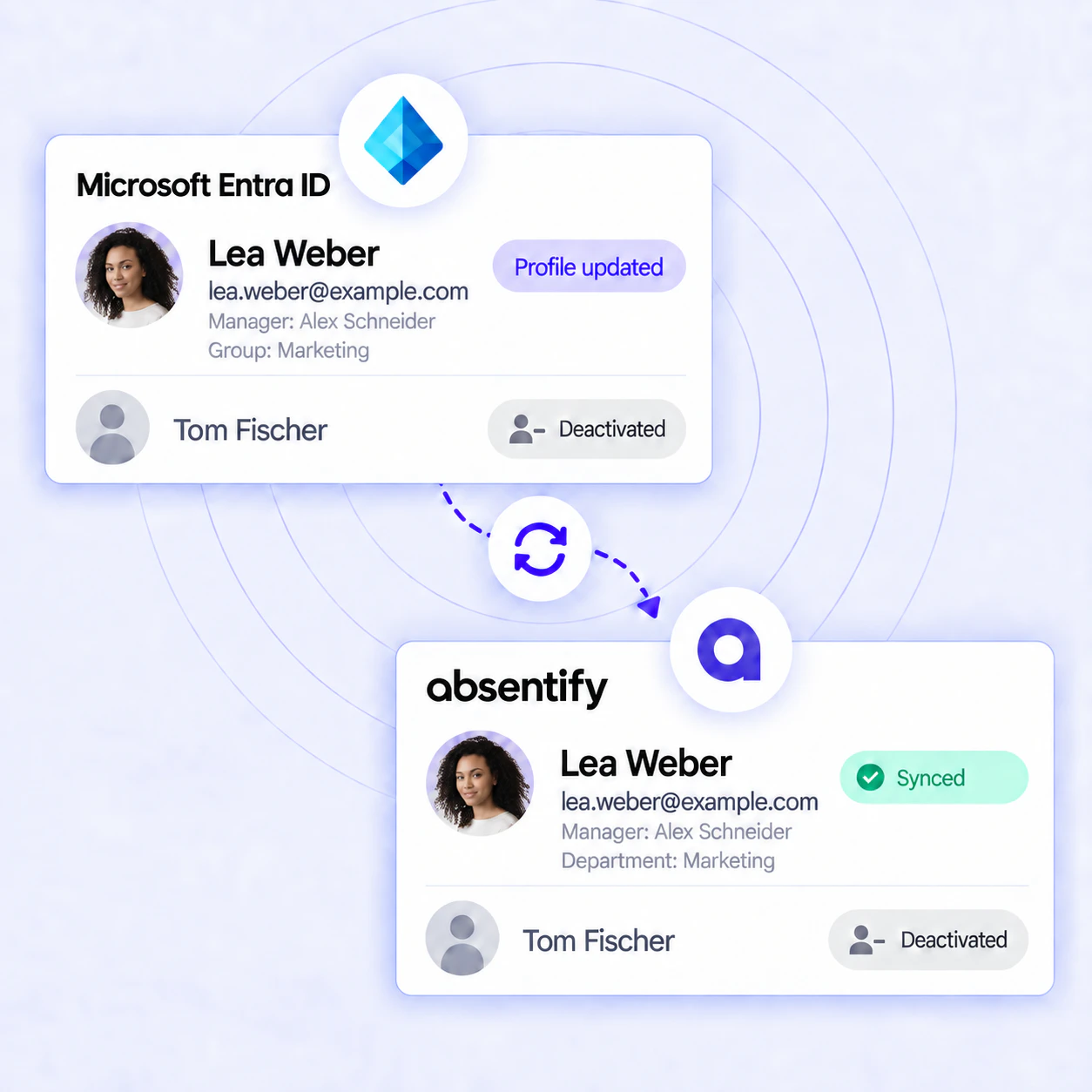
Do you manage your company in Microsoft 365, but groups and users need to be maintained twice? Incorrect absence data in Outlook or Teams slows down coordination and ties up capacity.
absentify connects selected groups from your Entra ID (formerly Azure AD) with the appropriate absentify departments:
- Group memberships are automatically assigned to appropriate departments
- New employees can be added to absentify more quickly
- Changes to groups are applied without double data maintenance
- IT and HR maintain a clear, up-to-date organizational structure
Used by 30,000+ companies worldwide





















Synchronize MS Teams without maintenance
Forget manual maintenance: absentify automatically transfers changes from selected Entra ID groups to the appropriate departments.
How does Teams & Entra ID synchronization work with absentify?
The synchronization automatically assigns members of selected Entra ID groups to the appropriate absentify departments. This keeps memberships up to date and eliminates the need for duplicate maintenance.
Step 1: Connect to Entra ID
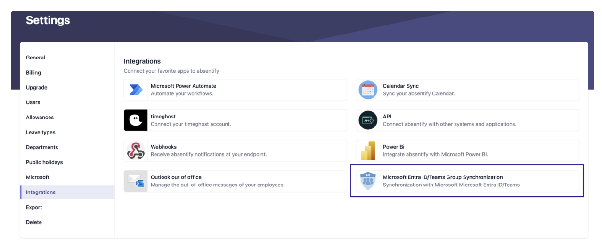
- In absentify, go to Settings > Integrations
- Select “Microsoft Entra ID/Teams Group Sync” and click “Add”
- Follow the connection dialog and select the desired Microsoft group
Step 2: Configure connection
Assign name
Select source
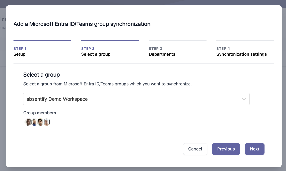
Determine target department
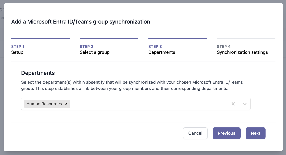
Step 3: Enable automatic management
Automatic user account creation
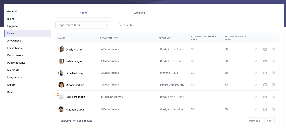
Manage department affiliation
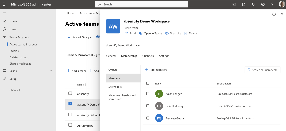
Group owner as department head
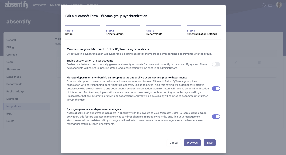
Step 4: First testing and start
- Save settings and start syncing
- Check in Settings > Users whether the synced members and department assignments are correct
- Make a change in Entra ID (e.g. adding a user) and check that absentify updates the linked department
The sync runs automatically in the background and keeps the linked absentify departments up to date.
Stop or pause Teams sync
By the way, you can use the Integration overview to temporarily pause Entra ID synchronization or switch it off completely if you prefer manual maintenance.
Less effort and full transparency for IT and HR
Less maintenance required
Fast on/offboarding
Uniform absence data
Clearer overview
Access control
Setup & requirements
To set it up, you need administrator access to absentify and Microsoft 365. Then connect the desired Microsoft group to the appropriate absentify department and specify which administration options should be carried out automatically.
The official Entra ID/Teams group sync guide walks through the administrative details.
Data protection is a priority

Sync Outlook calendar and out-of-office notes
With absentify you keep your calendars in Outlook and Teams up to date. Absences are automatically entered as appointments and your out-of-office messages are activated at the planned time.
- Automatic calendar entries: absentify creates appointments for approved absences from absentify.
- Automatic out-of-office message: Templates with placeholders (date, name, substitute) are activated and deactivated in Outlook at the defined time.
- Status update in Teams: Microsoft Teams displays the out-of-office information set in Microsoft 365 and the appropriate message.
- Automatic adjustment: Changes to absence periods in absentify are automatically reflected in calendars and messages.

Start now and automatically sync Teams & Outlook
Experience how absentify automatically transfers selected group memberships to the appropriate departments and reduces manual maintenance.
Synchronize Teams – Frequently Asked Questions and Answers
Microsoft Entra ID and Teams Group sync answers.