

Quick Parts in Outlook: How to Use Building Blocks and AutoText Effectively
You want to create Quick Parts in Outlook but can't find where the setting sits, you're unsure what the difference between a Quick Part and AutoText actually is, and you don't understand why your colleagues can't see the building blocks you saved. This guide answers exactly those questions, including notes on the new Outlook and the limits of synchronisation in Microsoft 365.
Quick Parts in Outlook: The Essentials at a Glance
- Outlook differentiates between Quick Parts for formatted text blocks and AutoText for short phrases. Both only run in the classic desktop client, not in the new Outlook or Outlook on the web.
- Quick Parts in Outlook are stored locally in the NormalEmail.dotm file and don't sync automatically. Rolling them out across a team requires manual distribution or a centralised SharePoint approach.
- Outlook Quick Parts can help your team prepare automatic-reply text faster. Users can pull in pre-written wording for the situation at hand, whether in HR, support or sales.
- absentify drives automatic Outlook out-of-office messages from registered absences. The reply is activated when the absence starts and switched off again once it ends.
What Are Quick Parts in Outlook and What Do They Do?
Outlook involves three concepts that users often mix up: text blocks, Quick Parts and AutoText. "Text block" is the umbrella term people use in everyday language. Inside Outlook itself, there are two specific features.
Quick Parts store complete text blocks, tables, graphics or formatted paragraphs in a gallery and let you insert them with a click or a keyboard shortcut. AutoText is technically a category within that same gallery and is mostly suited to short, frequently used phrases.
| Term | What it is | Formatting possible? | Where it's available |
|---|---|---|---|
| Quick Part | Complete text blocks, tables, graphics | Yes | Classic Outlook for Windows |
| AutoText | A category within the building-block gallery, often used for short standard texts | Yes | Classic Outlook for Windows |
| Template (.oft) | A complete email template saved as an Outlook file | Yes | Classic Outlook for Windows, new Outlook, Outlook on the web |
| Email templates in new Outlook / Outlook on the web | Built-in template feature in the respective interface | Yes | New Outlook, Outlook on the web |
Microsoft describes AutoText as a building-block type within Quick Parts. These building blocks can in principle contain formatted content too. They are different from classic Outlook templates in the .oft format, which are used in classic Outlook for Windows. The new Outlook and Outlook on the web instead provide their own template features and add-ins.
What Is the Difference Between Quick Parts and AutoText in Outlook?
AutoText is a building-block type within Quick Parts and is most often used for short, recurring text. In practice, AutoText entries and other Quick Parts can be inserted via the menu, or by typing the entry's name and pressing F3.
A blanket distinction along the lines of "AutoText without formatting" versus "Quick Parts with formatting" isn't accurate, because AutoText can contain formatted content as well.
Which Outlook Versions Support Quick Parts?
| Outlook version | Quick Parts | AutoText |
|---|---|---|
| Outlook 2019 / 2021 (desktop) | Yes | Yes |
| Microsoft 365 Outlook for Windows (classic) | Yes | Yes |
| New Outlook for Windows | No | No |
| Outlook on the web (OWA) | No | No |
| Outlook iOS / Android | No | No |
How Do I Create a Quick Part in Outlook?
You build Quick Parts straight from an existing email — there's no separate editor to open.
To create an Outlook Quick Part:
- Type the desired text in a new email.
- Select the text you want to save as a building block.
- On the ribbon, go to "Insert", then "Quick Parts".
- Click "Save Selection to Quick Part Gallery".
- Give it a unique name, choose a category and define the storage location.
- Confirm with "OK".
For the storage location, Outlook saves Quick Parts to the NormalEmail.dotm file by default. That file lives locally on your machine. Without a backup, your building blocks disappear the moment you switch device or reinstall.
Inserting a Quick Part by Keyboard Shortcut in Outlook
You call up the building block by pressing F3 once you've typed the first few letters of its name. Outlook then shows a tooltip and inserts the content with Enter. Alternatively, open it via "Insert" / "Quick Parts" and pick it from the preview list.
Putting an Outlook Quick Part Into Its Own Category
Past around ten building blocks without categories, the gallery quickly becomes hard to scan. When saving, create your own categories such as "Support", "HR" or "Sales". That separates the areas of responsibility cleanly and lets each team member find their section instantly.

How Does AutoText Work in Outlook and When Is It the Better Choice?
You create AutoText the same way as a Quick Part, but explicitly choose the AutoText category. In practice, you insert an AutoText entry by typing the first characters of its name and accepting the suggestion.
AutoText is best suited to short standard phrases, for example:
- "Thanks for getting in touch — we'll get back to you within 24 hours."
- "Kind regards, the Support Team"
- "Please forward this email to the relevant department."
As soon as more elaborate formatting, tables or logos come into play, Quick Parts are usually the more appropriate option. That said, AutoText is also part of the building-block gallery and isn't strictly limited to plain text.
How Do I Enable AutoText Suggestions in Outlook?
AutoText entries are tied to the Quick Parts gallery. If no suggestion appears as you type, first check that the entry is correctly saved as AutoText and that you're typing its name correctly.
Deleting or Renaming AutoText
Open "Insert" / "Quick Parts" / Building Blocks Organizer. Select the entry, click "Edit Properties" to rename it or "Delete" to remove it.
Editing and Managing Quick Parts in Outlook
You can only edit existing building blocks' properties — name, category or library — in the Organizer. To change the actual content, select the updated text in a new email, go to "Quick Parts" → "Save Selection to Quick Part Gallery" and use the original entry's name. Outlook will then ask whether to replace the existing entry.
Delete outdated building blocks regularly. In team contexts, stale wording quickly leads to mistakes in customer communication.
How Do I Roll Out Outlook Quick Parts to the Whole Team?
Quick Parts live locally inside the NormalEmail.dotm file and don't sync automatically through Microsoft 365. That is the most common reason colleagues can't see building blocks another user has set up.
| Method | Effort | Prerequisite | Best for |
|---|---|---|---|
| Distribute NormalEmail.dotm manually | Low | Shared network drive or SharePoint | Small teams |
| SharePoint template with a centralised .dotm | Medium | SharePoint access | Mid-sized teams |
| Exchange / M365 admin centre | High | Admin permissions | Large organisations |
If your organisation wants to share full email templates across the team, Outlook templates are a useful complementary route. .oft files can sit on a shared drive and be opened by every team member.
Sharing Quick Parts via SharePoint Across the Team — What to Watch Out For
If you want building blocks to be available across the team, you can manually distribute the underlying file to the relevant workstations. Platforms like SharePoint can be used as the organisational hub for that. However, there's no reliably documented standard Outlook option for switching everyone over to a shared Quick Parts path.
When Are Exchange Mail-Flow Rules a Better Fit Than Quick Parts?
When legally required wording such as disclaimers or notices needs to appear consistently in every outgoing email, Exchange mail-flow rules are a better fit than Outlook Quick Parts. That's a separate topic from managing Quick Parts themselves — it's about server-side rules for outgoing messages. For user-specific text blocks in Outlook, template and building-block management in the client remains a separate concern.
Using Quick Parts Effectively for Out-of-Office Messages in Outlook
For out-of-office messages in particular, building a small library of Quick Parts pays off. HR teams, support and sales all use different wording for holiday, sickness or parental leave. Organising the building blocks by absence type saves time and prevents tonal inconsistencies.
The flow runs in three steps: open the Quick Part, paste the text into the Outlook automatic reply and configure separate rules for internal and external recipients.
Standardised out-of-office templates provide a solid starting point for the most common scenarios. If you regularly use Outlook for absence management, you'll find further notes on settings and variants in our piece on out-of-office messages in Outlook.

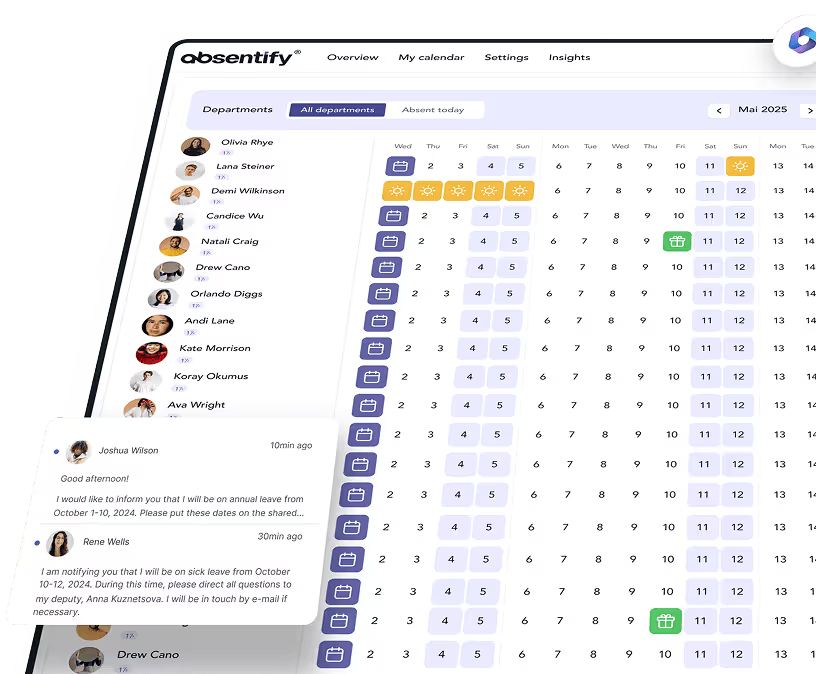
absentify helps organisations manage absences in Microsoft 365 and link automatic out-of-office replies to those entries. That can reduce the manual maintenance of automatic replies, provided the feature is configured and enabled for the relevant users.

Manage absences in Outlook automatically — no manual upkeep
Manage absences in Microsoft 365 automatically, without having to learn new software. absentify integrates directly with Teams and Outlook.
Are Quick Parts Still Available in the New Outlook for Windows and Microsoft 365?
The new Outlook, which Microsoft has been rolling out gradually since 2024, is technically based on Outlook on the web. Quick Parts and AutoText are not currently available in this version.
The new Outlook does, however, offer signatures, text predictions, template features and improved search, among other things. The Quick Parts gallery is still missing.
What Are the Alternatives to Quick Parts in the New Outlook?
In the new Outlook, Quick Parts and AutoText are not currently available. Alternatives include the built-in template feature, add-ins like "My Templates", external text-expander tools, or text collections maintained separately. Anyone who specifically relies on the classic Quick Parts feature will still need classic Outlook for Windows.
Do Quick Parts Work in Outlook on the Web (OWA)?
No. Outlook on the web doesn't have the classic Quick Parts gallery. However, users who work exclusively in the browser can still rely on signatures, saved drafts and template features such as email templates or My Templates.
Practical Examples: Quick Parts in HR, Support and Sales
| Area | Building-block name | Example text (shortened) |
|---|---|---|
| HR | Welcome-New | "Welcome to the team! Your first day starts on [date] at [time]. Please report to [contact] at reception." |
| Support | Ticket-Received | "Your request has been received and assigned ticket number [number]. Our team will get back to you within [X] business days." |
| Sales | Follow-up-Demo | "Thank you for our conversation today. Please find the documents we discussed attached. If you have any questions, you can reach me directly on [phone]." |
Quick Parts in Outlook and absentify: How to Save Time Every Day
Quick Parts and AutoText help you write recurring text faster and more consistently. Maintained in a structured way and rolled out across the team, they reduce coordination overhead and prevent wording errors in customer communication.
For out-of-office messages, absentify takes things one step further.
Your benefits with absentify:
- Absences can be linked to automatic replies in Outlook without having to set them manually each time
- Absence types such as holiday, sickness or parental leave can be managed in a structured way
- Absences are visible in your Microsoft 365 environment depending on your setup and permissions
- Approval workflows, deputy arrangements and notifications can all be modelled and automated within the system
Want to simplify your Outlook text blocks?
- No credit card required
- Unlimited free access
- Upgrade or cancel anytime
Quick Parts in Outlook – Frequently Asked Questions
About the author

Anna Keller
Content manager at absentify
As a blog author at absentify, Anna Keller explains how companies can efficiently manage absences, vacations, and working hours. In her articles, she combines HR practice with Microsoft 365 tips for Outlook and Teams and provides templates, step-by-step instructions, and software comparisons for modern, digital processes.
Share article
More interesting articles

Workplace leave policies: what employers need to consider
A leave policy sets out how employees request time off and how the company approves it. Some provisions may form part of the employment contract; collective agreements, works agreements and internal procedures can add further requirements. This article explains the German framework, where the Federal Leave Act (Bundesurlaubsgesetz, or BUrlG) provides the legal baseline. Together, these rules create a consistent process for workplace leave planning.
Anna Keller
Content manager at absentify
How to request annual leave: process, approval and rules
A leave request records the dates an employee would like to take off. It provides the basis for approval and team absence planning. Employers can check the dates against existing absences and operational requirements. Approval gives employees clarity about their holiday. This guide covers annual leave in Great Britain: the Working Time Regulations 1998, relevant agreements and the company's procedures determine the rules.
Anna Keller
Content manager at absentify
Remaining leave: calculation, carryover and German legal rules
How many days of leave are still available, and how long can they be used? A remaining leave balance answers precisely these questions. It shows which days from the current or an earlier leave year are still outstanding. For companies, this figure also matters for future leave planning. In Germany, whether unused days can be carried over or expire later depends primarily on section 7 of the Federal Leave Act (BUrlG) and the employer's duties to cooperate.
Anna Keller
Content manager at absentify