

Real-time Outlook calendar synchronization – always keep track of every absence
absentify automatically synchronizes approved vacations, sick leave, and remote work with Outlook. This gives your team an up-to-date view of absences without entering information twice.
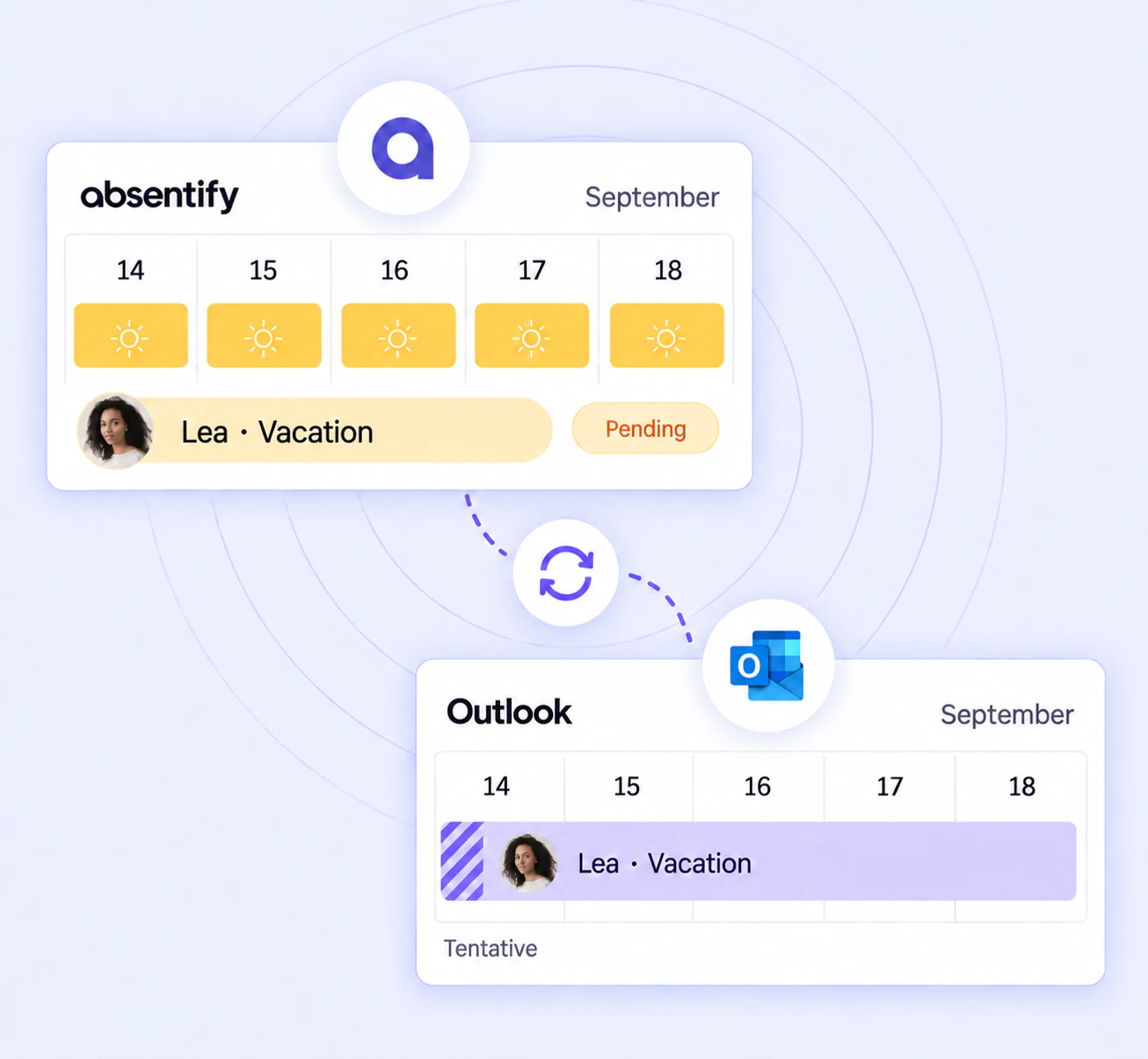
The first Teams meeting of the day is coming up, but your Outlook calendar shows outdated appointments and incorrect absences. Nobody notices that you are working from home or that a colleague is sick. When companies don't sync their Outlook calendars, meetings quickly get canceled, rooms become blocked, and you spend time on manual updates instead of on important tasks.
absentify synchronizes vacation, sick leave and remote work automatically and informs your team in real time about all absences, without manual updates:
- Absences directly synchronized with Outlook and Teams
- Changes appear immediately on desktop, iPhone and Android
- The integration runs automatically in the background
- Your team sees current availability and avoids double bookings
Used by 30,000+ companies worldwide



















Why is automatic Outlook calendar synchronization important?
Companies waste hours every day because absences are entered manually in Outlook. That means:
- Create the same vacation entries or sick notes by hand over and over again
- Unclear team availability and time-consuming queries
- High error rate for short-term changes
With automatic synchronization you can immediately create all absences in your Outlook calendar and in Teams. You save time, prevent misunderstandings and ensure consistent reliable planning. This way you stay focused on your tasks and keep projects running without delay.
absentify closes the gap between Teams, Outlook and absence planning
With absentify you can record vacation, sick leave and remote work directly in Microsoft Teams - without duplicate entry between Teams and the Outlook calendar. Once approved, the tool automatically enters all entries in your personal and shared calendars. This keeps your team up to date and saves you manual updates.
How to link Outlook calendars to absentify
You set up the connection directly in absentify. Open Settings > Integrations > Shared Calendar Sync, create a connection and select the desired calendar type. You then determine the target calendar or the recipient address of an iCal invitation, the appropriate departments, absence types and, if necessary, the filter approved absences only.
This means that only the selected absences are included in the target calendar. The exact setup is shown in the official guide for shared calendar synchronization.

Synchronize Outlook calendar and keep an eye on absences
Record vacation, sick leave and remote work directly in Teams and receive all entries automatically in Outlook - without manual updates.
Automatic updates without manual follow-up
New, changed or canceled absences are processed in the background and created, updated or removed in the connected calendar. The iCal variant is a deliberately selected synchronization mode in which users receive a calendar invitation via email.
How can I sync an Outlook calendar?
To automatically synchronize your Outlook calendar with absentify, follow these steps:
- In absentify, open Settings > Integrations > Shared Calendar Sync.
- Create a new connection.
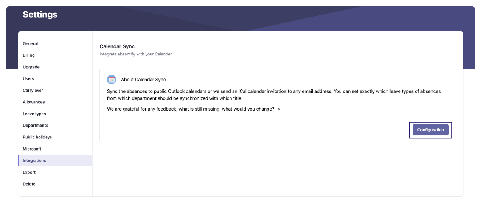
- Assign a name and description and start the setup process
- Set synchronization mode: automatic entries in the shared calendar or iCal invitations via email
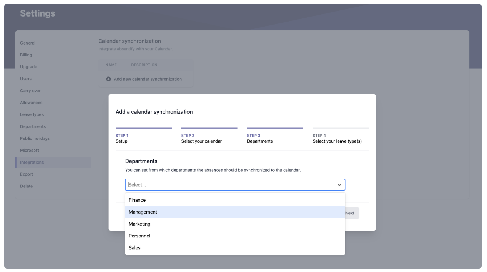
- Determine which departments to associate with this calendar
- Determine which types of absence (e.g. vacation, remote work) are included and, if needed, restrict the sync to approved absences
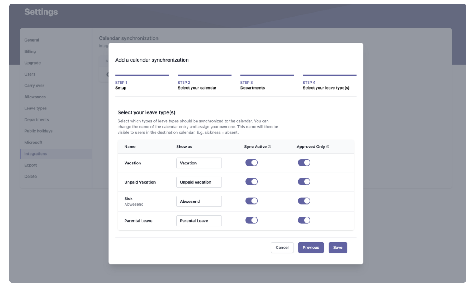
- Save settings and check the new appointments in your own Outlook client
Once configured you will see your absences from absentify directly in the Outlook calendar. Changes you make in Teams appear automatically in Outlook.
How can I sync two Outlook calendars?
If you want to merge personal and team calendars, follow a similar procedure:
- Repeat the steps to connect your personal calendar
- Select the type of the new synchronization:
- Shared calendar for fully automatic entries in group or department overviews
- iCal invitations if you want to manually decide which absences are included
- Assign departments and absence types:
- Determine which teams or projects should appear in this calendar
- Only activate the absence types that are relevant
- absentify creates a separate calendar connection for each selected shared calendar
In Outlook you can now see personal appointments and team absences in a calendar overlay. This way you avoid conflicts between private and shared calendars and can use both in one view.
How can I sync my Outlook calendar across multiple devices?
To sync your calendar across desktop, web, and mobile:
- Install the Outlook app on all devices (Windows, macOS, iOS, Android).
- Sign in with the same Microsoft 365 account everywhere.
- absentify runs centrally in the cloud and makes the entries available on all connected devices.
- In the settings of each client under Accounts > Calendar, check whether your Microsoft account is activated and synchronization is turned on.
This gives you the same up-to-date calendar available on every device.
How do I sync an Outlook calendar with a mobile phone?
It is sometimes important, especially for colleagues in the field or on business trips, to keep an eye on absences while on the move. This is how you can do it with absentify:
- Install the Outlook app on your iPhone or Android device.
- Sign in with your Microsoft 365 account, which you also use in Teams.
- absentify automatically synchronizes all absences via the cloud integration. You don't need to set anything up.
- In the app settings under Calendar, check whether your Microsoft account is active and subscriptions are loading.
Sync Outlook calendar with iPhone
Install the Outlook app from the App Store, log in with your Microsoft 365 account and activate your account in the app settings under “Calendar”.
Sync Outlook calendar with Android
Download the Outlook app from the Google Play Store, log in and check under Settings > Calendar whether your Microsoft account is activated and subscriptions are loading.
Outlook calendar not synchronizing – why?
- Connection failed: Check the status in Settings > Integrations and reauthorize the connection if necessary.
- Calendar or department is missing: Check whether the correct calendar, desired departments and absence types are selected.
- Microsoft 365 temporarily unavailable: Check the Microsoft 365 service status and try again later.
Synchronize your Outlook calendars stress-free with absentify
absentify automates your absence planning and ensures that vacation, sick leave and remote-work entries end up in Outlook reliably and without manual follow-up. This way you can always keep a clear overview and your team stays productive.
Your advantages at a glance:
- Automated entries in Outlook and Teams without manual work
- Automatic updates when an absence changes
- Easy setup: Link Outlook calendars in just a few clicks
- Seamless integration to sync Teams calendars with Outlook
- Merge personal and shared Outlook calendars
- Cross-device availability on desktop, web, iPhone and Android
- Securely integrated into your Microsoft 365 environment
Automate your Outlook calendar synchronization
Simplify your vacation and absence management and keep a clear overview in Microsoft Teams and Outlook.
Synchronize Outlook Calendar – Frequently Asked Questions and Answers
Answers about setting up, security, and using calendar sync.