

Sync Google Calendar with Teams: How to integrate both calendars

Google Calendar can be synced with Microsoft Teams so that all entries, time-off periods, and appointments appear identically in both calendars. Typically, integration is achieved either directly through the Google Calendar app within Teams or by syncing your Google account with the Outlook backend.
Sync Google Calendar with Teams: The essentials at a glance
- App integration: Use the "Google Calendar" app directly within Microsoft Teams to display your appointments in the sidebar.
- Outlook as a bridge: Since the Teams calendar is built on Outlook, you can add your Google account in Outlook — your events will then appear automatically in Teams.
- Real-time sync: Changes in Google are transferred to Teams almost instantly, depending on the method.
- Visibility for colleagues: To ensure your status (busy/free) displays correctly in Teams, linking through the Outlook backend is the most reliable approach.
- Automation with absentify: For professional vacation and absence planning, absentify automatically syncs your time off across both calendar systems.
How do I sync Google Calendar directly in Microsoft Teams?
There are two standard methods to make Google events visible in Teams. Tip: After the walkthrough, we'll show you how absentify makes it even easier.
Method 1: Use the Google Calendar app in Teams
This integration lets you access your Google Calendar directly within the Teams interface without leaving the application.
- Open the App Store: Click the Apps icon in the left navigation bar of Teams (bottom left).
- Search for Google: Type "Google Calendar" into the search field.
- Add: Select the official app and click "Add."
- Sign in: Click "Sign in" in the newly opened app and log in with your Google credentials.
- Grant permissions: Confirm Microsoft Teams' access to your Google Calendar data.
After setup, your Google events appear directly in the left sidebar of Teams. You can create new events or edit existing ones there, and changes sync immediately with your Google account.

Method 2: Sync via the Outlook backend
Since the calendar in Microsoft Teams is technically based on your Outlook calendar, linking through Outlook is the most reliable method. The advantage: Your availability (status: Free/Busy) is correctly displayed for colleagues in the Scheduling Assistant.
- Open Outlook: Launch the Outlook desktop app or the web version.
- Add account: Go to File > Add Account (desktop) or Settings > Accounts (web).
- Link Google account: Enter your Gmail address and follow Google's authentication process.
- Wait for sync: Once the account is set up in Outlook, calendar data is automatically uploaded to the Microsoft cloud.
- Display in Teams: Since Teams accesses the same data source, your Google entries now appear automatically in the Teams calendar.

Start for free now
No credit card required—enjoy unlimited access with our free plan. You can upgrade or cancel anytime.
Tip: Automatically sync Google Calendar and Teams with absentify
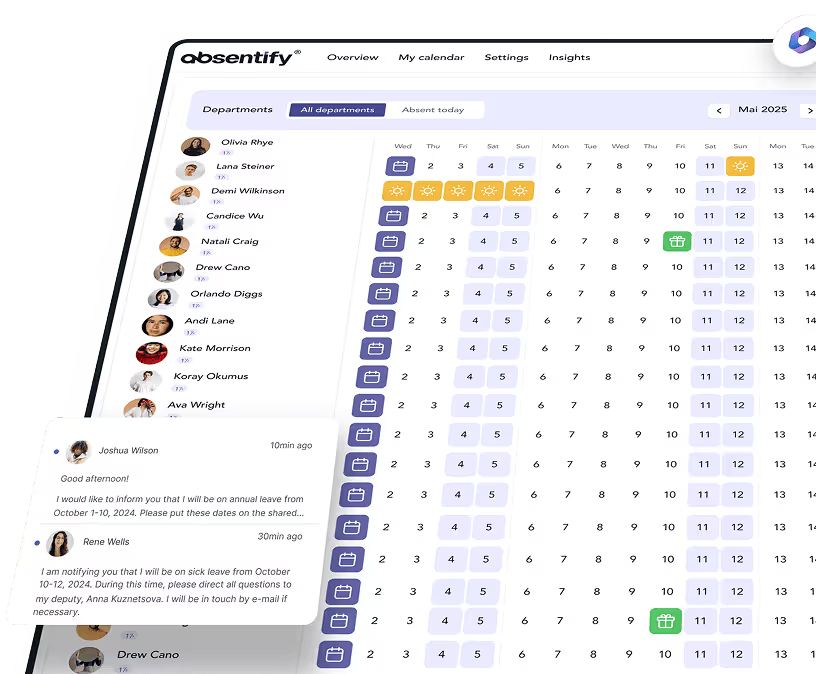
With absentify, you can automatically align your calendars and keep them permanently in sync. Events added to either calendar are then automatically reflected in the other.
- Automatic sync: As soon as a leave request is approved in absentify, the system automatically creates a corresponding entry in your Microsoft 365 calendar (Teams) and — when linked — in your Google Calendar.
- No more double bookings: Since absentify writes absences directly to the Outlook backend of Teams, the Scheduling Assistant instantly recognizes that you're unavailable. At the same time, your Google Calendar stays up to date.
- Changes or cancellations of absences are synced in real time. You don't need to update information in multiple places.
- Colleagues who work exclusively with Teams can see your availability correctly, even if you manage your events in Google (and vice versa).
- You can maintain your personal events in Google and your work commitments in Teams without losing track of scheduling conflicts.
How to connect absentify
To use the automatic sync, connect absentify with your Microsoft environment and enable the calendar integration. absentify doesn't require a separate registration — it uses your existing Microsoft account.
- Add in Teams: Search for "absentify" in the Teams App Store and click "Add," or click the download button on this page.
- Single Sign-On (SSO): Since you're already signed in to Microsoft Teams, absentify recognizes your profile instantly. You just need to confirm access once with a single click.
- Enable calendar sync: Go to Settings > Integrations within absentify.
- Outlook/Teams link: Enable sync with your Microsoft calendar. Since Teams is technically built on Outlook, this is the foundation for everything else.
- Use the Google bridge: Once absentify adds a leave entry to your Teams calendar, it's automatically passed on to your linked Google Calendar (as described in Method 2).
Want to simplify your calendar sync?
- No credit card required
- Unlimited free access
- Upgrade or cancel anytime
Sync Google Calendar with Teams – Frequently asked questions and answers
About the author

Anna Keller
Content manager at absentify
As a blog author at absentify, Anna Keller explains how companies can efficiently manage absences, vacations, and working hours. In her articles, she combines HR practice with Microsoft 365 tips for Outlook and Teams and provides templates, step-by-step instructions, and software comparisons for modern, digital processes.
Share article
More interesting articles

Workplace leave policies: what employers need to consider
A leave policy sets out how employees request time off and how the company approves it. Some provisions may form part of the employment contract; collective agreements, works agreements and internal procedures can add further requirements. This article explains the German framework, where the Federal Leave Act (Bundesurlaubsgesetz, or BUrlG) provides the legal baseline. Together, these rules create a consistent process for workplace leave planning.
Anna Keller
Content manager at absentify
How to request annual leave: process, approval and rules
A leave request records the dates an employee would like to take off. It provides the basis for approval and team absence planning. Employers can check the dates against existing absences and operational requirements. Approval gives employees clarity about their holiday. This guide covers annual leave in Great Britain: the Working Time Regulations 1998, relevant agreements and the company's procedures determine the rules.
Anna Keller
Content manager at absentify

Remaining leave: calculation, carryover and German legal rules
How many days of leave are still available, and how long can they be used? A remaining leave balance answers precisely these questions. It shows which days from the current or an earlier leave year are still outstanding. For companies, this figure also matters for future leave planning. In Germany, whether unused days can be carried over or expire later depends primarily on section 7 of the Federal Leave Act (BUrlG) and the employer's duties to cooperate.
Anna Keller
Content manager at absentify