

How to enter vacation in Outlook: Here's how to relax into your days off!

In Microsoft Outlook, you can enter your vacation time in such a way that colleagues can see your absence. We'll show you how to do that here.
Setting up your vacation in the Outlook calendar
Here you will find the instructions on how to set up your vacation in Outlook – select the instructions appropriate for your system:
Enter vacation in Outlook Desktop for Windows
-
Open calendar view: Click on the small calendar icon at the bottom left of the navigation bar.
-
Create a new appointment: Click on New in the menu bar or simply double-click on the day your vacation begins.
-
Fill in appointment details:
-
Compose an appropriate subject such as "Vacation" or "Away".
-
Set the appointment type to All-day event if you have several consecutive days off.
-
Select the start date and end date.
-
Under "Show As" you should select Away so that your colleagues can see right away that you are not available.
-
(Optional) Customize reminders: If you don't need a reminder, you can disable it (especially handy if you're not at your computer anyway).
-
(Optional) Add category: To keep track, you can categorize your holidays by color, for example, as 'Private' or 'Vacation'.
-
**Save the date: **Click on Save & Close.
Set up vacation in Outlook for Mac
The process on the Mac works almost like in Windows – with a few differences in the menu navigation.
-
Open calendar: Click on the calendar icon at the bottom left of the Outlook navigation bar.
-
Create a new appointment or event: Click on File -> New Event in the menu bar at the top, or double-click on the desired date in your calendar.
-
Enter details:
-
Enter a subject such as 'Vacation'.
-
Select the date as an all-day event if you are away for several consecutive days.
-
Set the 'Show as' option to Away to make your status clear.
**Save and Close: **Click on Save or Done, depending on your version of Outlook for Mac.
Enter vacation in the Outlook Web App (OWA)
-
Login to the Outlook Web App:
-
Open your browser, go to office.com or to your company portal.
-
Log in with your access credentials.
-
Open calendar: Click on the calendar icon on the left in the navigation bar.
-
Create a new appointment: Click on New Event at the top left or click on the plus symbol in the calendar.
-
Fill in details:
-
Give it a descriptive title like 'Vacation' or 'Out of Office'.
-
Activate All-day if you are going to be away for the whole day (or several).
-
Make sure you select the status Away under "Show as".
**Save: **Click Save, and your vacation is entered into your online calendar.

Common mistakes and how to avoid them
-
**Incorrect appointment type: **If you only mark your vacation as “Busy”, other colleagues might think you are available for calls. Make sure to choose Away.
-
**Date entered incorrectly: **It's easy to mistakenly click a day or month ahead. Therefore, check before saving whether the start and end dates are indeed correct.
-
Forgotten notifications: Sometimes an auto-reply (out-of-office message) is helpful when you're truly unreachable. So make sure to set up your out-of-office message for Outlook [link internally] in advance.
-
Overlooked all-day event: If you forget to check the 'All-day event' box, your vacation may only appear hourly.
-
**Not marked as 'Away': **If you do not select 'Away', the event will by default be marked as 'Busy'. This can easily lead to misunderstandings.
-
**Time zone error: **In the web app, it may happen that your time zone is not set correctly. Therefore, check in the settings to see if everything is correct.
-
Unsynchronized Calendar: If you use Outlook on your phone as well, make sure that synchronization is enabled so that your vacation appears everywhere.
Tip for the missing Outlook feature for concurrent vacation requests in a team
Outlook does not issue warnings for concurrent vacation entries. Thus, the entire department could schedule their vacation for the same period. The same applies if a colleague is responsible for entering the vacation times for the entire team: It must be manually checked for any overlaps in vacation requests. These must then be discussed individually.
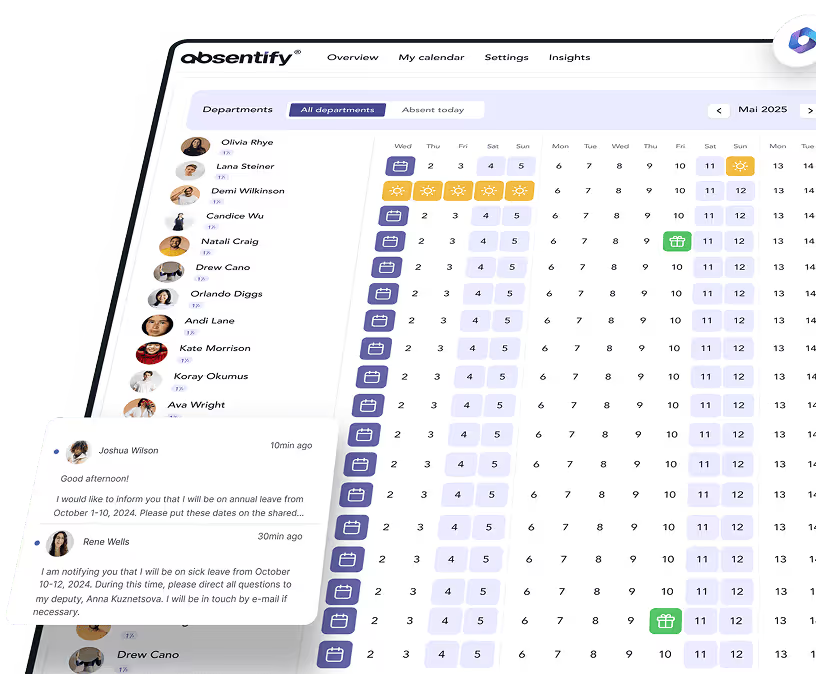
If you need to manage the vacation of a larger team, absentify can help: Set minimum staffing levels for departments and let absentify alert you when these limits are exceeded. The approval of the vacation is also in your hands.

Haven't you heard of absentify for Microsoft Outlook yet? Simplify your leave management now: in Microsoft 365, Outlook, and Teams – fully integrated and free!


Start for free now
No credit card required—enjoy unlimited access with our free plan. You can upgrade or cancel anytime.
Would you like to simplify your absence management?
- No credit card required
- Unlimited free access
- Upgrade or cancel anytime
Enter vacation in Outlook – Frequently Asked Questions and Answers
About the author

Anna Keller
Content manager at absentify
As a blog author at absentify, Anna Keller explains how companies can efficiently manage absences, vacations, and working hours. In her articles, she combines HR practice with Microsoft 365 tips for Outlook and Teams and provides templates, step-by-step instructions, and software comparisons for modern, digital processes.
Share article
More interesting articles

Workplace leave policies: what employers need to consider
A leave policy sets out how employees request time off and how the company approves it. Some provisions may form part of the employment contract; collective agreements, works agreements and internal procedures can add further requirements. This article explains the German framework, where the Federal Leave Act (Bundesurlaubsgesetz, or BUrlG) provides the legal baseline. Together, these rules create a consistent process for workplace leave planning.
Anna Keller
Content manager at absentify

How to request annual leave: process, approval and rules
A leave request records the dates an employee would like to take off. It provides the basis for approval and team absence planning. Employers can check the dates against existing absences and operational requirements. Approval gives employees clarity about their holiday. This guide covers annual leave in Great Britain: the Working Time Regulations 1998, relevant agreements and the company's procedures determine the rules.
Anna Keller
Content manager at absentify

Remaining leave: calculation, carryover and German legal rules
How many days of leave are still available, and how long can they be used? A remaining leave balance answers precisely these questions. It shows which days from the current or an earlier leave year are still outstanding. For companies, this figure also matters for future leave planning. In Germany, whether unused days can be carried over or expire later depends primarily on section 7 of the Federal Leave Act (BUrlG) and the employer's duties to cooperate.
Anna Keller
Content manager at absentify