

How to Change Work Hours in Microsoft Teams (2026)

Those who frequently deal with Microsoft Teams during their workday are familiar with the problem: meetings are suggested outside of actual working hours, notifications interrupt the evening, or the team is not exactly sure when one is available. This is precisely where setting your working hours correctly can help. Here you will learn step by step how to proceed and which pitfalls you should avoid.
Working Hours in Microsoft Teams – Guide
Microsoft recommends setting your working hours primarily through Outlook or the integrated Shifts app in Teams, depending on the use case. Below you will find both methods in a step-by-step guide.
-
Setting up working hours in Outlook, which will then be visible in Teams.
-
Manage shift times through the Shifts app if you work in shift patterns or want to create such schedules.
Both approaches are described in the Microsoft documentation. Below you will find both methods as step-by-step instructions.
Set working hours in Outlook (Standard approach)
The Outlook settings are the foundation for your Teams calendar, as Teams uses the same calendar data as Outlook. Here's how to proceed:
-
Open the Outlook program (desktop version) on your PC.
-
Click on File (top left) and then select Options.
-
Now click on Calendar in the left menu.
Define working hours:
-
Under the section Working Hours you can enter your start and end time (e.g., 9:00 AM to 5:00 PM).
-
Also check the boxes for the days of the week you work (e.g., Monday through Friday).
-
Make sure that the time zone and language settings are correct.
-
Confirm changes
Confirm the settings with OK. From now on, Teams (especially your calendar in Teams) will see that you are, for example, no longer in regular working hours after 5:00 PM.
**Typical source of error: **Some forget to set their actual time zone. If you have 'Pacific Time' set in Outlook but live in Germany, all times will shift. So make sure that both match.
Shift scheduling via the Shifts app (for shift operations or flexible teams)
If you work in a company that operates a shift system, Microsoft recommends using the Shifts app in Teams. This allows you to plan working hours in more detail and share the information with colleagues.
Here's how you proceed:
-
Click on Apps in the left navigation in Teams.
-
Search for shifts and add the app.
-
Either start by creating a new plan or click on Open if there is already a suitable shift schedule.
-
Add new shifts to the schedule, e.g., from 9:00 AM to 2:00 PM (morning shift) and 2:00 PM to 6:00 PM (afternoon shift).
Switch to the appropriate person or team member and enter the shift.
Edit, Assign, and Publish:
-
You can customize each layer individually and assign people to it.
-
Once you are satisfied, click on Publish to inform the team.
-
In Teams, you (or your team members) can clearly see who is scheduled when and how the working hours are distributed.
Typical source of error: Some forget the last step of Publishing. Then the shift changes are not distributed to everyone. So make sure to release the plan at the end.

Typical pitfalls and restrictions for working hours in teams
-
**Time zone error: **Make sure that the correct time zone is set in Outlook, Windows, and Teams. Especially when working from home (where you might use different devices), errors can creep in here.
-
**Unsaved changes: **Always click OK in Outlook before closing the window. In Shifts, you should definitely publish the schedule.
-
**Communication gaps: **If you adjust your shifts in Shifts, don't forget to inform your team – especially for last-minute changes. Teams will display it, but a quick heads-up never hurts.
-
**Access restrictions: **Check if you have the necessary permissions to edit shift schedules or change company settings. Some things can only be set by the admin.
Enter working hours and vacation days in Teams
As soon as your working hours are correctly recorded, your absences and vacations should also be clearly marked. Only then will all misunderstandings be avoided and your colleagues will know when they can count on you – and when not.
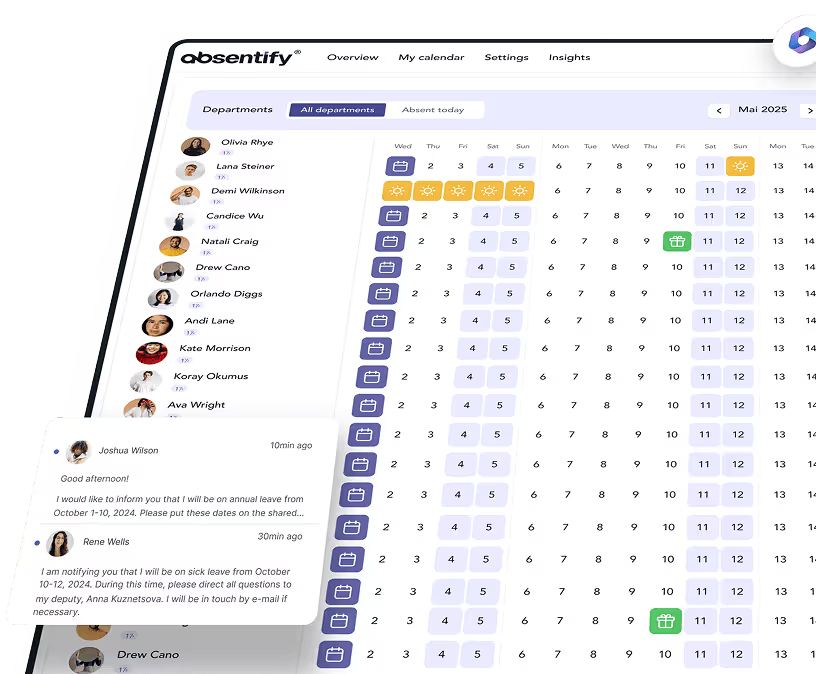
There is no native feature for absence and vacation management in Microsoft Teams. However, it can be easily upgraded** with absentify**. The app is installed in just a few clicks directly into Teams and afterwards it blends seamlessly with the familiar interface.
-
During your absence, invitations to meetings, etc. will be automatically declined
-
Create all types of absences that are important to you (vacation, training, deep work, etc.)
-
Set a cap on how many employees can be absent at the same time
-
Divide the employees into departments with their own boundaries
-
Receive alerts for conflicts in leave requests


Start for free now
No credit card required—enjoy unlimited access with our free plan. You can upgrade or cancel anytime.
Would you like to simplify your absence management?
- No credit card required
- Unlimited free access
- Upgrade or cancel anytime
Setting Work Hours in Microsoft Teams – Frequently Asked Questions and Answers
About the author

Anna Keller
Content manager at absentify
As a blog author at absentify, Anna Keller explains how companies can efficiently manage absences, vacations, and working hours. In her articles, she combines HR practice with Microsoft 365 tips for Outlook and Teams and provides templates, step-by-step instructions, and software comparisons for modern, digital processes.
Share article
More interesting articles
Reducing overtime: rights, duties and the process for employers and teams
Reducing overtime means offsetting accumulated extra hours with time off or payment. Under German employment law, the six calendar months or 24 weeks specified in the German Working Time Act apply solely to offsetting an extended working day against the statutory eight-hour average. Employment contracts, works agreements or collective agreements determine how an overtime balance can be reduced. Where these rules permit time off in lieu, the employer determines its timing and process within the scope of their right to give instructions.
Anna Keller
Content manager at absentify
When does unused leave expire? Deadlines and exceptions that determine your entitlement
Under German law, unused leave expires only under certain conditions: entitlement generally lapses on 31 December, or after the carryover period on 31 March, only if your employer has given you timely and specific notice of the impending expiry and you still do not take the leave. An exception applies in cases of continuous illness.
Anna Keller
Content manager at absentify
Employee Self Service (ESS): Definition, Features, and Benefits for Leave and Absence Management
Employee Self Service (ESS) gives employees access to manage their personal data, leave requests, or absences themselves without coordinating every step with HR. The term originally comes from SAP HR modules and has become an umbrella term for self-service features in human resources. Its benefits are particularly clear in leave and absence management.
Anna Keller
Content manager at absentify