Skip to content
Microsoft 365 integrated
GDPR & ISO 27001 compliant
Instantly ready to use
230,000+ users
Microsoft 365 integrated
GDPR & ISO 27001 compliant
Instantly ready to use
230,000+ users
4.4/5
4.5/5
4.9/5

absentify - The vacation overview for your team in Microsoft 365

See at a glance who is away when and how many days of leave your employees still have available!

Check team absences by period and department

View remaining leave and leave allowances for each employee

Automatically add approved absences to Outlook
absentify - The vacation overview for your team in Microsoft 365
Frame 1Frame 2Frame 3Frame 4Frame 5Frame 6Frame 7

Used by 30,000+ companies worldwide

AdobeAMDAT&TBASFCathay PacificHiltonIBMLenovoMaerskMcDonald'sMicrosoftNovo NordiskPepsiRed BullSamsoniteSiemens EnergyStarbucksWalt DisneyYamaha
Team vacation planning

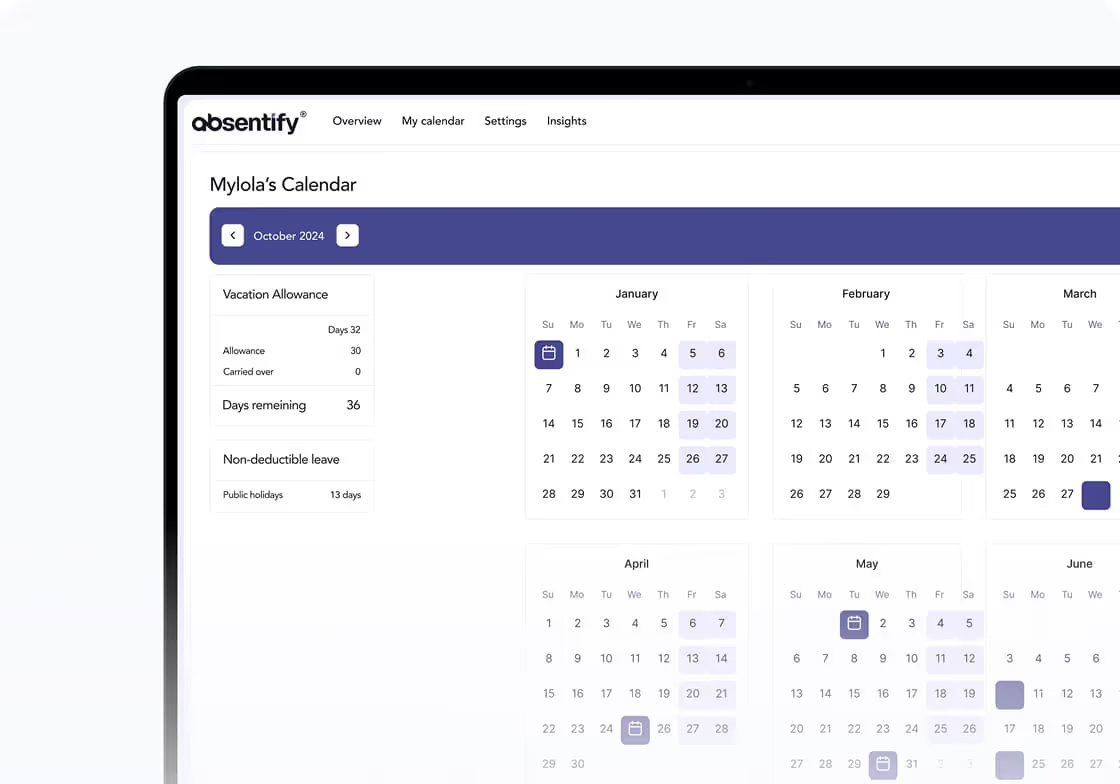
All leave balances in one shared overview

absentify brings planned absences and available leave days together in one shared view. Employees check their own balance. Managers see who in the team is already away. This means nobody has to cross-check several calendars or lists.

All leave balances in one shared overview
Check team absences

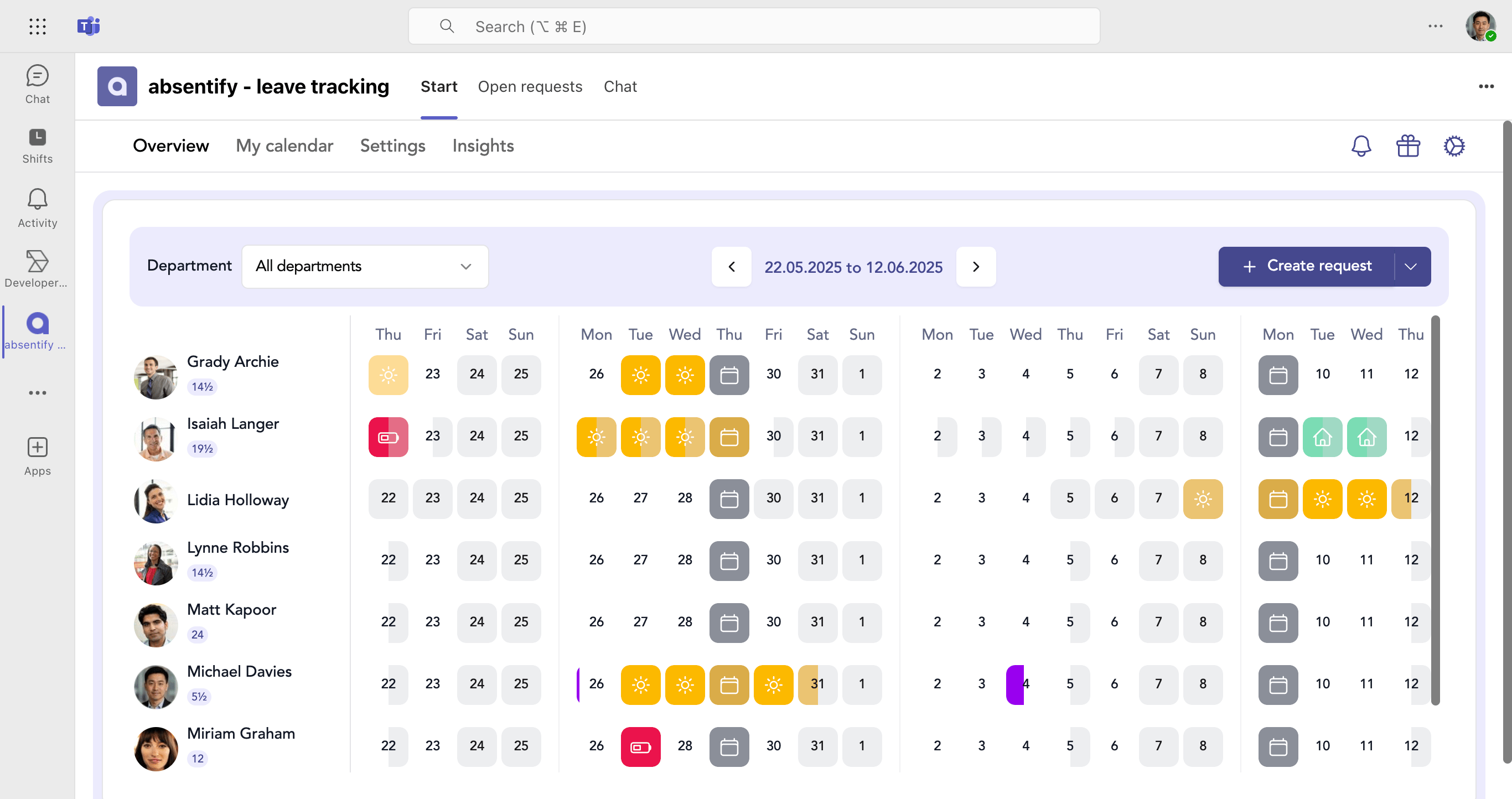
See team absences and remaining leave for any period

See team absences by period

The shared overview shows you which employees are already away during the selected period. This lets managers quickly check team coverage on individual days or over longer periods.

Team calendar:
Team calendar:
View planned team absences together by day, week or across the entire year.
Filter departments:
Filter departments:
Limit the view to selected departments and display only the team absences you need.
See team absences by period

Check remaining leave for each employee

Employees see how many days of leave they still have available. Managers and HR work with the same current allowance and do not have to gather outstanding leave days from separate spreadsheets.

Leave allowances:
Leave allowances:
View available leave days and allowances already used directly for each employee.
Personal area:
Personal area:
Employees check their own leave balance themselves, without having to ask HR for the current figure.
Check remaining leave for each employee

Keep approved absences up to date

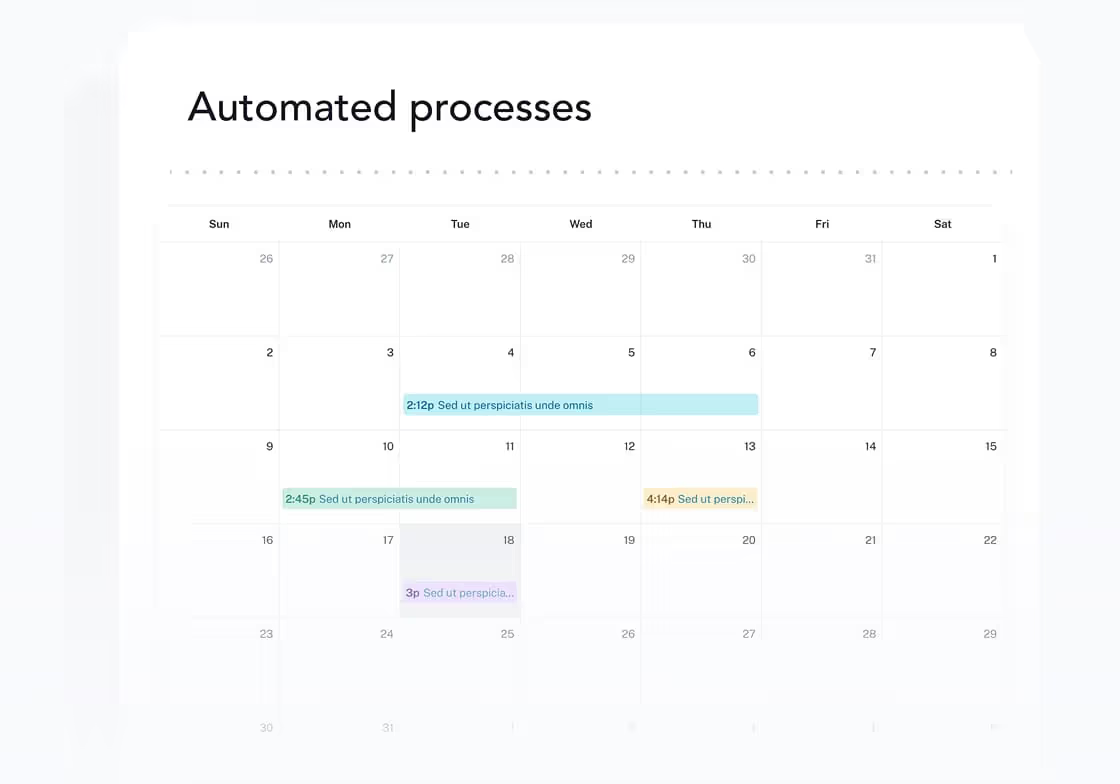
Once an approved absence has been recorded, it is available for the ongoing overview. Outlook calendar synchronization can also add approved absences to the designated calendars.

Outlook calendar synchronization:
Automatically connect approved absences with personal or shared Outlook calendars.
Apply changes:
Apply changes:
Update changed or canceled absences in the connected calendar without creating entries again.
Keep approved absences up to date
Available right away

Your vacation overview without additional installation

Use absentify in your browser, Outlook or Microsoft Teams. Your vacation overview stays up to date both at work and on the go.
The cloud software for Microsoft 365.
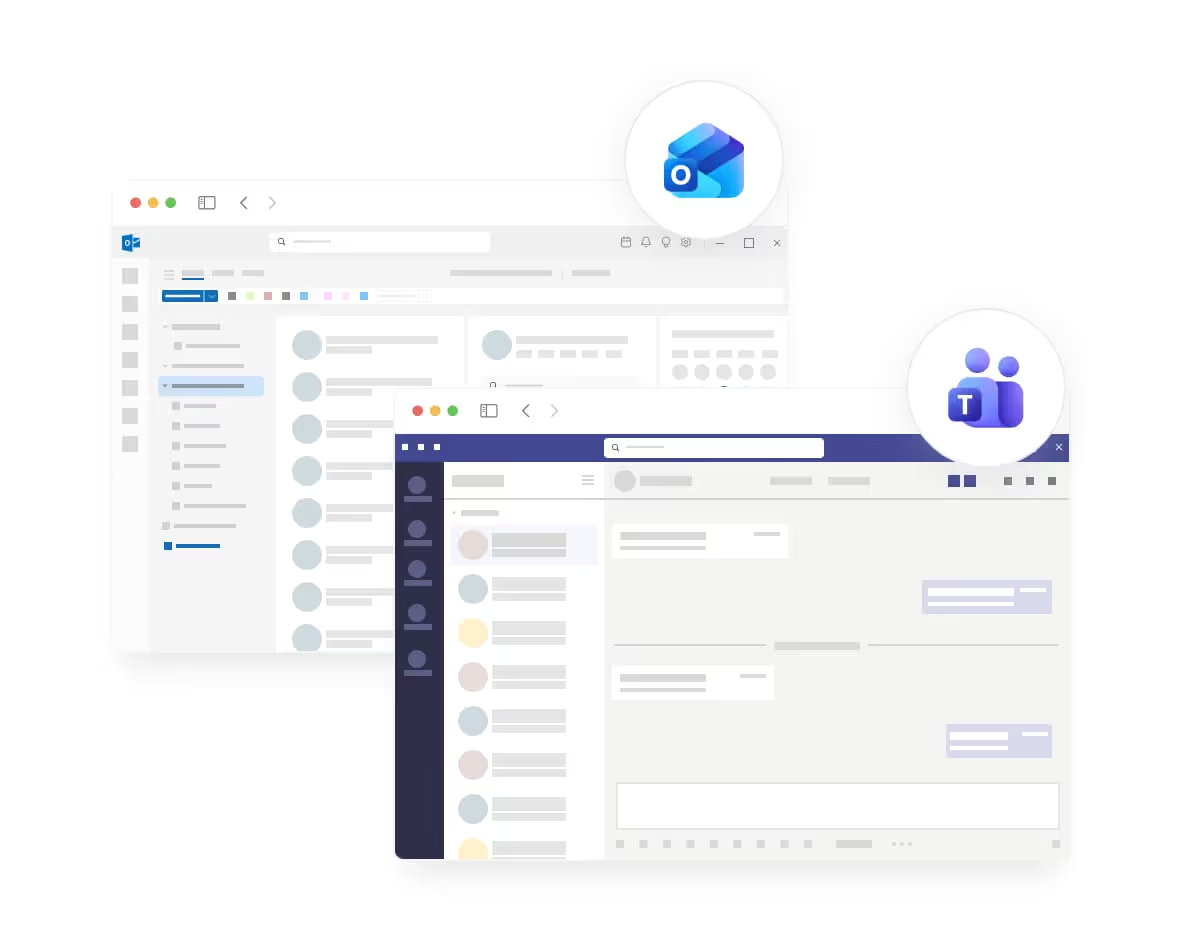
The cloud software for Microsoft 365.

With absentify, you do not have to install additional software on computers or your own servers. After signing in, the vacation overview is available through the cloud and can be connected to your Microsoft 365 environment.
Use the web, Outlook and Teams

Use the web, Outlook and Teams

Open the vacation overview in your browser, Microsoft Outlook or directly in Microsoft Teams. Employees and managers can check the current status where they already work, without having to switch to another application for each view.
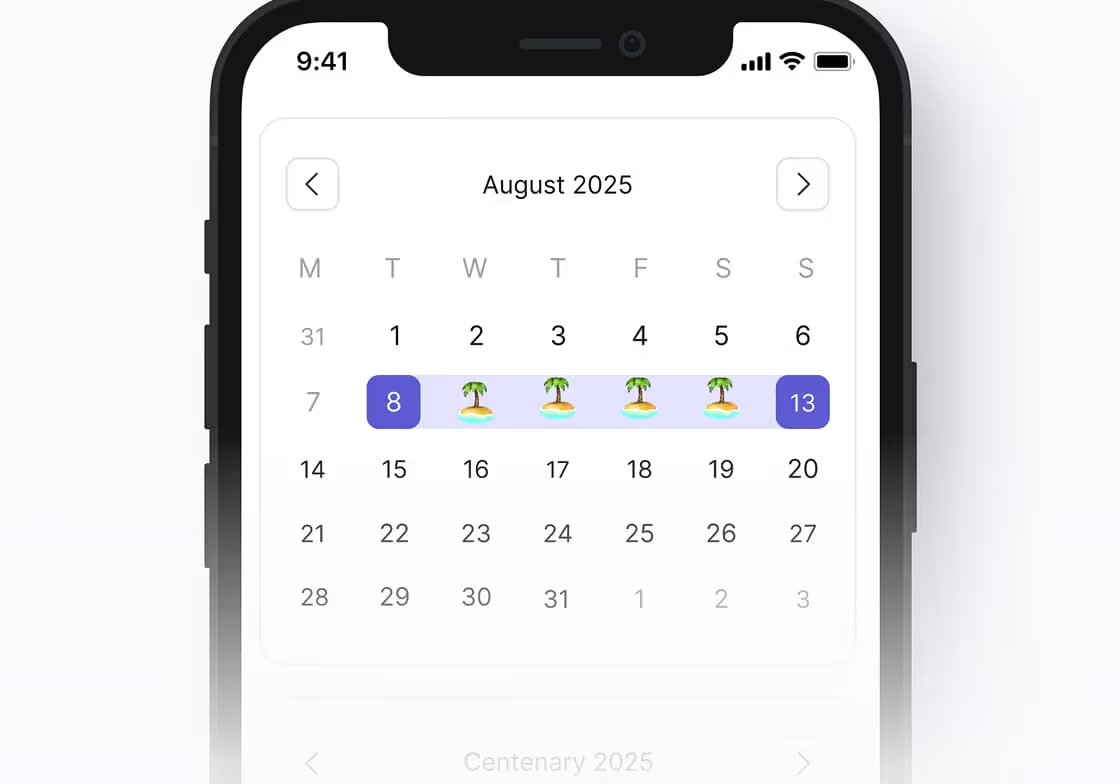
Access your vacation overview on the go too

Access your vacation overview on the go too

The current status remains accessible on the go. Using Microsoft Teams on their smartphones, employees can check their absences and managers can access the vacation overview when needed.
Why absentify?

Put an end to scattered leave lists and calendars

Employees, managers and HR access the same data. Each authorized person sees exactly the information they need for their day-to-day work.

Without absentify

  • Search for absences in several calendars
  • Ask HR about remaining leave
  • Update leave lists manually
  • Pick out individual departments from overall spreadsheets
  • Maintain calendar entries separately

With absentify

  • Check team absences in one shared overview
  • View available days in the personal area
  • Keep approved absences in the current data
  • Filter the vacation overview by department
  • Synchronize approved absences with Outlook
Vacation overview for your team

The right vacation overview for every role and team structure

Employees

Employees

Check your own leave balance before a new request without having to ask HR for the current figure.

See team absences already planned and check your preferred period against the team context early on.

Check approved absences in your personal calendar and keep track of your own vacation at any time.
Managers

Managers

Check absences in your own team by period and see when several employees are away at the same time.

View leave allowances in the team before deciding on further requests for the same period.

Narrow the view by department so that only the information needed for the check is visible.
HR

HR

Manage employees' leave allowances and track current remaining balances without an additional Excel spreadsheet.

Set up company rules so that leave days are managed in line with work patterns and employment arrangements.

Maintain changes to absences in one shared data set instead of updating several overviews.

Teams with several departments

Teams with several departments

Display absences separately by department, making larger organizational structures easier to check too.

Provide managers with the appropriate team view without creating separate leave lists for each area.

Assign permissions according to roles so that employees see only the information intended for them.
Large and international companies

Large and international companies

View absences across multiple locations without maintaining separate overviews for each branch.

Take regional public holidays into account for each employee so that the displayed leave balance remains correct.

Filter team views by organizational structure so that even large workforces can be checked quickly.

Integration tools arc
Integrations and tools

absentify is wherever you are

Simply connect absentify with your tools to unify leave planning across your company.

Any questions?

Vacation overview – Frequently asked questions and answers

A vacation overview shows which absences are already planned and how many days of leave are still available. Companies can use it to check the current status for employees or teams without cross-checking several lists.

A vacation overview should at least make the period of an absence and the available leave balance clear. For managers, it is also relevant which employees are already away during the period being considered.

Yes. Employees can check their available leave days themselves in their personal area. This means they do not have to ask HR about their current remaining leave every time they plan.

Yes. absentify supports departments and team overviews, so the absences displayed can be narrowed down to the area needed. This makes checks easier for larger teams.

Approved absences can be added to connected calendars through Outlook calendar synchronization. If synchronized absences are changed or canceled, these changes can also be updated in the connected calendar.
© 2026 absentify® - absentify GmbH, All rights reserved.