

Staff planning in Excel 2026: Templates, tips, and better alternatives
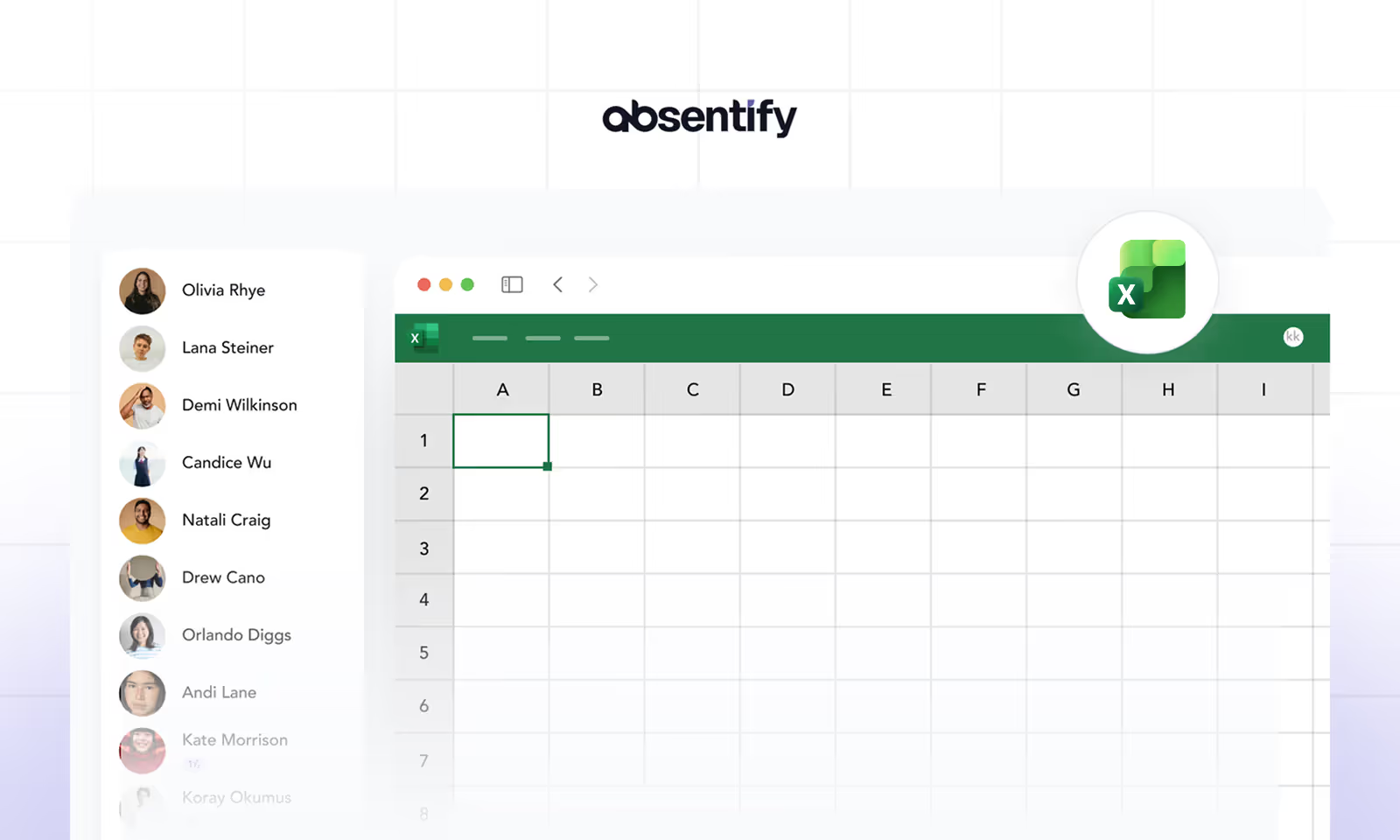
Excel remains one of the most widely used tools for staff planning, especially in small and medium-sized businesses. While it offers flexibility and familiarity, it also has significant limitations when teams grow. In this guide, we'll show you how to make the most of Excel for staff planning and when it's time to consider alternatives.
Why companies still use Excel for staff planning
Excel's popularity for staff planning comes down to a few key factors:
- Familiarity: Most employees already know how to use Excel, reducing the learning curve.
- Flexibility: You can create custom layouts and formulas tailored to your specific needs.
- Cost: For organizations already using Microsoft 365, Excel is included at no additional cost.
- Quick setup: A basic planning spreadsheet can be created in minutes.
However, these advantages come with trade-offs that become more apparent as your team grows.

How to create a staff planning template in Excel
Basic structure
A practical staff planning template should include:
- Employee list in the first column with names and roles.
- Date columns across the top, typically covering a month or quarter.
- Color coding to indicate different absence types (vacation, sick leave, training).
- Summary row showing total absences per day.
- Leave balance column tracking remaining vacation days.
Essential formulas for staff planning
Use these Excel formulas to automate calculations:
- COUNTIF to count absences per day or per employee.
- SUMPRODUCT for more complex absence calculations across departments.
- Conditional formatting to automatically highlight days with low coverage.
- Data validation to create dropdown lists for absence types.

Start for free now
No credit card required—enjoy unlimited access with our free plan. You can upgrade or cancel anytime.
Common challenges with Excel-based staff planning
Version control issues
When multiple people work with the same Excel file, version conflicts are inevitable. Even with shared drives or SharePoint, simultaneous edits can lead to data loss or conflicting entries.
No automated approval workflow
Excel doesn't support approval processes. Vacation requests must be communicated separately via email or chat, then manually entered into the spreadsheet. This creates extra work and room for errors.
Limited scalability
A staff plan that works for 10 employees becomes unwieldy with 50 or 100. The spreadsheet grows complex, slow, and difficult to maintain.
No real-time notifications
When someone updates the Excel sheet, other team members aren't automatically notified. This means managers might miss important changes, and employees might not know whether their request was approved.
Compliance risks
Manually tracking vacation balances and absence policies in Excel makes it easy to make mistakes that could lead to labor law compliance issues.
| Challenge | Impact | Workaround |
|---|---|---|
| Version conflicts | Data loss, inconsistencies | Use SharePoint with co-authoring |
| No approval workflow | Extra manual work | Combine with email requests |
| Limited scalability | Slow, complex files | Split by department |
| No notifications | Missed updates | Regular manual check-ins |
| Compliance risks | Legal issues | Regular audits |
When to move beyond Excel
Consider switching to dedicated software when:
- Your team exceeds 15-20 people and the spreadsheet becomes hard to manage.
- You need automated approval workflows to streamline requests.
- Multiple departments need to coordinate absences.
- You require compliance tracking for labor law requirements.
- You want integration with Microsoft Teams and Outlook for seamless coordination.
Would you like to simplify your absence management?
- No credit card required
- Unlimited free access
- Upgrade or cancel anytime
Better alternatives to Excel for staff planning
absentify
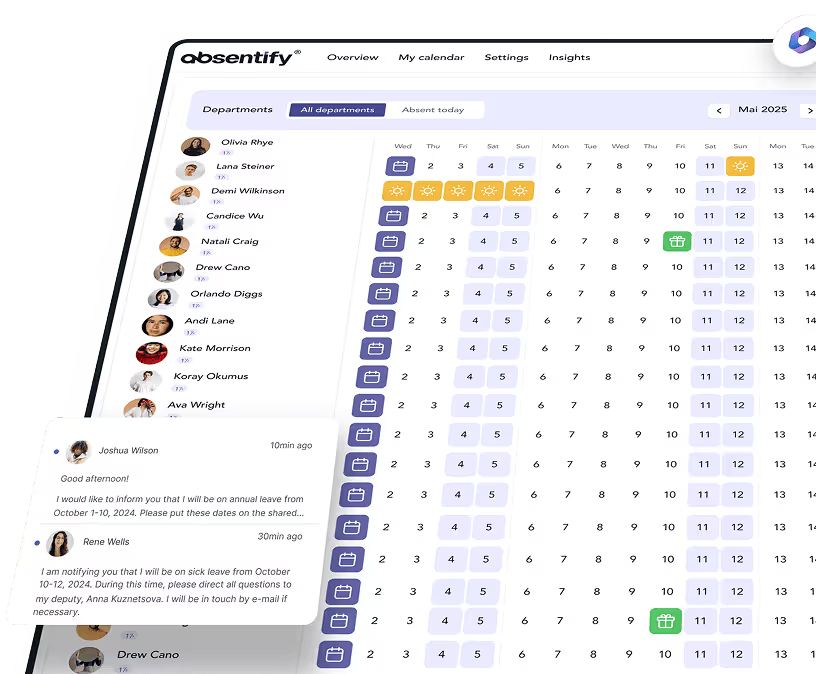
For Microsoft 365 organizations, absentify provides a purpose-built solution that replaces Excel spreadsheets with an integrated absence management system:
- Direct Microsoft Teams integration for easy access.
- Automated approval workflows that eliminate manual tracking.
- Team calendars with real-time visibility.
- Outlook synchronization for automatic calendar updates.
- Custom absence types and policies per department.
Staff planning in Excel – Frequently Asked Questions and Answers
About the author

Anna Keller
Content manager at absentify
As a blog author at absentify, Anna Keller explains how companies can efficiently manage absences, vacations, and working hours. In her articles, she combines HR practice with Microsoft 365 tips for Outlook and Teams and provides templates, step-by-step instructions, and software comparisons for modern, digital processes.
Share article
More interesting articles

Reducing overtime: rights, duties and the process for employers and teams
Reducing overtime means offsetting accumulated extra hours with time off or payment. Under German employment law, the six calendar months or 24 weeks specified in the German Working Time Act apply solely to offsetting an extended working day against the statutory eight-hour average. Employment contracts, works agreements or collective agreements determine how an overtime balance can be reduced. Where these rules permit time off in lieu, the employer determines its timing and process within the scope of their right to give instructions.
Anna Keller
Content manager at absentify

When does unused leave expire? Deadlines and exceptions that determine your entitlement
Under German law, unused leave expires only under certain conditions: entitlement generally lapses on 31 December, or after the carryover period on 31 March, only if your employer has given you timely and specific notice of the impending expiry and you still do not take the leave. An exception applies in cases of continuous illness.
Anna Keller
Content manager at absentify
Employee Self Service (ESS): Definition, Features, and Benefits for Leave and Absence Management
Employee Self Service (ESS) gives employees access to manage their personal data, leave requests, or absences themselves without coordinating every step with HR. The term originally comes from SAP HR modules and has become an umbrella term for self-service features in human resources. Its benefits are particularly clear in leave and absence management.
Anna Keller
Content manager at absentify