

Automate Outlook out-of-office messages
Plan an absence in absentify. Your Outlook automatic reply is activated at the right time, updated, and disabled again after you return.
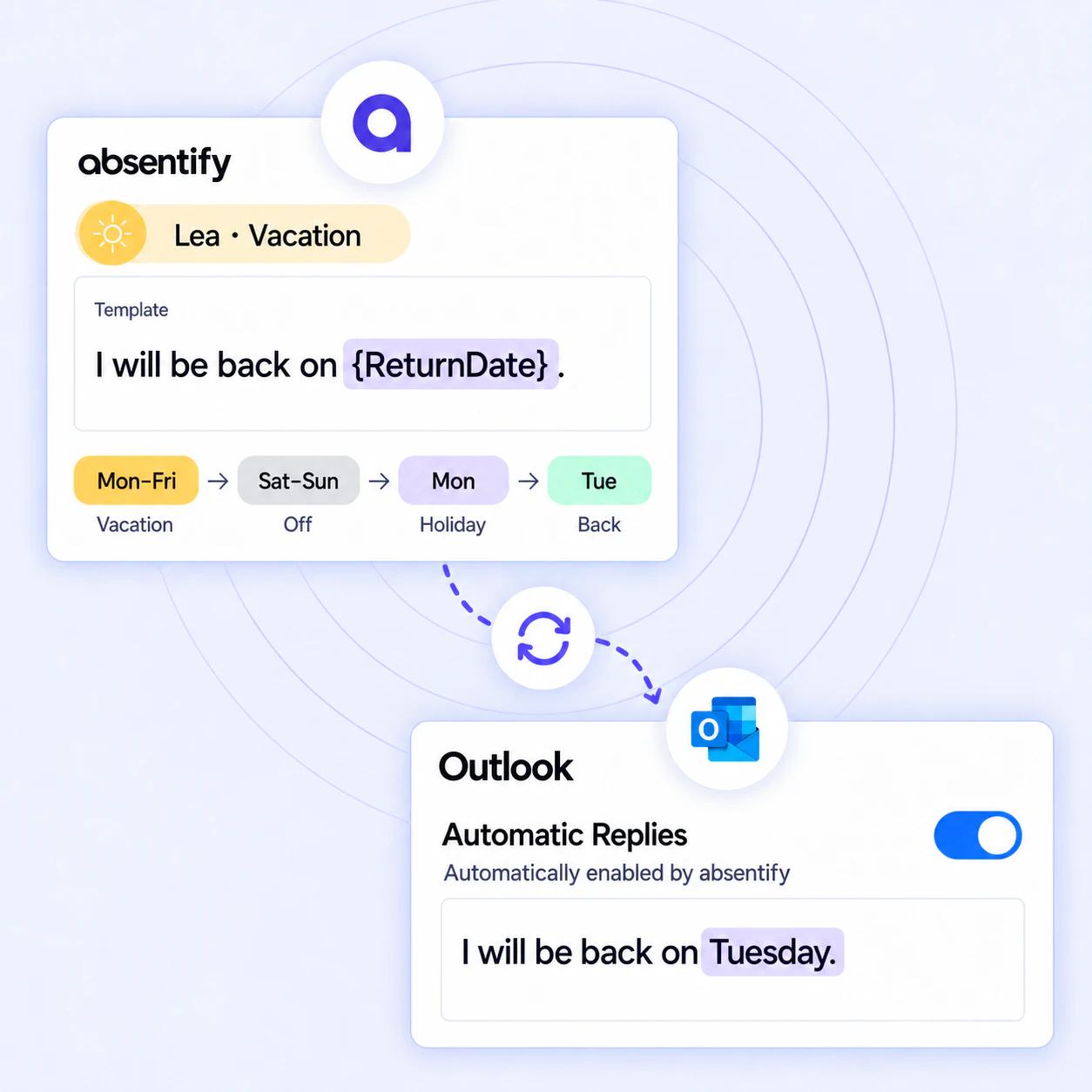
On the first day of your vacation, you notice that your out of office notice has not been activated in Outlook. Important requests go unanswered while your team is unsure who will step in. Errors can quickly occur, especially when manually entering out-of-office messages in Outlook. As a result, communication suffers, colleagues are overloaded and business partners are frustrated.
absentify takes care of the activation and deactivation of your out-of-office message automatically, directly in the course of your vacation planning:
- Out of office messages turn on and off as scheduled
- Consistent, professional wording for internal and external contacts
- No manual effort, the automatic response runs in the background
- Flexible templates for different absence types with placeholders
Used by 30,000+ companies worldwide



















Automatic out-of-office reply in Outlook with absentify
absentify takes care of switching the out-of-office assistant in Outlook on and off for you - reliably and on time.
How to set up the feature:
Your Microsoft 365 admin first activates the Outlook integration in absentify.
- Connect your Microsoft 365 account in absentify.
- Enable automatic out-of-office notification.
- Store your template for internal and external contacts and insert the variables provided for name, date, time and cover contact.
- Preview the result and send a test email.
Example template:
Thank you for your message. I'm currently out of the office. I will be available again from [return date]. Best regards, [Name]
Add an urgent cover contact only when a representative is assigned.
If the absence period changes in absentify, the period and variable values are adjusted during the next sync. If sync fails, users will receive an email with manual setup steps; the admin will also be notified. The official guide to company out-of-office replies shows the central setup in detail.
This means you benefit from a fully automatic, professional out-of-office solution directly in Outlook - without any further manual effort.

Manage Outlook Out-of-Office Messages automatically
Activate professional out-of-office messages on schedule in Outlook - without any manual setup.
Advantages of automated out-of-office replies in Outlook
With absentify you ensure that your out-of-office messages in Outlook are always sent on time and consistently. This automated solution not only saves you time, but also ensures clear communication and professional appearance:
- Reliable communication: Thanks to the automatic activation of your out-of-office reply in Outlook, internal and external contacts receive immediate feedback without you having to intervene manually.
- Consistent professional image: Individual automatic replies are available on every plan. On the Plus plan, central templates also keep wording consistent and prevent typos.
- Efficiency for HR and admins: No manual configuration effort before each absence - the system takes over the out-of-office messages automatically.
- Flexibility in absence types: Absences in Outlook can be individually adapted for each scenario using different texts for vacation, sick leave or remote work.
- Seamless integration into Teams: Your absence status and the out-of-office note appear in parallel in Microsoft Teams, without additional steps.
- Security and Compliance: The Microsoft 365 integration controls automatic responses with a clearly limited range of functions.
Set Outlook Out-of-Office with absentify
Automatic out-of-office messages are set up in absentify in just a few minutes, saving you the trouble of manually setting up out-of-office messages in Outlook.
Here's how to automatically manage out-of-office emails with absentify:
- Open your out-of-office settings in absentify
- Activate the function and follow the connection dialog
- Create your template and define separate texts for internal and external contacts
- Use the provided return-date and cover-contact variables to personalize your message
- Test your template with the preview function and send a sample email to yourself
- From now on, absentify will turn your automatic reply on and off on time
Out of office reply also in Microsoft Teams
Microsoft Teams displays the out-of-office information set in Microsoft 365 and the associated message. You can still request and manage absences directly in the absentify app in Teams.
This keeps your out-of-office information visible in Outlook and Teams so colleagues can see when you are unavailable.
Automate Outlook Out-of-Office Messages and save time
With absentify you lay the foundation for seamless and professional absence communication. Your Outlook out-of-office message switches on and off on time, templates with placeholders ensure personal and error-free messages, and internal and external contacts receive immediate feedback.
The central administration in absentify relieves the burden on employees and HR, while the Microsoft 365 integration ensures clear processes and transparency.
Your advantages at a glance:
- Activate out-of-office reply in Outlook scheduled and automatically
- Use uniform templates for internal and external recipients
- Automated Outlook Out-of-Office Messages, no more manually setting data
- Make your out-of-office information visible in Teams
Automate your out-of-office messages for reliable communication
Create automatic replies in Outlook and out-of-office messages in Teams - without any manual settings.
Start now for free
Outlook Out-of-Office Message – Frequently Asked Questions and Answers
Answers for setting up and centrally managing automatic out-of-office replies.