

Boosting Microsoft Teams Productivity: 15 Quick Tips
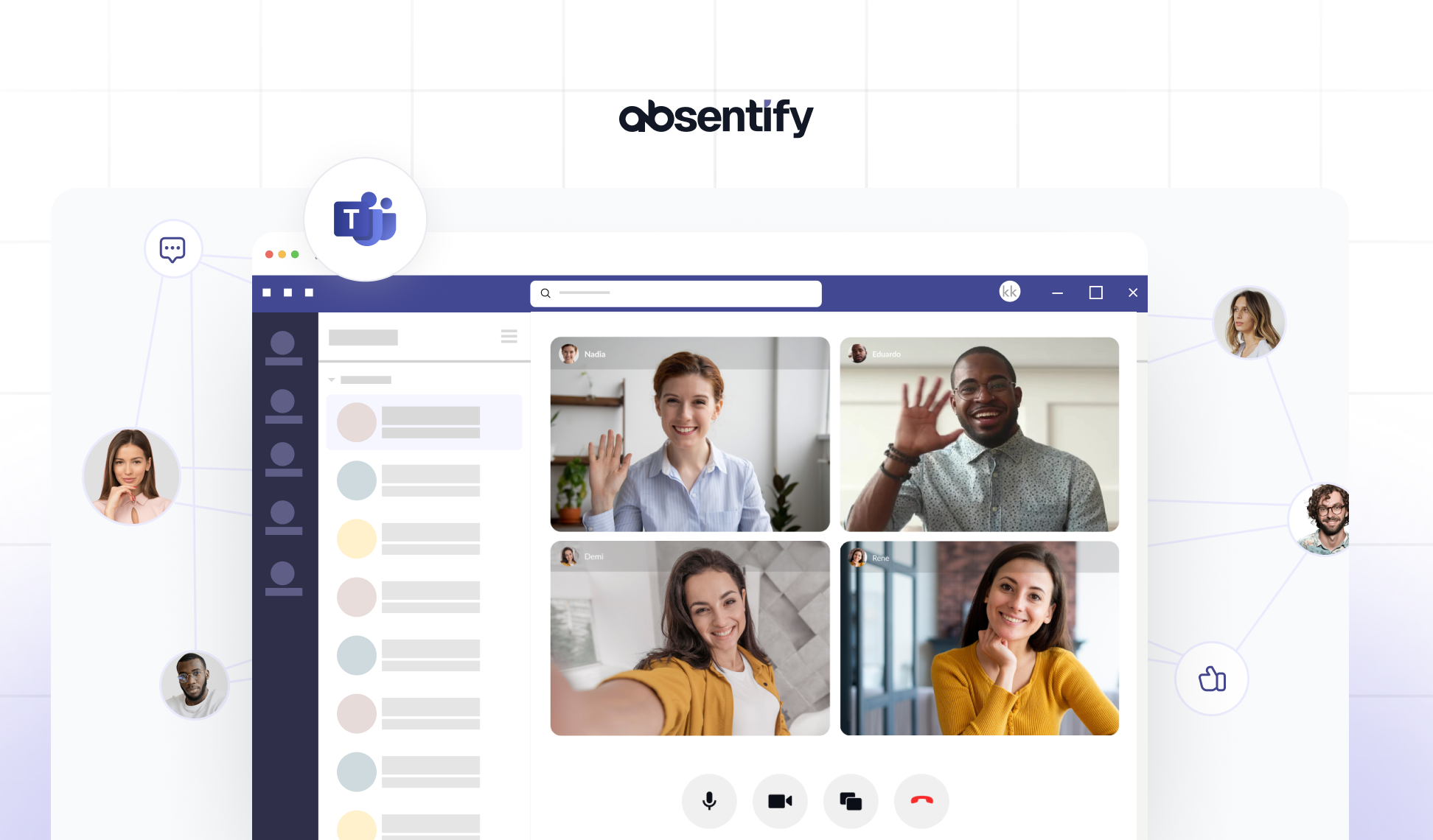
You open Microsoft Teams and are immediately overwhelmed by unread chats and cluttered channels. Important information gets lost, while appointments are often double-booked or forgotten. This chaos costs you valuable time every day and robs you of focus.
In this article, you will learn how to set up and use Teams to organize your communication clearly and automate recurring processes to automate. This way, you gain up to an extra hour of time back in your day.
This article provides you with 15 practical tips on how to:
-
Channels and Chats organized in such a way that information is not lost
-
By settings and status options you reduce distractions and enable focus blocks
-
Routine tasks and absence information automated with workflows and absentify
Calendar and meetings so coordinated that you save time every day
Tip 1: Structure channels in a meaningful way
If you structure Microsoft Teams and organize channels clearly, you save on search effort and increase your focus.
-
Organize channels by projects, topics, or departments so you immediately know where to find which information.
-
Assign concise channel names and use channel descriptions for additional guidance.
-
Avoid duplications, by not addressing identical topics in multiple channels.
Tip 2: Establish team rules for communication
Mutual agreements prevent misunderstandings and reduce distractions.
-
Decide which topics you discuss in the chat and which in channels.
-
Agree on when an Emoji is sufficient as a response and when a detailed message is necessary.
-
Document the rules in the Team-Wiki or as a OneNote tab.
-
Check the agreements every few weeks and adjust them if necessary.
Tip 3: Separate chats and channels
Clear differentiation between private conversations and official updates ensures structure.
-
Use Chats for informal arrangements and quick queries.
-
Post **Team Updates and Project Information **consistently in the appropriate channels.
-
Pin important group chats, so they don't get lost in the list.
-
Enable banner notifications only for truly relevant chats.
Tip 4: Use mentions and tags effectively
Targeted notifications reach only those affected and enhance your focus.
-
Avoid general @Team mentions and instead use specific tags such as @Marketing or @Sales.
-
Enable notifications for @mentions in critical channels to ensure no important message is missed.
-
Mute **less important channels **so you will only be disturbed for relevant topics.
-
Use tags for project or department groups, so that only the relevant people are notified.
Tip 5: Fine-tune notifications
Only by keeping up with the most important alerts can you stay informed without being distracted all day.
-
Open Settings > Notifications and disable pop-ups for unimportant channels.
-
Wähle für zentrale Kanäle den Banner-Modus, für alle anderen nur Feed-Benachrichtigungen.
-
Check regularly which Alerts you really need and adjust them accordingly.

Tip 6: Use status and focus times
Your status in Teams controls how and when others can reach you.
-
Set your status to "Do Not Disturb" if you want to work on tasks undisturbed.
-
Schedule daily focus blocks in your Outlook calendar and activate them automatically in Teams.
-
Update the status with a short message, e.g., “In deep work until 3:00 PM – contact only for emergencies”.
-
Use the “Focus Time” feature so that Teams and Outlook respect your scheduled times.
Tip 7: Set up Quiet Hours on your smartphone
If you use Teams on your personal smartphone, you should protect your leisure time.
-
Open in the mobile Teams app Settings > Notifications > Quiet hours.
-
Define fixed times, during which only critical alarms are allowed through.
-
Check if your Outlook Calendar adopts the same quiet hours to suppress variations in the email.
-
Use such automatic breaks, without manually turning the device off and on.
Tip 8: Task management directly in Teams
Keep all to-dos in view where you communicate.
-
Open the app "Tasks by Planner and To Do" in a channel.
-
Create appropriate task lists for each project or meeting.
-
Assign tasks to team members and set due dates.
-
Track the progress with the integrated board or list layout.
Tip 9: Plan meetings efficiently
To coordinate calendars and appointments in a way that saves time rather than consuming it.
-
Use the Scheduling Assistant in Teams or Outlook to see everyone's available slots at a glance.
-
Create recurring appointments for recurring meetings and store template agendas in the channel.
-
Bundle multiple short calls rather than rare long sessions, to keep project blocks free.
-
Set clear start and end times and stick to the agenda.
Tip 10: Use Threads and Pins
Conduct discussions where they belong and keep important information at your fingertips. This avoids long searches and promotes high team productivity.
-
Respond as a Thread to carry on conversations in the context of the original message.
-
Pin important messages, files, or links to the top of the channel.
-
Use pinned items as Quick Access for the entire team.

Start for free now
No credit card required—enjoy unlimited access with our free plan. You can upgrade or cancel anytime.
Tip 11: Workflows with Power Automate and absentify
Let recurring tasks run automatically in the background.
-
Create Power Automate flows that trigger actions in Teams for certain events (e.g., automatic channel notification for new form entries).
-
Use the absentify-App to manage absences in teams directly and keep the team calendar up to date.
-
Save time on holiday and sickness notifications, as absentify handles the status updates and calendar bookings.
-
Distribute routine tasks, so your team can focus on important content.
Tip 12: Use keyboard shortcuts efficiently
Reduce mouse clicks and switch between functions in a flash.
-
Use Ctrl + E to search and Ctrl + . for the command panel. For Mac, use Command ⌘ + E to search and Command ⌘ + . for the command field.
-
Lege dir eigene Shortcuts für häufig genutzte Befehle an.
-
Practice one or two new shortcuts per week to noticeably speed up your Microsoft-Teams-Production spürbar zu beschleunigen
-
Use the overview under Settings > Keyboard Shortcuts to learn all available commands.
Tip 13: Customize favorites and tabs
Get quick access to your most important areas in Teams.
-
Pin central channels and chat groups, so they always stay at the top of the bar.
-
Set up tabs for important tools or documents so that everything important is readily accessible.
-
Create tabs for important files, OneNote pages or the absentify-Dashboard.
-
Remove rarely used entries from your Favoritenliste, to maintain clarity.
-
Start Teams directly in the most relevant area and thus increase your daily Teams productivity.
Tip 14: Use Team Analytics for the Productivity Score
By analyzing usage data, you get a Microsoft productivity score and identify potential for optimization.
-
In the Teams Admin Center, access the Team Analytics to review chat and meeting statistics.
-
Pay attention to metrics such as average meeting duration and message volume per channel.
-
Compare the Teams Productivity Score to identify areas for improvement.
-
Schedule regular reviews to optimize rules and processes based on data.
Tip 15: Schedule regular retrospectives
Reflect together for continuous improvement.
-
Block out a fixed slot in your calendar for short reviews on team usage.
-
Discuss which tips work well and which obstacles still exist.
-
Update your team rules and work patterns based on the insights gained.
-
Document Learnings in the Wiki, so that new team members can benefit directly from your experiences.
Use Microsoft Teams with clear rules and smart workflows
As soon as you use Microsoft Teams effectively, it becomes a true productivity aid. For this, clear structures, transparent communication, and automated processes need to interlock. With absentify, you can set up your channels so that:
-
**Information is immediately **findable.
-
Distractions can be minimized through targeted notification management.
-
By automating routine tasks, time is saved.
Your team works more focused, meetings are more purposeful planned and absences are automatically managed through absentify. This way you can measurably increase your daily output and ensure smooth collaboration.
Would you like to simplify your absence management?
- No credit card required
- Unlimited free access
- Upgrade or cancel anytime
Microsoft Teams Productivity – Frequently Asked Questions and Answers
About the author

Anna Keller
Content manager at absentify
As a blog author at absentify, Anna Keller explains how companies can efficiently manage absences, vacations, and working hours. In her articles, she combines HR practice with Microsoft 365 tips for Outlook and Teams and provides templates, step-by-step instructions, and software comparisons for modern, digital processes.
Share article
More interesting articles
Reducing overtime: rights, duties and the process for employers and teams
Reducing overtime means offsetting accumulated extra hours with time off or payment. Under German employment law, the six calendar months or 24 weeks specified in the German Working Time Act apply solely to offsetting an extended working day against the statutory eight-hour average. Employment contracts, works agreements or collective agreements determine how an overtime balance can be reduced. Where these rules permit time off in lieu, the employer determines its timing and process within the scope of their right to give instructions.
Anna Keller
Content manager at absentify
When does unused leave expire? Deadlines and exceptions that determine your entitlement
Under German law, unused leave expires only under certain conditions: entitlement generally lapses on 31 December, or after the carryover period on 31 March, only if your employer has given you timely and specific notice of the impending expiry and you still do not take the leave. An exception applies in cases of continuous illness.
Anna Keller
Content manager at absentify
Employee Self Service (ESS): Definition, Features, and Benefits for Leave and Absence Management
Employee Self Service (ESS) gives employees access to manage their personal data, leave requests, or absences themselves without coordinating every step with HR. The term originally comes from SAP HR modules and has become an umbrella term for self-service features in human resources. Its benefits are particularly clear in leave and absence management.
Anna Keller
Content manager at absentify