

Using Microsoft Teams effectively: How to bring organization, structure, and efficiency to your workday
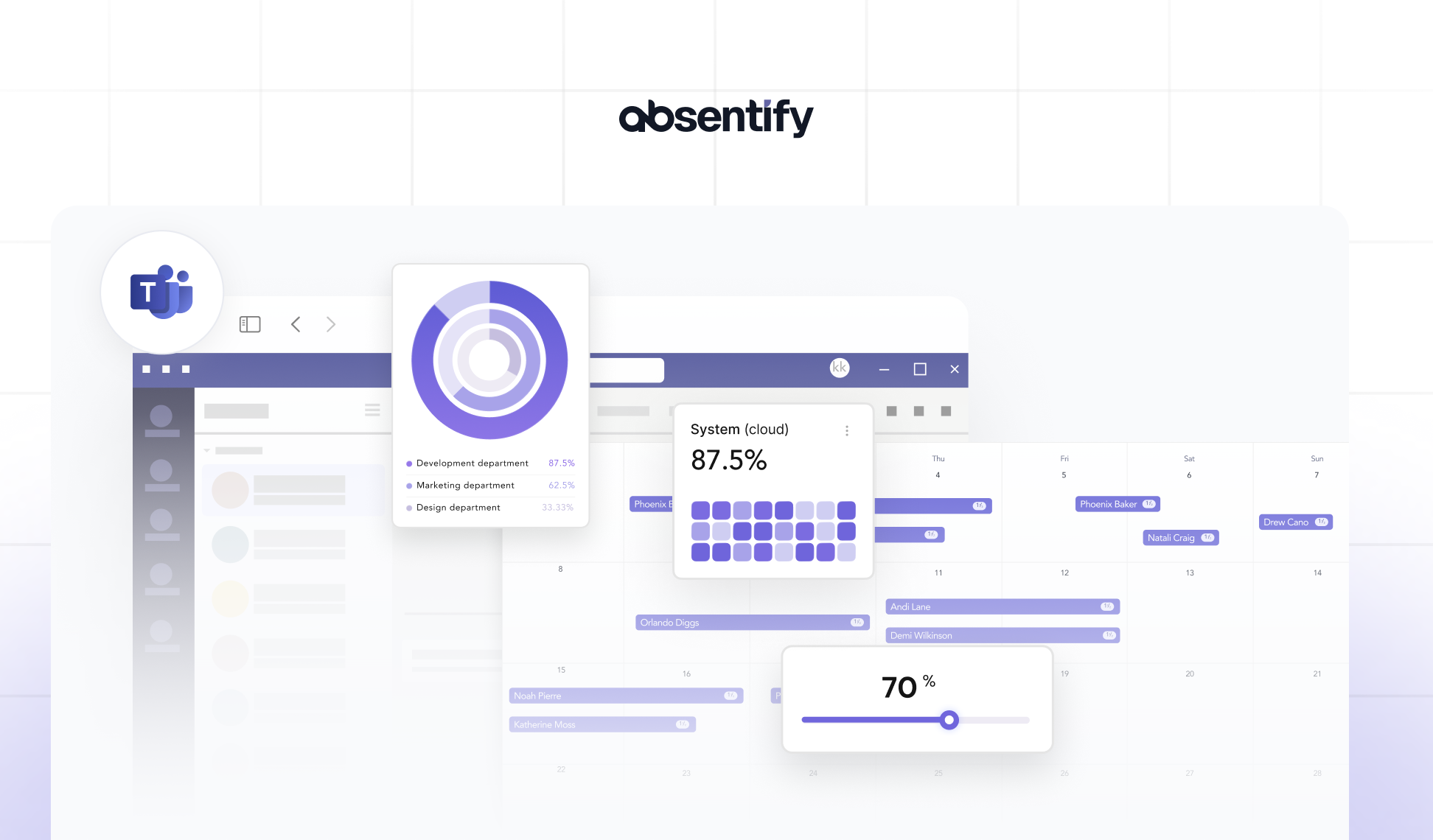
Using Microsoft Teams effectively is something many only achieve partially. You work with the tool every day, but your workday remains cluttered? Often, this is not due to the tool itself, but rather how you use it.
Unstructured communication, scattered files, missed tasks, and constant notifications are often the result. In this article, we will show you how to restructure your Teams setup – with clear methods, meaningful best practices, and features of Microsoft Teams.
This article will show you:
-
How you structure teams effectively.
-
Which features are really important.
-
Which Best Practices Teams professionals apply.
-
How you make your communication efficient.
Which extensions can significantly ease your work.
How does one structure teams?
A good setup determines whether Microsoft Teams becomes a productivity hub or a digital repository for chaos. Before you consider features and tools, you should ask yourself one central question: What does a sensible structure for our team look like?
Teams vs. Channels: What belongs where?
Many make the mistake of creating a new team for every task or project. This quickly leads to confusion – as each team comes with its own channels, permissions, and settings.
Therefore, prefer to work with a few, thematically clearly defined teams, for example:
-
"Marketing", "Sales" or "IT Support" for fixed departments
-
"Project XY" for large, time-limited endeavors
-
"Company-wide" for cross-departmental communication
Within these teams, you create channels for specific topics or work areas: campaigns, clients, subprojects, or routine matters such as "team meetings" or "editorial planning".
This is how you avoid redundancies and ensure that everyone can quickly find their way.
Use private channels strategically
Private channels are useful when you want to share sensitive information or need a closed workspace – for example, for the executive team or HR. Use them sparingly – the more secluded spaces you create, the less transparent collaboration becomes.
Naming & Structure: Consistency Beats Creativity
Assign clear, consistent names. If one channel is called 'Projects' and another 'Client Projects', no one will know what is being discussed where.
Therefore, establish a consistent naming system, e.g.:
-
„Project_A_ClientXY“
-
"Meeting Minutes_Marketing"
-
"Planning_Q3"
This saves on follow-up questions and, above all, search time.
Customize tabs individually
Teams allows you to define tabs per channel – such as for files, Planner boards, or notes. Use this feature to provide relevant information right in the work context. This keeps everything in one place – and you don't have to switch between tools.
Setting up teams – creating the right foundation
A well-structured team is good – but without the right setup in the background, you will still be held back time and again. That's because many problems in the workday arise from incorrectly set permissions, inappropriate notification settings or missing rules.
This** Teams-Tutorial** shows you how the tool works smoothly:
1. Teams Settings: Less Noise, More Focus
By default, Teams notifies you about everything – chats, replies, reactions, @Mentions. This can quickly lead to an overload of notifications. Therefore, the rule is: Set your notifications deliberately.
You should do this:
-
Monitor channels that are truly relevant to you
-
Prioritize mentions – mute all other notifications
-
Allow only the essentials in the mobile app – for clear boundaries between work and leisure
So your attention stays where it belongs.
2. Precisely control roles and permissions
Not everyone on the team needs to be able to see or change everything.
Distribute roles purposefully:
-
Owners manage the team, add members, and edit settings.
-
Members work in day-to-day operations without access to administrative functions.
-
For certain sensitive areas, private channels with restricted access serve as a means.
Once set up cleanly, you'll save yourself many follow-up questions later – and avoid security issues.
3. Onboard New Employees – Systematically
When new colleagues join the team, they often lose track of things. A brief team introduction available directly in the channel can help – for example, as a pinned message or a OneNote link.
Contents could include:
-
What goes in which channel?
-
Where are important files located?
-
How does communication take place (e.g., no private chats on team topics)?
This leads to a faster onboarding and fewer unnecessary questions in the chat.
4. Make absences visible directly in Teams
A common disruptor in everyday work: colleagues are on vacation or sick, but no one knows it. Tasks are left undone, inquiries go unanswered. This is exactly where absentify comes in.
With absentify …
-
... you can see at a glance who is available when.
-
… you plan vacations and absences directly in Teams or Outlook.
-
... you don't need an additional tool – the extension is seamlessly integrated.
With the right settings, Teams will be clear, efficient, and enjoyable to use from the start.
Now that your setup is complete, it's all about the core of daily work: Communication. And it can be much better managed in Teams than you might think.

Clear Communication: Making Sensible Use of Chats, Posts, and Reactions
Working with teams thrives on communication. However, many teams communicate on the wrong channel, talk past each other, or lose information in endless chat threads. This not only slows down the flow of information, but also costs time and nerves.
Therefore, establish effective communication in Microsoft Teams – clear, purposeful, and understandable.
1. Chat or channel? Choose wisely.
The most important difference in Teams: Chats are private, channels are transparent and team-oriented.
- Use Chats for direct, quick coordination between 2 or a few people.
Use channel posts when your topic is relevant to multiple colleagues – or should be documented.

**Tip: **Do not engage in significant discussions in one-on-one chats when the team is involved. This helps prevent knowledge silos.
2. Use threads – not new posts
A common mistake: Someone asks a question in the channel, someone responds – but in a new post. This breaks the context. Use the reply function in the thread instead, to keep topics together.
This way, the context is preserved, information remains traceable, and no one has to click through 30 individual messages.

3. Use mentions strategically
@Mentions are an effective tool – if you use them sparingly:
-
@Team notifies everyone in the channel – save it for really important messages.
-
@Person is perfect if you want to clarify specific responsibilities.

Best Practice: Establish fixed communication rules, e.g., "No @Team mentions after 6 PM" or "Every request ends with a clear call-to-action".
4. Teams Read Receipts: Control or Clarity?
Teams offers the option to enable read receipts in private chats. This can be helpful – for example, during critical votes or deadlines. However, not everyone likes the feeling of being monitored.
Our tip:
-
Consciously activate the Teams read receipts – not by default.
-
Communicate openly when and why they are being used.
-
When in doubt, rely on commitment through clear agreements rather than control.
5. Formatting & Reactions: More Than Just Decoration
In channel posts, you can structure text, insert links, create lists, or highlight keywords. This **enhances readability **tremendously – especially for longer information.
Reactions (thumbs up, heart, laughter, etc.) also help to provide feedback quickly – without creating new messages.
Use these Teams features to make your communication more concise and clear.
If you consciously decide where and how you communicate, you reduce misunderstandings, save time, and increase accountability. Teams will then not become a digital noise – but a clear hub of information.
Files, tasks, notes: Finally organize your work tools
Anyone working with Microsoft Teams cannot escape one truth: The more projects, the more files, to-dos, and information. Without a well-thought-out system, Teams quickly becomes a digital mess of notes.
Organize your content in a meaningful way, make it transparent accessible and manage it centrally, so that nothing is lost and everything is where you need it.
1. Properly file and share documents
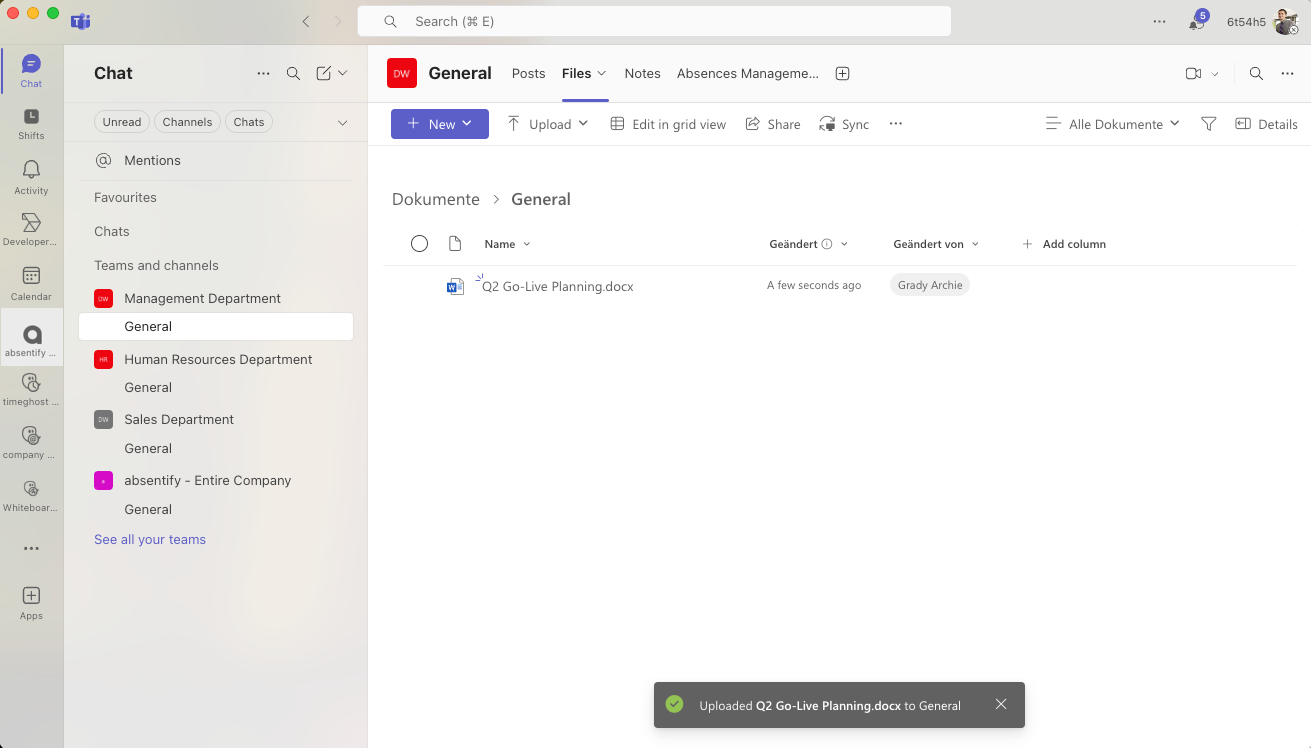
Many store files directly in the chat or upload them to random channels. The result is chaos. Instead, use the file storage in the respective channel, which is automatically linked with SharePoint.
Here's how you proceed:
-
Every file should go into the appropriate channel – not into private chats.
-
Use folder structures, but keep them shallow (e.g., Year > Customer > Project).
-
Avoid duplicates – work on central files instead of creating multiple versions.
Tip: Use the 'Pin' feature to place important documents at the top of the channel for everyone to see.
2. Task Management with Planner & To Do
Teams offers two powerful tools with MS Planner (for group tasks) and To Do (for personal tasks) – integrated directly.
Here's how to use it efficiently:
-
Create a Planner board in the channel with tasks, responsibilities, and deadlines.
-
Link the board as a tab in the channel – for direct accessibility.
-
Use Microsoft To Do for your personal tasks – you can sync them directly with Outlook.
Teams-Hack: You can convert tasks from chats and emails directly into To Dos – this saves time and clicks.
3. Centrally manage notes and minutes
Often, meeting notes disappear in emails or on local drives. In Teams, you can save them right where they are needed.
Use OneNote:
-
Create a central notebook for your team.
-
Create a separate chapter for each channel.
-
Add the notebook as a tab in the channel.
**Especially helpful: **In meetings, you can directly access OneNote to take notes collaboratively – including task assignment and tracking.
Using Meetings in Microsoft Teams effectively: better planning, efficient execution, clear follow-up
Meetings cost time. Yet often they yield little results because they are poorly prepared, conducted without structure, or not followed up on. If you use MS Teams correctly, you benefit from numerous features to make meetings leaner, more productive, and more purpose-driven. You just have to use them properly.
1. Before the meeting: Systematic planning
A good meeting doesn't just start at the beginning. Ensure that clarity prevails beforehand:
-
Set a specific agenda in the invitation text or the associated channel.
-
Link relevant files or notes directly in the meeting invitation.
-
Use surveys or polls (e.g., via Microsoft Forms) to gather opinions in advance.
If your team knows what it's about, they can prepare more effectively – and meetings become noticeably shorter.
2. During the meeting: Use features purposefully
Microsoft Teams offers you more than just camera and microphone. Use these features to make your meetings interactive and structured:
-
Share your screen or a specific window to present content selectively.
-
Use the digital Whiteboard for brainstorming sessions or facilitations.
-
Create breakout rooms in long meetings for group work.
-
Take notes on tasks right in the Meeting-Chat or with OneNote – this way no to-dos will be lost.
Tip: Stay in the channel of the respective project. This way, all communication about the meeting is documented in one place.
3. After the meeting: Secure results, clarify tasks
Too many meetings fizzle out because there is no follow-up. Ensure that meetings lead to results:
-
Record decisions and tasks during the meeting in the minutes.
-
Assign tasks directly in Planner – including deadline and status.
-
Share a summary or the minutes in the appropriate channel.
For regularly scheduled meetings, you can work with templates – this saves you time and ensures that no points are overlooked.
Effective meetings in Microsoft Teams do not depend on the tool, but on the way you use it. Plan carefully, utilize the available features, and embed the outcomes into the daily work routine – then each meeting will become an actual progress.

Start for free now
No credit card required—enjoy unlimited access with our free plan. You can upgrade or cancel anytime.
Best Practices: How Professionals Use Microsoft Teams
Microsoft Teams can do a lot – but it only becomes a real productivity tool when used thoughtfully. Those who use Teams professionally follow clear principles:
-
Structured work methods
-
Conscious Communication
-
Uniform routines
These** 5 Best Practices** have proven to be particularly effective in practice and can be quickly transferred to your team:
1. Establish clear rules for collaboration
Efficiency arises from clarity. Successful teams have binding agreements on the use of Teams:
-
Which topics belong in which channel?
-
What is documented where – and what is not?
-
When is an emoji sufficient as a response, and when is a detailed reply necessary?
These standards may seem minor, but they create a common set of expectations – and prevent misunderstandings.
2. Document communication, do not fragment it
Professionals avoid making decisions in private chats. Instead, the rule is: Important content should be in the appropriate channels – accessible to everyone.
Use threads for discussions, pin relevant information, and utilize OneNote or Planner for transparent tracking. This way you systematically build knowledge – instead of losing it in individual conversations.
3. Automate recurring processes
Many tasks are repetitive: status updates, weekly planning, inquiries about vacation. Therefore, professionals use features such as:
-
Planner templates for recurring projects
-
Automations through Cloud Flows in MS Power Automate (example of a Flow command 'When someone is absent, automatically post a notice in the channel')
-
Extensions like absentify, to set absences and schedule them – directly in Teams
This saves time, reduces manual labor, and creates more space for the actual work.
Complete absence calendar without leaving Microsoft Teams

4. Protect focus times
**Productive teams **protect their time. They make deliberate use of features such as:
-
Notification pauses or 'Do Not Disturb' mode
-
Quiet hours in the mobile app – e.g., no push notifications after 6 PM
-
Status messages to signal: "I am focused – please only for urgent matters"
The result: Fewer interruptions, more deep work, and more satisfied employees.
5. Establish teams as the central hub
Teams professionals work with as few tool changes as possible. They integrate tasks, notes, files, and communication in one place – within their Teams application. This maintains context, and all participants have access to the same information.
Make sensible use of extensions: more efficiency without switching tools
Microsoft Teams covers many requirements in everyday work. However, in practice, it becomes clear: For certain processes, the built-in tools are not sufficient. Those who want to use Teams really efficiently should employ extensions strategically – wherever they provide real added value.
1. Why Extensions Make Sense
Standard features in Microsoft Teams are powerful, but not always tailored to specific processes within a company. Extensions can help with that:
-
Automate recurring tasks.
-
Make information centrally available.
-
Seamlessly adapt teams to your daily work routine.
Important: Extensions should integrate seamlessly into Teams – without additional apps, without extra maintenance effort.
2. Manage absences – directly in Teams with absentify
A typical example of a process that is time-consuming but well-suited for automation is: absence management. Who is on vacation? Who is working from home today? Is anyone unexpectedly out sick?
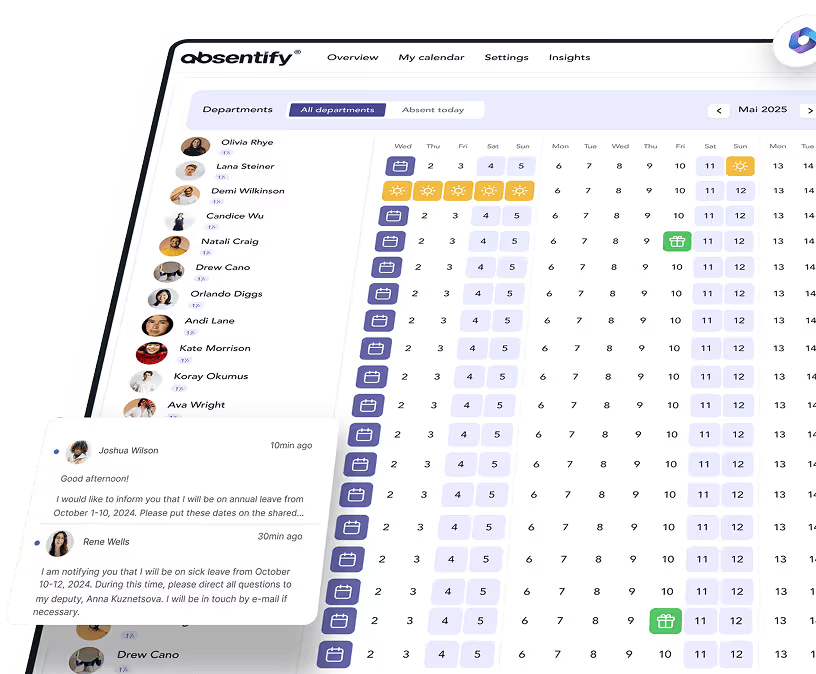
Instead of communicating this information via email or maintaining it in external tools, you can make all absences visible directly in Microsoft Teams.
Your benefits:
-
Direct integration into Teams and Outlook – no separate application required
-
Transparent team overview, who is available when
-
Holiday requests digital and traceable – including approval process
-
Calendar synchronization – Absences are automatically displayed in calendars
-
Free basic features – ideal for small and medium-sized teams
This way you save yourself from follow-up questions, reduce coordination effort, and ensure that the team can plan reliably – whether in the office, in the home office, or in a hybrid environment.
Would you like to simplify your absence management?
- No credit card required
- Unlimited free access
- Upgrade or cancel anytime
Using Teams effectively – Frequently Asked Questions and Answers
About the author

Anna Keller
Content manager at absentify
As a blog author at absentify, Anna Keller explains how companies can efficiently manage absences, vacations, and working hours. In her articles, she combines HR practice with Microsoft 365 tips for Outlook and Teams and provides templates, step-by-step instructions, and software comparisons for modern, digital processes.
Share article
More interesting articles
Reducing overtime: rights, duties and the process for employers and teams
Reducing overtime means offsetting accumulated extra hours with time off or payment. Under German employment law, the six calendar months or 24 weeks specified in the German Working Time Act apply solely to offsetting an extended working day against the statutory eight-hour average. Employment contracts, works agreements or collective agreements determine how an overtime balance can be reduced. Where these rules permit time off in lieu, the employer determines its timing and process within the scope of their right to give instructions.
Anna Keller
Content manager at absentify
When does unused leave expire? Deadlines and exceptions that determine your entitlement
Under German law, unused leave expires only under certain conditions: entitlement generally lapses on 31 December, or after the carryover period on 31 March, only if your employer has given you timely and specific notice of the impending expiry and you still do not take the leave. An exception applies in cases of continuous illness.
Anna Keller
Content manager at absentify
Employee Self Service (ESS): Definition, Features, and Benefits for Leave and Absence Management
Employee Self Service (ESS) gives employees access to manage their personal data, leave requests, or absences themselves without coordinating every step with HR. The term originally comes from SAP HR modules and has become an umbrella term for self-service features in human resources. Its benefits are particularly clear in leave and absence management.
Anna Keller
Content manager at absentify