

The functions of Microsoft Teams
Microsoft Teams has become established in many companies as the communication tool of choice. And for good reason: It combines many features that are needed for daily collaboration. Here you will learn what those features are, how you can use them, and where the limitations of Teams lie.
Overview of Microsoft Teams
Teams can be described as a digital meeting place for your workgroup. Since it's part of Microsoft 365 (formerly Office 365), it integrates very well into the daily use of Word, Excel, and PowerPoint. For instance, you can work on documents directly in Teams and share changes with colleagues immediately.

The important functions of Teams
As with most other Microsoft 365 apps, Teams offers more than just one feature. The core idea is communication – enhanced by functions for direct collaboration, such as in files
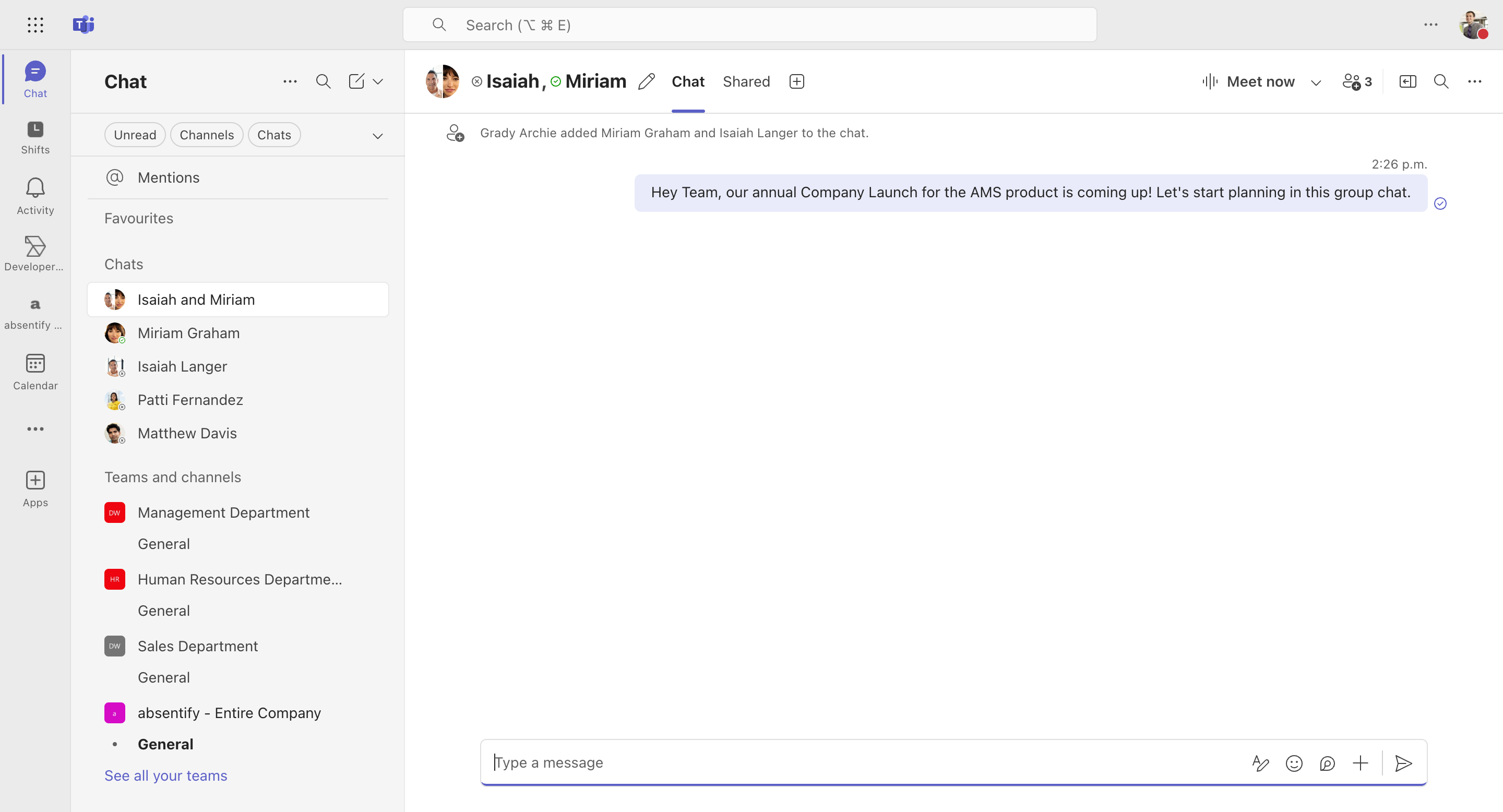
Chat and written communication
-
**1:1 Chat and Group Chat: **Chat directly with a person or start group chats.
-
Threads in channels: Within a channel (e.g., 'Marketing'), you can create a specific topic as a thread. This keeps each topic separate and maintains an overview.

Video and audio conferences
-
**Virtual Meetings: **Calls or scheduled video conferences as a team and one-on-one between two people.
-
**Simple scheduling: **With the integration into Outlook, you can see when someone is available.
-
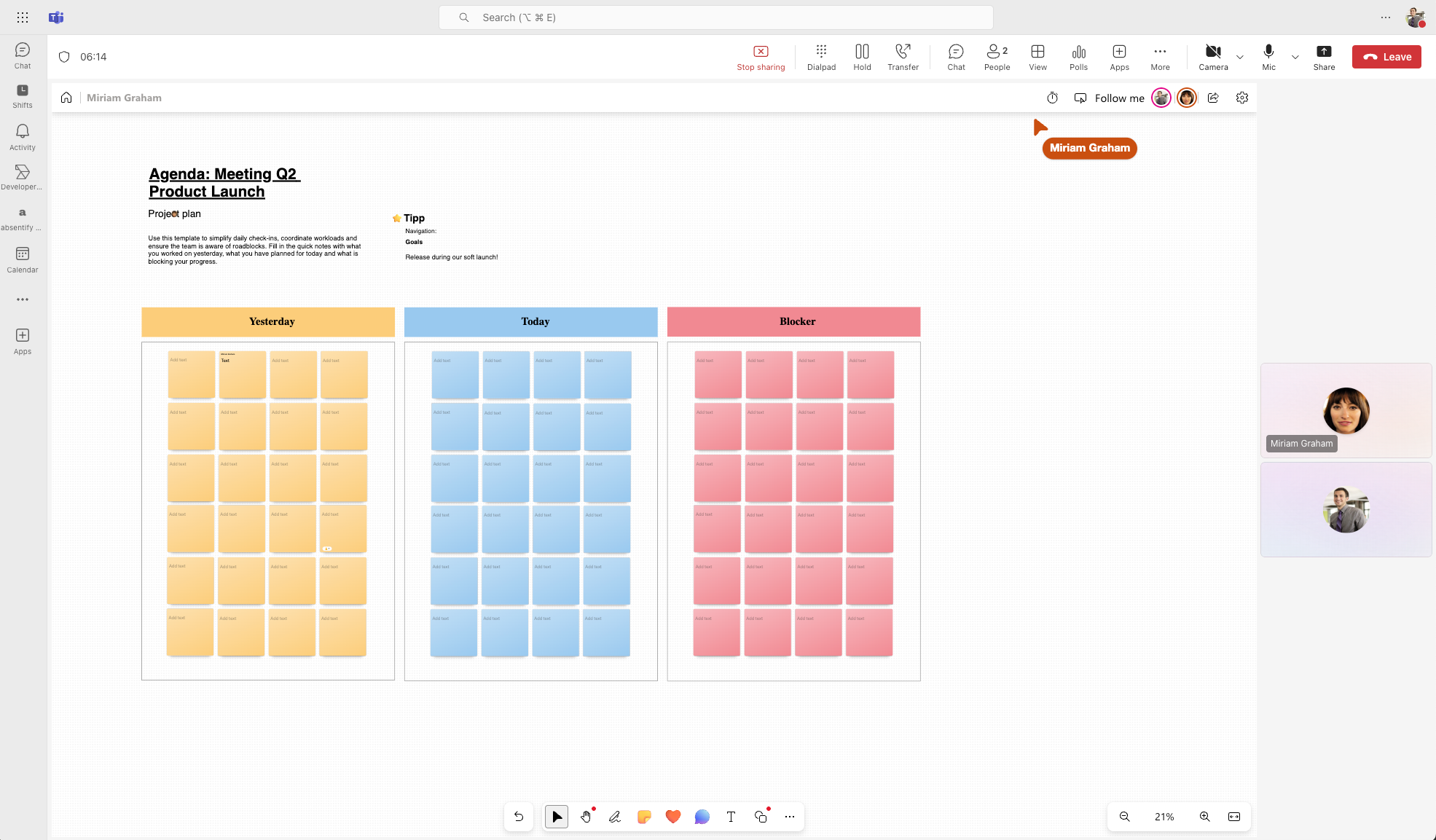
Additional Meeting Features: Screen sharing, playing presentations, and a digital whiteboard.
File management and shared documents
-
Collaborative work on files: For example, upload a Word document, work on it live with others, and see the changes your colleagues are making in real time.
-
**Versioning and Tracking: **Older document versions are preserved, allowing you to restore a previous variant if necessary.

Integration with Microsoft 365
-
Access to Outlook, OneNote, and others: Since everything is coordinated, there's no need to switch back and forth between programs.
-
SharePoint and Teams: Whenever a new team is created, a SharePoint site is automatically generated. This allows for the management of documents and data.

Extensions, Apps & Bots
-
**App Library: **In Teams, you'll find a growing selection of third-party apps (such as scheduling tools and options for vacation and absence planning that would otherwise be missing).
-
Bots: With chatbots, you automate simple tasks. For instance, you can have regular status reports sent to you or retrieve information without having to manually search in an external app.


Start for free now
No credit card required—enjoy unlimited access with our free plan. You can upgrade or cancel anytime.
Further aspects of Teams worth knowing
-
Security and Compliance: Microsoft provides you with various security features in Teams such as guest access and Data Loss Prevention (DLP), ensuring that sensitive data is not accidentally shared.
-
**Channels vs. Teams: **When you create a Team, you can set up multiple Channels within it to organize different projects or areas of responsibility. This keeps everything thematically structured.
-
Keeping Notifications Under Control: As with many other apps, notifications in Teams can become overwhelming. However, they can be customized and limited in the settings.
Expand teams with additional features
The programs in Microsoft 365, including Teams, can be expanded through apps. Through these apps, you can add features that are simply missing in the native version of Teams. This way, you can fill functional gaps that otherwise would have required separate programs.
Brief introduction to absentify: Retrofitting absence and vacation management in Microsoft Teams
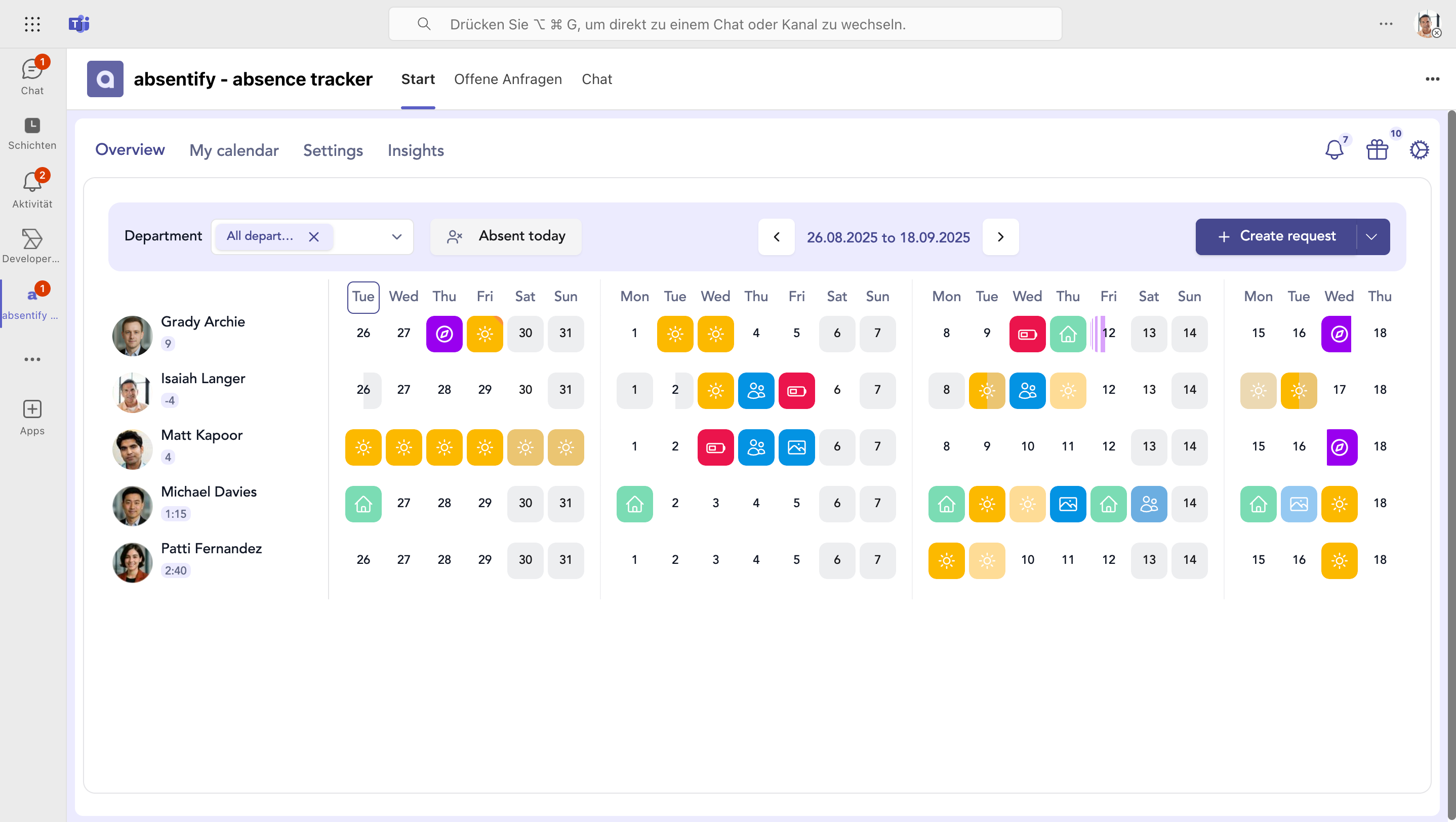
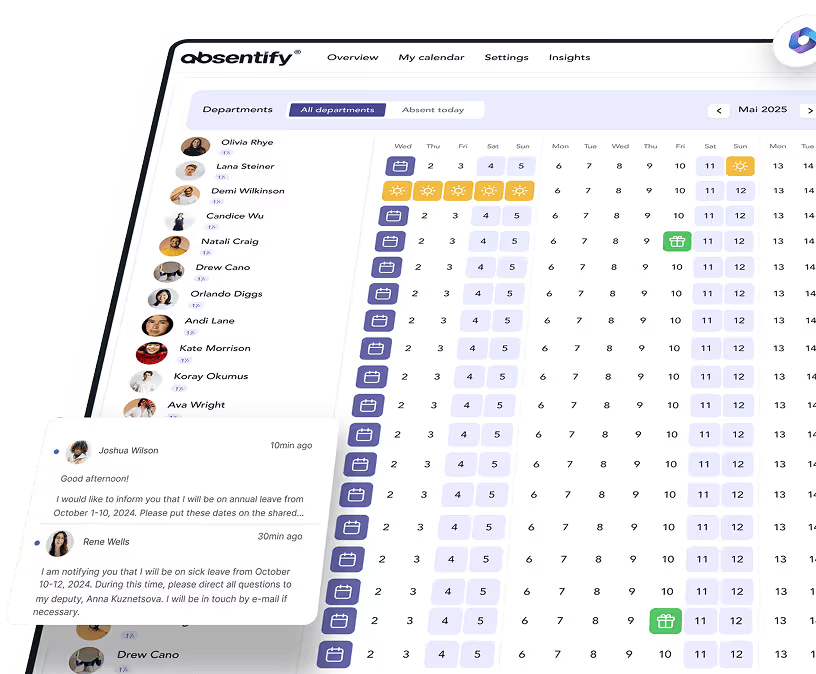
With absentify, every** employee can schedule their absences **in their own calendar.
You maintain an overview of the absence entitlements, the remaining vacation days, and the type of absence taken, all without manual calculations.
-
Record absences
-
Specify type of absence (vacation, training, etc.)
-
Approve vacations
-
Set absence quotas for departments
-
perfectly integrated into the Teams interface, no separate software
Install apps in Teams
The easiest way to install apps in Teams is through a direct link from the provider. For instance, with absentify, here is the link that allows you to install the absence management system in just a few clicks and use it for free.
install absentify for free in Teams
Here you will also find a complete guide on how to set your absences in Teams with absentify.
If you don't have a direct installation link for an app of your choice, you can install tools like absentify via the Admin Center. The advantage is that you can make the new tool available to your entire team **right away **so everyone is immediately on the same level.Installation of absentify in Microsoft Teams:
-
Access the Teams Admin Center: Sign in to the Microsoft Teams Admin Center.
-
Manage app permissions: Navigate to "Teams Apps" > "Manage Apps", search for "absentify" and ensure the app is permitted.
-
Create or edit app setup policy: Under "Teams Apps" > "Setup Policies", you can create a new policy or modify an existing one.
-
Add absentify to the policy: Under 'Installed Apps', add the absentify app. Repeat this step under 'Pinned Apps' to anchor absentify in the user's app bar.
-
Assign policy: Assign the created policy to the desired users or teams by selecting the appropriate entries under "Users" > "Manage Users" and assigning the policy there.
Would you like to simplify your absence management?
- No credit card required
- Unlimited free access
- Upgrade or cancel anytime
Features of Microsoft Teams – Frequently Asked Questions and Answers
About the author

Anna Keller
Content manager at absentify
As a blog author at absentify, Anna Keller explains how companies can efficiently manage absences, vacations, and working hours. In her articles, she combines HR practice with Microsoft 365 tips for Outlook and Teams and provides templates, step-by-step instructions, and software comparisons for modern, digital processes.
Share article
More interesting articles

Reducing overtime: rights, duties and the process for employers and teams
Reducing overtime means offsetting accumulated extra hours with time off or payment. Under German employment law, the six calendar months or 24 weeks specified in the German Working Time Act apply solely to offsetting an extended working day against the statutory eight-hour average. Employment contracts, works agreements or collective agreements determine how an overtime balance can be reduced. Where these rules permit time off in lieu, the employer determines its timing and process within the scope of their right to give instructions.
Anna Keller
Content manager at absentify

When does unused leave expire? Deadlines and exceptions that determine your entitlement
Under German law, unused leave expires only under certain conditions: entitlement generally lapses on 31 December, or after the carryover period on 31 March, only if your employer has given you timely and specific notice of the impending expiry and you still do not take the leave. An exception applies in cases of continuous illness.
Anna Keller
Content manager at absentify

Employee Self Service (ESS): Definition, Features, and Benefits for Leave and Absence Management
Employee Self Service (ESS) gives employees access to manage their personal data, leave requests, or absences themselves without coordinating every step with HR. The term originally comes from SAP HR modules and has become an umbrella term for self-service features in human resources. Its benefits are particularly clear in leave and absence management.
Anna Keller
Content manager at absentify