

Schedule an Email in Outlook: How to Send Emails Later
You've written the perfect email, but it's Friday evening — not exactly the ideal time to hit send. Monday morning, though? Perfect. Controlling when your emails arrive shows respect for working hours, avoids unnecessary pressure, and ensures important messages get the attention they deserve.
Whether it's the weekend, after hours, or you want perfect timing for the start of the week: scheduling emails in Outlook saves time and keeps your communication clean. The right approach depends on whether you're using Outlook on desktop, in the browser, or on mobile.
Schedule an Email in Outlook: Key Takeaways
- When you send your email significantly impacts whether it gets read, ignored, or overlooked.
- Outlook offers a built-in feature on both desktop and web to schedule emails precisely.
- With local Outlook accounts, the program must be open at the scheduled time — Microsoft 365 accounts don't have this limitation.
- Delayed delivery is available directly in the Outlook mobile app, though using a Microsoft account is recommended for reliability.
Why Scheduling Emails in Outlook Makes Sense
Not every message should go out immediately. The send time often has more impact than many people realize. Those who plan their emails strategically are more likely to be read, appear more professional, and don't disturb recipients at the wrong time.
Better Visibility in the Inbox
Emails that arrive in the middle of the night or on weekends easily get buried. When you schedule your Outlook emails, they appear in the inbox exactly when they're most likely to be read. This increases response rates.
Examples of good timing:
| Day | Recommended Send Time |
|---|---|
| Monday | 9:00 AM (depending on company culture) |
| Tuesday–Thursday | 8:00–10:00 AM, 1:30–3:00 PM |
| Friday | By 2:00 PM at the latest |
Reliable Communication with Teams, Clients, or Managers
Many people use Outlook professionally. If you want your team to have the necessary information on time, schedule your emails in advance — for instance, for the start of the week or before important deadlines. Nothing gets lost, and you avoid unnecessary follow-ups.
No Emails After Hours or on Weekends
Sending emails late at night or on weekends often sends the wrong signal unintentionally. Especially in high-pressure teams, it creates an expectation to respond immediately. Scheduling your emails for later shows respect for clear working hours and keeps your colleagues' inboxes calmer.

Step-by-Step: Schedule an Email in Outlook (Desktop)
If you use Outlook on the desktop, you can assign a specific send time to any email while composing it. The feature is built in and can be activated in just a few seconds.
Instructions for Windows and macOS
Here's how to delay sending an email in Outlook:
- Compose a new email: Open Outlook and click "New Email."
- Enter recipient and message: Fill in the subject, recipient address, and message as usual.
- Enable delayed delivery:
- Click "Options" in the top menu.
- Select "Delay Delivery."
- Set date and time:
- In the "Properties" window, check "Do not deliver before."
- Choose the desired date and time for sending.
- Close the window and send: Close the Properties window with "OK" and then click "Send."
The email stays in the Outbox until the scheduled time is reached. It's then sent automatically.
Important Note for Local Outlook Accounts
If you use Outlook without an Exchange server (e.g., with a POP3 or IMAP account), your PC must be on and Outlook must be running. Only then will the message be sent at the scheduled time. With Microsoft 365 accounts, the server handles delivery even when your device is offline.
Summary: Scheduling Desktop Delivery
| Outlook Version | Supports Scheduled Sending | Outlook Must Be Open |
|---|---|---|
| Outlook with Microsoft 365 | Yes | No |
| Outlook with POP/IMAP | Yes | Yes |
Outlook Web (OWA): How to Schedule Emails in the Browser
If you use Outlook in the browser, scheduling emails works just as reliably as on the desktop. The advantage: you don't need installed software, and delivery happens regardless of your device's online status.
Instructions for outlook.office.com
Here's how to schedule an email in Outlook Web:
- Open Outlook Web: Sign in at outlook.office.com with your Microsoft account.
- Write a new message: Click "New Email" in the top left.
- Add content: Enter recipient, subject, and message.
- Set send time:
- Click the small arrow ▼ next to the "Send" button.
- Choose "Schedule send."
- Select date and time: In the window that appears, you can choose a predefined time slot or specify a custom time.
- Send with schedule: Click "Send" — the email will be delivered at the chosen time.
What's Different from the Desktop Version?
- On the web, the feature is directly integrated — no menu searching required.
- Delivery always goes through the Microsoft server; your device doesn't need to be online.
- No additional settings or plugins needed.
Comparison: Outlook Web vs. Desktop
| Feature | Outlook Web | Outlook Desktop |
|---|---|---|
| Schedule send time | Yes | Yes |
| Outlook must be open | No | Only for POP/IMAP accounts |
| Access from anywhere | Yes | Only on the installed device |
If you want to send an Outlook email later via the browser, the web interface is the fastest and most flexible option. The feature is clearly visible and easy to use for beginners.
Scheduling Outlook Emails: Does It Work on Mobile?
The Outlook app for iOS and Android is often used to quickly write emails on the go. But sometimes you also want to schedule delivery — for instance, when dealing with time zones or when the message should arrive later.
Can You Schedule Emails in the Outlook App?
Yes, scheduled sending is a core feature of the Outlook app for iOS and Android devices. You can schedule emails to be sent at a specific date and time instead of sending them immediately. This helps optimize communication and deliver messages at the best time.

Start for free
No credit card required — use the free plan with unlimited users. Upgrade or cancel anytime.
How to Use Scheduled Sending in the Outlook App
Scheduling an email in the Outlook app is straightforward:
- Compose an email: Open the app and create a new message.
- Access send options: Tap the three dots (...) next to the "Send" button or the send icon with a clock symbol. Select "Schedule Send."
- Note for Android: If the option is missing, save the email as a draft and reopen it. The option should then appear.
- Set delivery time: Choose one of the suggested times or tap "Pick a time" to manually set the date and time.
- Complete scheduling: Tap "Send." The email will be saved in the Drafts folder and sent at the scheduled time.
Managing Scheduled Emails and Important Notes
Scheduled emails remain in the Drafts folder. From there, you can edit them, send immediately, or cancel the schedule.
Important note: The feature works most reliably with Microsoft 365, Exchange, or Outlook.com accounts. With personal Gmail accounts, especially on Android, availability may be limited. In those cases, or if you can't find the app feature, using Outlook Web in the mobile browser is a suitable alternative, as scheduled sending is also available there.
| Method | Scheduled Sending in App | Effort | Recommendation |
|---|---|---|---|
| Outlook App (Microsoft accounts) | Yes | Low | Ideal for scheduled emails |
| Outlook App (Gmail on Android) | Limited/No | Medium (workaround) | Check availability |
| Outlook Web in browser | Yes | Low | Robust alternative if app feature is missing |
When Does Mobile Scheduling Make Sense?
Mobile scheduled sending is ideal when you're on the go and want to strategically plan your communication. You can compose messages whenever you have time and send them at a moment that ensures maximum attention from the recipient.
What to Watch Out for So Your Email Goes Out on Time
Delivery at the right time only works when the technical conditions are met. Depending on which Outlook version you use and how your email account is set up, scheduled delivery behaves differently.
Does Outlook Need to Be Open for the Email to Send?
That depends on how your email account is configured:
| Account Type | Must Outlook Be Open? | Delivery Handled By |
|---|---|---|
| Microsoft 365 / Exchange | No | Server |
| POP3 / IMAP | Yes | Local Outlook client |
| Outlook Web in browser | No | Microsoft server (cloud) |
What Happens If Outlook Is Closed?
- With Microsoft 365: The email is still sent.
- With local accounts: The message stays in the Outbox and only goes out when you reopen Outlook.
Recommended Preparation for Scheduled Emails
To ensure your scheduled emails are sent as planned, keep the following in mind:
Pre-Send Checklist
- Have you set the correct date and time?
- Is Outlook open at the scheduled time (for local accounts)?
- Has the email actually been moved to the Outbox?
- Is your device connected to the internet (for POP/IMAP accounts)?
If you're unsure, send a test email to yourself and check whether it arrives on time.
What Happens If You Edit the Email?
Once you open a scheduled email in the Outbox, it's treated as "unsent." Changes are possible, but you'll need to click "Send" again afterward. The scheduled time is preserved if you simply close the window again.
Automation and Integration: When You Need Regular Scheduled Sends
For anyone who sends recurring emails or wants to set up more complex processes, it's worth looking at additional Outlook features in combination with other Microsoft tools.
Schedule Regular Emails with Microsoft Power Automate
Power Automate is part of Microsoft 365 and lets you create automated workflows.
For example, you can:
- Send a status email every Monday morning,
- Automatically send notifications to Teams,
- Schedule event-triggered emails with a delay.
Example: Automatic Email Every Monday at 8:00 AM
| Step | Description |
|---|---|
| Trigger | Recurring: "Every Monday at 8:00 AM" |
| Action | Outlook: "Send an email" |
| Define content | Recipient, subject, message |
Once set up, the workflow runs automatically without you having to open Outlook each time. For regular communication, this is a helpful addition to manually sending emails.
Coordinate Absences with Communication
Timing is especially important in a team. When you're planning absence management or coordinating vacation coverage, you need to know who's available and who isn't.
If you send messages in advance but aren't reachable yourself, combining scheduled sending with automatic replies in Outlook makes a lot of sense. The recipient immediately knows you're away and when to expect a response. This creates clarity and reduces follow-up questions in the team.
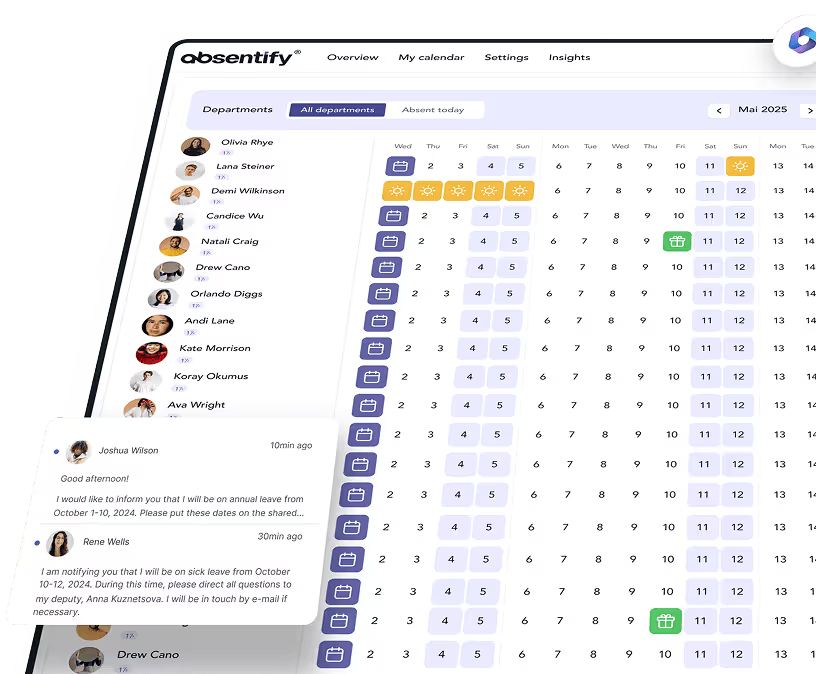
With absentify, you can additionally ensure that your email doesn't arrive exactly when nobody is in the office. Absences are displayed directly in the Outlook calendar and can be managed with just a few clicks — aligned with your team's communication rhythm.
Never miss a message — schedule delivery and absences professionally
- No credit card required
- Unlimited free access
- Upgrade or cancel anytime
Sending Outlook Emails on Time — Without Manual Follow-Up
When you schedule emails, you gain better control over when your message is read, avoid disruptions outside working hours, and create clarity in communication. Outlook provides all the features for this — on desktop, in the browser, and with minor limitations on mobile.
How to Schedule Your Outlook Emails:
- On PC, use the "Delay Delivery" function in the ribbon.
- In Outlook Web, click the arrow next to the Send button and schedule your message.
- On smartphones, the "Schedule Send" feature is available directly in the Outlook app (iOS and Android).
- With Microsoft 365 accounts, emails are sent even when your device is offline.
- For regular or automated emails, Power Automate is a great option.
- With absentify, you can additionally ensure your message doesn't arrive when nobody is in the office.
Using Outlook consistently saves you reminders, manual sending, and unnecessary mistakes. Scheduled sending works reliably — right in the tool you already use every day.
absentify Brings Clarity to Your Team Calendar
absentify is directly integrated into Outlook and Microsoft Teams. When you want to schedule a message, you automatically see when colleagues are absent. Absences are displayed in the Outlook calendar and can be entered in just a few clicks.
Benefits at a glance:
- Outlook integration without an additional platform
- Absence data that's always up to date and easy to view
- Email scheduling aligned with team availability
Whether you're sending regular updates or timing messages around your colleagues' availability: Outlook and absentify form a practical combination to improve workflows.
Schedule an Email in Outlook – Frequently Asked Questions
About the author

Anna Keller
Content manager at absentify
As a blog author at absentify, Anna Keller explains how companies can efficiently manage absences, vacations, and working hours. In her articles, she combines HR practice with Microsoft 365 tips for Outlook and Teams and provides templates, step-by-step instructions, and software comparisons for modern, digital processes.
Share article
More interesting articles
Reducing overtime: rights, duties and the process for employers and teams
Reducing overtime means offsetting accumulated extra hours with time off or payment. Under German employment law, the six calendar months or 24 weeks specified in the German Working Time Act apply solely to offsetting an extended working day against the statutory eight-hour average. Employment contracts, works agreements or collective agreements determine how an overtime balance can be reduced. Where these rules permit time off in lieu, the employer determines its timing and process within the scope of their right to give instructions.
Anna Keller
Content manager at absentify
When does unused leave expire? Deadlines and exceptions that determine your entitlement
Under German law, unused leave expires only under certain conditions: entitlement generally lapses on 31 December, or after the carryover period on 31 March, only if your employer has given you timely and specific notice of the impending expiry and you still do not take the leave. An exception applies in cases of continuous illness.
Anna Keller
Content manager at absentify
Employee Self Service (ESS): Definition, Features, and Benefits for Leave and Absence Management
Employee Self Service (ESS) gives employees access to manage their personal data, leave requests, or absences themselves without coordinating every step with HR. The term originally comes from SAP HR modules and has become an umbrella term for self-service features in human resources. Its benefits are particularly clear in leave and absence management.
Anna Keller
Content manager at absentify