

How to Set Working Hours in Outlook Calendar (2026)

Incorrectly recorded working hours in Outlook can quickly slow down scheduling and coordination. However, in Outlook, the working hours can be set with just a few clicks, so that your calendar accurately reflects the actual availability for you and your colleagues.
Setting up working hours in Outlook: The essentials in brief
-
File → Options → Open Calendar
-
Define start/end time and workdays in the 'Working Hours' section
-
Confirm with "OK"
-
Common mistakes when setting Outlook working hours arise from incorrectly set time zones, missing markings of workdays, or changes that are not saved
-
With absentify, you can combine working hours and absences directly in Microsoft Teams and prevent gaps in team scheduling

How do you set your working hours in Outlook for Desktop and on the web?
In the current Outlook desktop app (Windows/Mac) and in the Outlook Web App, working hours and locations can be adjusted almost identically.
Step-by-step guide to Outlook time tracking
-
Open Outlook (new version on the desktop or in the browser).
-
Click on the gear icon in the top right corner for options.
-
Select the Calendar > Working Hours and Location section.
- In the web, you must first click on the gear icon and select “Show all Outlook settings” in the upcoming quick menu to see this menu item.
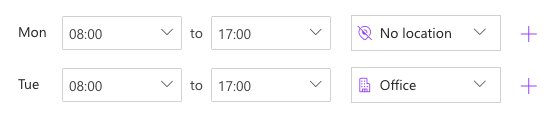
- Check the boxes for the days of the week you work.

-
Set the start and end time for each day.
-
Choose your location (e.g., office or remote).
- If your business manages multiple buildings, you can select the specific building.

-
Choose how much you want to share location details with others by enabling or disabling 'Share Office Location Details'.
-
Click on “Save”.
More clarity in the calendar
After saving, Outlook highlights your working hours in the calendar with color. Appointments outside these periods are immediately visible as outside of working hours. This makes it easier to coordinate with colleagues and prevents accidental invitations that do not fit into your time window.
How are working hours set in Outlook Mobile?
In the Outlook mobile app (iOS/Android), you cannot set working hours yourself. It only displays the times already defined in Outlook Desktop or the Outlook Web App. However, Outlook for Mac allows you to directly adjust working hours (via Outlook → Preferences → Calendar → Work Schedule).

Start for free now
No credit card required—enjoy unlimited access with our free plan. You can upgrade or cancel anytime.
Prerequisites and settings to customize your Outlook working hours
The procedure for setting the working hours may vary slightly depending on the platform:
-
Outlook for Microsoft 365 (Windows/Mac): full feature set for work time settings
-
Outlook Mobile (iOS/Android): You cannot set working hours yourself
-
Outlook Web-App (OWA): similar features, but slightly different menu navigation
-
Older versions of Office: partially limited options
Permissions in a corporate context
In corporate networks, IT can block or pre-allocate certain calendar functions. If the working hours cannot be changed, you should first clarify to what extent restrictions exist.
Synchronization with Microsoft Teams
The working hours you have set in Outlook also affect how colleagues **see you as available **in Microsoft Teams.
Track all working hours and absences in Outlook and Teams with absentify
Adjusting working hours in Outlook provides a clear foundation in the calendar. For a complete overview of absences, vacation times, and sick reports, however, that is not enough.
To prevent pure Outlook working time from becoming a dead end, absentify expands the functions to include absence and vacation planning directly in Teams:
-
Absences and working hours are made directly visible in Microsoft Teams
-
Approval processes for vacation or sick leave can be clearly represented
-
Notifications keep the entire team automatically informed
So your Outlook calendar remains accurate and the entire team planning transparent and up-to-date.
Would you like to simplify your absence management?
- No credit card required
- Unlimited free access
- Upgrade or cancel anytime
Setting up working hours in Outlook – Frequently Asked Questions and Answers
About the author

Anna Keller
Content manager at absentify
As a blog author at absentify, Anna Keller explains how companies can efficiently manage absences, vacations, and working hours. In her articles, she combines HR practice with Microsoft 365 tips for Outlook and Teams and provides templates, step-by-step instructions, and software comparisons for modern, digital processes.
Share article
More interesting articles

Reducing overtime: rights, duties and the process for employers and teams
Reducing overtime means offsetting accumulated extra hours with time off or payment. Under German employment law, the six calendar months or 24 weeks specified in the German Working Time Act apply solely to offsetting an extended working day against the statutory eight-hour average. Employment contracts, works agreements or collective agreements determine how an overtime balance can be reduced. Where these rules permit time off in lieu, the employer determines its timing and process within the scope of their right to give instructions.
Anna Keller
Content manager at absentify

When does unused leave expire? Deadlines and exceptions that determine your entitlement
Under German law, unused leave expires only under certain conditions: entitlement generally lapses on 31 December, or after the carryover period on 31 March, only if your employer has given you timely and specific notice of the impending expiry and you still do not take the leave. An exception applies in cases of continuous illness.
Anna Keller
Content manager at absentify

Employee Self Service (ESS): Definition, Features, and Benefits for Leave and Absence Management
Employee Self Service (ESS) gives employees access to manage their personal data, leave requests, or absences themselves without coordinating every step with HR. The term originally comes from SAP HR modules and has become an umbrella term for self-service features in human resources. Its benefits are particularly clear in leave and absence management.
Anna Keller
Content manager at absentify