

Teams Approvals: how to set them up and integrate them | absentify
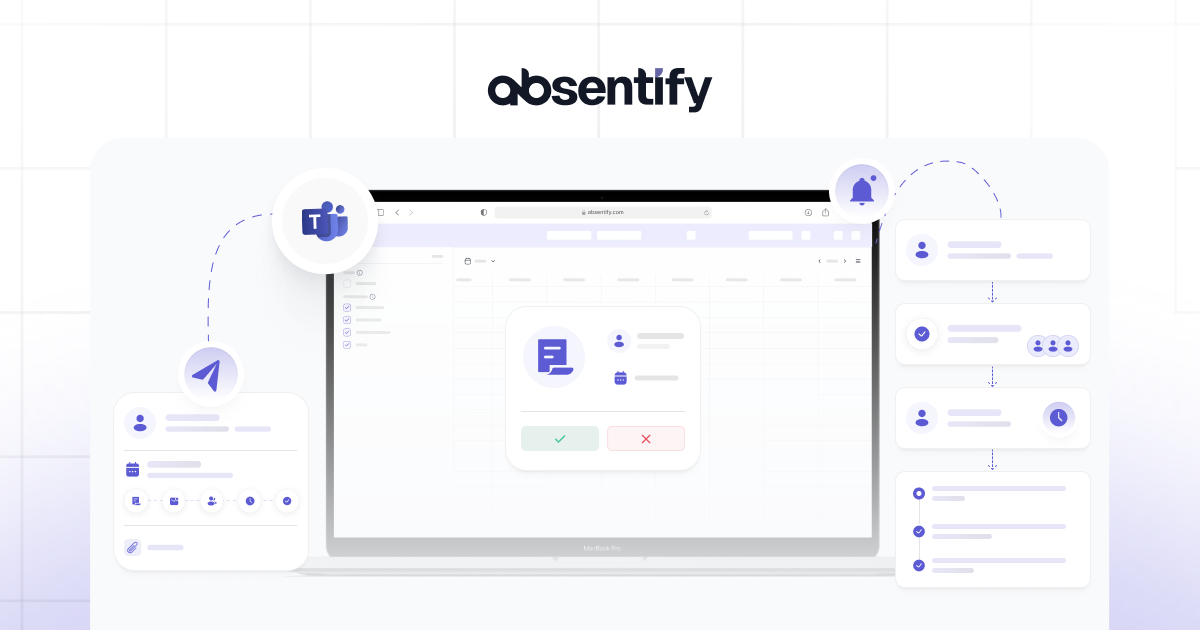
Teams Approvals lets you sign off on requests or workflows directly inside Microsoft Teams. The Approvals app documents every request, notifies the approver and captures each intermediate step along the way.
Teams Approvals: the essentials at a glance
- Teams Approvals is an app built into Microsoft Teams that lets employees request, route and document sign-offs instead of managing them via email or Excel.
- To use the Approvals app, a Microsoft 365 licence with Teams is enough. Your IT administrator enables the app in the Teams Admin Center; multi-step workflows with custom triggers additionally require Power Automate.
- Data protection duties may apply: a legal basis under Article 6 GDPR, EU hosting of the data, defined retention periods and — in Germany — the works council's co-determination right under §87 BetrVG.
- absentify extends the native Teams Approvals with absence approvals that include leave balances, holiday calendars and minimum staffing rules — directly inside Microsoft Teams and Outlook.
What can you do with Microsoft Teams Approvals?
MS Teams Approvals is an app built into Microsoft Teams that lets you first create a sign-off request and then route it to the person responsible for approving it. You can track the status of every request while it is in flight. Each request — title, description, deadline and decision — lands in a single place and is documented.
Compared with approvals via email, phone or a hallway conversation, this approach makes sure that requests do not get lost and that every step and the final result are captured or logged. The decision stays retrievable at any time.
Typical use cases for Approvals in Microsoft Teams:
- Simple leave and absence requests: employees ask for time off, and their manager approves it directly in Teams.
- Travel and expense sign-offs: receipts are attached and cleared by the budget owner.
- IT and procurement requests: hardware or software requests are approved or declined.
- Document sign-offs: contracts or offers receive a documented sign-off before they go out.

Approve leave based on remaining balance and team planning — with absentify
Start for free nowWhat isn't possible in Microsoft Approvals?
Microsoft Approvals is primarily built for yes/no decisions and hits its limits when it comes to real HR and absence management. That is by design: the app is a transport channel for decisions, but it does not come with a connected system of record:
- No leave-balance or quota management: when an employee submits a leave request, the system does not know how many days they are entitled to this year, how many they have already taken or whether any carry-over from last year is still open. In practice, managers still have to maintain a separate list or a dedicated tool in the background.
- No team-wide absence management with conflict checks: approvals are shown as an isolated, sequential list. As a manager, you don't see who else in the team is on leave, parental leave or training during the same period. There is no way to enforce a minimum staffing level in the department.
- Regional public holidays and compliance: Microsoft Approvals does not automatically deduct regional public holidays as non-working days from a leave period. You would have to check yourself whether public holidays fall inside the requested week to count leave days correctly.
How does Microsoft Teams Approvals work?
Inside the Approvals app in Microsoft Teams you create a request, choose the approvers, they receive a notification and decide with a single click. The IT administrator enables the app in the Teams Admin Center; from that moment it is available to every eligible user.
The requester picks one or several approvers, sets a deadline and adds attachments where needed. Microsoft stores the data in Dataverse and Forms, so approvals in Microsoft Teams remain reportable and auditable later on.
Which approval processes can be modelled in MS Teams?
MS Teams supports both simple and multi-step sign-offs. This covers 1:1 approvals, workflows with several stages and parallel approvals from multiple approvers at the same time.
| Use case | Suitable for native Teams Approvals? | Note |
|---|---|---|
| Simple 1:1 sign-off | Yes | Can be started straight from a chat or the app |
| Multi-step workflow | Partially | Approver order can be defined; more complex logic requires Power Automate |
| Parallel approval | Yes | Enable the option "Requires a response from all approvers" |
| Leave-balance reconciliation | No | No automatic deduction from the remaining balance — a dedicated tool is required |
How do I set up Teams Approvals?
To use Teams Approvals, your IT administrator enables the Approvals app in the Teams Admin Center; from there, every user creates their own requests directly in Teams. The creation flow is identical on Windows, macOS, iOS and Android.
Prerequisites: licences, roles and admin settings
Before the first request goes live, you need three things:
- Licence: a Microsoft 365 licence that includes Microsoft Teams (Business Basic or higher). Rule-based workflows additionally require a Power Automate licence.
- Admin role: the Teams Administrator role to manage the app in the Teams Admin Center.
- App enablement: under Teams apps → Manage apps, search for "Approvals" and make sure the app is allowed org-wide. First-party Microsoft apps are enabled by default.
How do I enable the Approvals app as an admin?
- Sign in to the Teams Admin Center (admin.teams.microsoft.com).
- Open Teams apps and then Manage apps.
- Search for "Approvals" and open the app entry.
- Check the status and set the toggle to "Allowed".
- Optionally, use App permission policies to define which user groups can see the app.
How do I create an approval request?
Once the app is enabled, here is how to create a request:
- Open the "Approvals" app inside Teams.
- Click "New approval request" in the top right.
- Enter a title, a description and one or several approvers.
- When you set several approvers, decide whether all of them or just one need to agree, and attach any supporting documents.
- Click "Send". The request appears under the "Sent" tab, and you can follow the status in real time.
Teams Approvals app on Windows and macOS (desktop)
On the desktop, you find the app in the left app bar. If it is missing, click "More apps" (…), search for "Approvals" and pin it to the bar via right-click. Attachments can be dragged and dropped into the request.
Teams Approvals app on iOS and Android
In the mobile Teams app, tap "More" (…) at the bottom and pick "Approvals". The creation dialog is identical to the desktop version. On iPhone, iPad and Android devices you can attach files directly from the device's photo or file storage, and approve requests on the go via push notifications.
Do I have to think about GDPR and compliance when using MS Teams Approvals?
Whenever you use MS Teams Approvals, you process personal data — which means GDPR obligations apply. You need a legal basis under Article 6 GDPR, EU hosting of the approval data, defined retention periods and, if you roll the workflow out systematically in Germany, involvement of the works council.
- Legal basis: in the employment context you base approvals on Article 6(1)(b) GDPR (performance of a contract) or (c) (legal obligation, for example documentation duties).
- Hosting region: Microsoft offers the EU Data Boundary for Microsoft 365 for this purpose.
- Retention: for each type of approval, define how long the data is kept. Expense reports and tax-relevant sign-offs are subject to retention obligations of up to ten years.
- Co-determination: if you introduce approval workflows systematically in Germany, the works council has a co-determination right under §87 (1) No. 6 BetrVG, because the system can capture employee behaviour and performance.
- Data protection impact assessment: if you carry out large-scale evaluation of employee data, check upfront whether a DPIA under Article 35 GDPR is required.
Where do the native Teams Approvals hit their limits?
The native Teams Approvals hit a wall as soon as approvals need to be tied back to master data. They do not deduct leave balances automatically, they do not warn about staffing gaps and they do not offer a shared absence calendar at team level.
For leave requests, the reconciliation with each employee's remaining balance, public holidays and working schedule is missing. You also cannot configure a minimum staffing level per department, so overlapping absences slip through unnoticed.
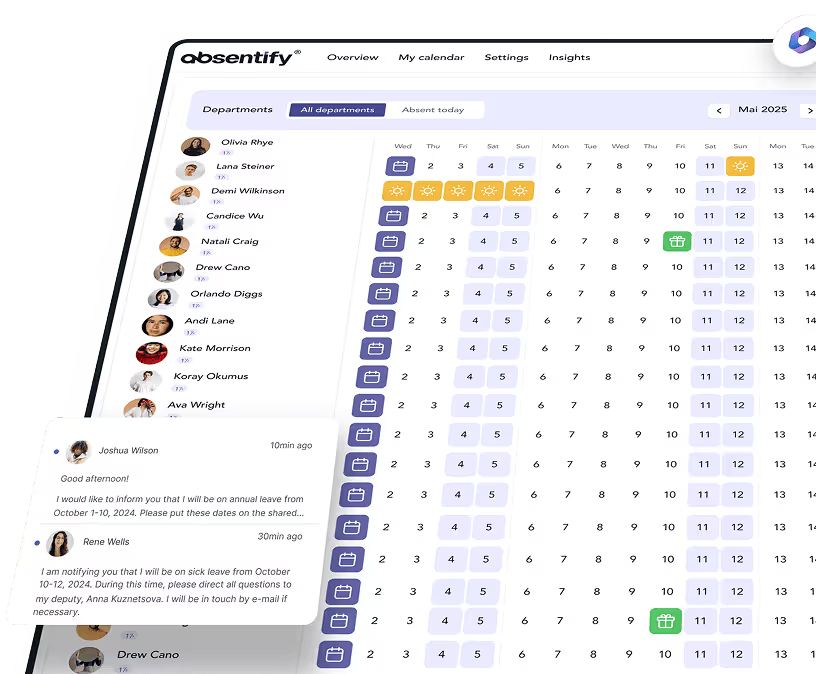
If you want to manage leave approvals end-to-end, you have to couple the sign-off to a tool that knows about absences. With absentify, employees request leave directly in Teams, can set their absence in Teams and the multi-step approval path runs automatically through the configured approvers.
Handling absence approvals with absentify
Teams Approvals bring structure to sign-offs that used to be scattered across emails and spreadsheets. For general requests like expenses or procurement, the native app is enough.
As soon as leave and absences are involved, however, you need to reconcile with leave balances, public holidays and minimum staffing. This is exactly where absentify comes in — it combines the familiar Teams interface with real absence management.
- Leave requests, including the remaining-balance calculation, run automatically through the configured approval path, with no manual reconciliation.
- absentify detects overlapping absences and understaffed periods and warns the approver in advance.
- Absences appear automatically in the Outlook calendar and the shared team calendar, without duplicate maintenance.
- Setup is done through the Microsoft Teams Store, and new employees are provisioned automatically via Microsoft 365.
Simplify Microsoft Teams vacation planning with absentify
- No credit card required
- Unlimited free access
- Upgrade or cancel anytime
Teams Approvals – Frequently Asked Questions
About the author

Anna Keller
Content manager at absentify
As a blog author at absentify, Anna Keller explains how companies can efficiently manage absences, vacations, and working hours. In her articles, she combines HR practice with Microsoft 365 tips for Outlook and Teams and provides templates, step-by-step instructions, and software comparisons for modern, digital processes.
Share article
More interesting articles
Reducing overtime: rights, duties and the process for employers and teams
Reducing overtime means offsetting accumulated extra hours with time off or payment. Under German employment law, the six calendar months or 24 weeks specified in the German Working Time Act apply solely to offsetting an extended working day against the statutory eight-hour average. Employment contracts, works agreements or collective agreements determine how an overtime balance can be reduced. Where these rules permit time off in lieu, the employer determines its timing and process within the scope of their right to give instructions.
Anna Keller
Content manager at absentify
When does unused leave expire? Deadlines and exceptions that determine your entitlement
Under German law, unused leave expires only under certain conditions: entitlement generally lapses on 31 December, or after the carryover period on 31 March, only if your employer has given you timely and specific notice of the impending expiry and you still do not take the leave. An exception applies in cases of continuous illness.
Anna Keller
Content manager at absentify
Employee Self Service (ESS): Definition, Features, and Benefits for Leave and Absence Management
Employee Self Service (ESS) gives employees access to manage their personal data, leave requests, or absences themselves without coordinating every step with HR. The term originally comes from SAP HR modules and has become an umbrella term for self-service features in human resources. Its benefits are particularly clear in leave and absence management.
Anna Keller
Content manager at absentify