

Outlook Tips and Tricks: How to Get the Most Out of Your Inbox
December 17, 2025
Mastering E-Mails – Organizing Outlook, Instead of Just Processing
You open your Outlook and the inbox greets you with 63 unread emails. Some are important, others completely irrelevant. You click through, sort half-heartedly, wasting time. What's missing is structure.
The good news: Outlook offers exactly those features, which you can set up in just a few minutes. With the right Outlook tips and tricks, your inbox will become a tool, not a construction site.
Rule-based order instead of chaos: Automation with inbox rules
If you receive daily emails such as newsletters, system notifications, or project updates, then don't waste another second on manual sorting. In Outlook, you can Inbox Rules to automatically move certain senders to the appropriate folders, color-code them, or tag them with categories.
Examples:
- Invoices go directly into the "Accounting" folder
- Emails from the boss are marked with a red category
- Newsletters automatically disappear into 'Read Later'
This automation saves you clicks every day and nerves. You just need to define the rules once, Outlook will take care of the rest.
Tip: Use the 'Create Rule' function directly by right-clicking on an email – it's the fastest way.
Clean up like a pro: These tricks save you time every day
Even if your inbox is already overflowing, you don't have to go through everything manually. Outlook comes with tools that help you clean up your Outlook folder:
- Clean up conversations: Remove duplicate emails from long threads
- Archive: Remove old emails from view without deleting them
- Quick Actions: Create one-click buttons for your most frequent tasks (e.g., 'Forward + Archive')
If you actively use these features, your inbox will become a tidy dashboard.
Use Outlook Calendar like a scheduling pro
You open your calendar and there it is again: the invisible double booking. A client appointment you forgot, a team meeting that overlaps with your vacation. Appointments are not just overlooked, they become stress factors. Yet Outlook can do much more than just schedule appointments.
With a few targeted features, you can turn your calendar into a reliable planning tool, for you and your entire team:
Block out time instead of losing it: How to keep track
Many use the Outlook calendar like a linear notebook. Enter appointments, done. But those who schedule active planning times, buffers, and fixed focus periods automatically have fewer scheduling conflicts and more control over their day.
Establish firm rules for that:
- Block your most productive hours for focused work ("Deep Work")
- Schedule buffer times between meetings, at least 10 minutes
- Use recurring appointments for repetitive tasks, e.g., project planning on Mondays
Especially practical: Define your working hours under "Calendar → Options", so colleagues can see when you are available directly in invitations.
With small changes, you can avoid unnecessary back and forth and organize your Outlook to have more order in your workday again.
Communicate absences clearly – with a tool that truly helps
Vacation requests via email, absences in the team chat, notes in the calendar that no one sees: This is everyday life in many companies and at the same time avoidable. Here comes absentify into play!
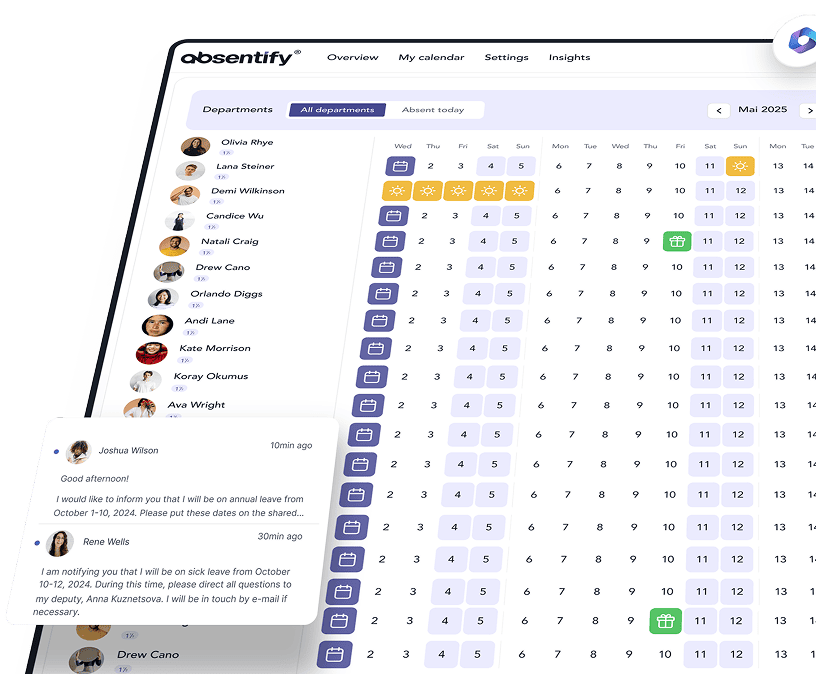
absentify is directly integrated into Outlook and Microsoft Teams. You don't have to open an additional app or get used to it. Once installed, absences are managed centrally, made visible in the calendar, and even automatic replies are set up.
{{cta-2}}
Hidden Outlook Hacks – What You've Been Missing
Outlook can do more than send emails and manage calendars. Many features are right under your nose, yet often remain unused in everyday life. These Outlook functions in particular are real time-savers and bring structure to your setup.
An overview of Outlook features helps you to discover and use the right tools effectively. Once you have set up these tools, you won't want to go without them:
QuickSteps & Building Blocks – the secret weapons for power users
Forward email, flag, and move to a folder. The same routines every day. So why not do it all with one click? With QuickSteps, you can perform multiple actions at once.
Here's how it works:
- Click on 'New' under 'Start' → 'QuickSteps'
- Select actions: e.g., “Move to folder”, “Mark as read”, “Transfer to task list”
- Set shortcut and name
- Optional: Start directly by right-clicking on an email
Additional Outlook hack: Use Quick Parts for texts you type regularly – such as greetings, signatures, or status updates. Instead of writing every sentence from scratch, a keyboard shortcut will suffice.
Favorites and Search Folders: Never scroll or search again
Anyone who works with many folders on a daily basis knows this: constant scrolling, wrong click, searching. The solution is the Favorites and Search Folders:
- Drag your most important folders (e.g., "Invoices", "Important Projects") via Drag & Drop into the "Favorites" area – they will then always be visible at the top.
- Create a Search Folder for everything you regularly need: "Unread", "Emails with Attachments", "From Boss".
You'll find in seconds what would otherwise take minutes and Outlook suddenly feels light again.
Keyboard shortcuts and shortcuts – faster than any mouse
If you process dozens of emails every day, reschedule appointments, and create tasks, then every additional click steals valuable seconds from you. Seconds that can add up to half an hour over the course of a day. The solution: Shortcuts.
With the right keyboard shortcuts, you'll breeze through Outlook.
The most important shortcuts at a glance
These keyboard shortcuts work immediately and significantly speed up your daily Outlook routine:
3 brilliant shortcuts that hardly anyone knows
These combinations are real insider tips:
Once internalized, the shortcuts make you faster than any mouse movement.
Optimize Outlook to suit your work style
Everyone works differently. That's exactly why it's worth not just leaving Outlook as it is set up by default. With a few targeted adjustments, you can optimize your Outlook to suit your daily routines, instead of adapting yourself to the tool every day.
The better Outlook suits your style, the faster you find what you need and keep track.
The perfect folder structure – how to maintain a clear overview permanently
Many mailboxes resemble a storage room without shelves: everything is there, but nothing is properly arranged. What's missing is a clear structure.
This folder structure will help you stay organized:
- Inbox: Only new, unread messages
- Waiting for: Emails you are awaiting a response for
- Projects/Subject folders: Name as required (e.g., 'Client A', 'HR', 'Finance')
- Archive: For everything that is done but needs to be kept
- Read later: For newsletters, information, and less important emails
Important: Use the Outlook rules to automatically assign emails. This way, everything immediately goes to the right place.
With this structure, you will no longer have an overcrowded inbox, but a system that takes work off your hands.
Outlook Extras you should activate
In the Outlook settings, there are small features, that can significantly improve your work experience. Many of them can be activated with just a few clicks:
- Adjust reading pane: In the "View" section, you can choose whether emails are displayed on the right, below, or not at all
- Reminder window: Set by default to 15 minutes, change it according to your rhythm
- Insert attachments via OneDrive: Saves storage space and keeps documents automatically up to date
- Delayed Sending: Perfect when you want to prepare emails but send them later
These small adjustments ensure that Outlook feels more like your personal assistant, not like a static tool.
Working in a team – how to use Outlook as a true collaboration tool
Above all, within a team, Outlook can help to make voting easier, faster, and more transparent, if you use the right features.
Those who work in a team need clarity: Who is available when? What information is where? Outlook can make all of this visible, without extra tools.
Share calendars, use group mailboxes correctly
In the office routine, it helps to see with just a few clicks whether your colleagues are available, on vacation, in a meeting, or working from home. For this, Outlook offers simple solutions:
- Calendar Sharing: Under 'Calendar → Share' you can share your calendar – including restrictions on who can see what.
- Group calendar: Ideal for teams that do a lot of planning together. You can see at a glance who is available when.
- Shared Mailboxes: Central email addresses such as info@firma.de can be used by multiple people at the same time, including response tracking
Plan better with absentify – directly in Outlook & MS Teams
With absentify, you always have a direct overview of your team's absences – without switching tools. The integration works directly in Outlook and Microsoft Teams. This means you don't need a new app, no additional login. Vacation times, parental leave, sickness, or further training – everything is clearly visible.
Features of absentify that make your workday easier:
- Team calendar with absences directly in Outlook
- Automatic Out of Office reply for Outlook vacation entries
- Self-service for employees, no more emails to HR necessary
- Streamlined approval processes for vacation requests
{{cta-3}}
How can I organize Outlook to keep track of everything?
How can I use Outlook effectively in a team?
Which Outlook hacks save me time every day?
How can I optimize Outlook without additional software?
About the author

Anna Keller
Content manager at absentify
As a blog author at absentify, Anna Keller explains how companies can efficiently manage absences, vacations, and working hours. In her articles, she combines HR practice with Microsoft 365 tips for Outlook and Teams and provides templates, step-by-step instructions, and software comparisons for modern, digital processes.
More interesting articles

The 6 best Microsoft Teams integrations
Microsoft Teams has evolved from a chat tool into a comprehensive work platform. With the right integrations, it becomes the central hub for projects, approvals, and collaboration. There are now many integrations available, but which ones do you really need?

The 7 Best Vacation Planning Software
A vacation planning software replaces error-prone Excel spreadsheets with clear, automated processes for leave requests, approvals, and calendar synchronization.
Staff planning in Excel 2026
Staff planning with Excel is for many teams in Germany the fastest and most cost-effective way to plan employees, vacations, and capacities. Excel offers useful features to structure the most important HR tasks, from shift planning to the analysis of working hours.
However, often there is a lack of clean structure. Many files are expanded over the years, lose clarity and cause errors. A clear Excel template for staff planning helps to combine absences and capacity overview into a structured system.