

Staff planning in Excel 2026
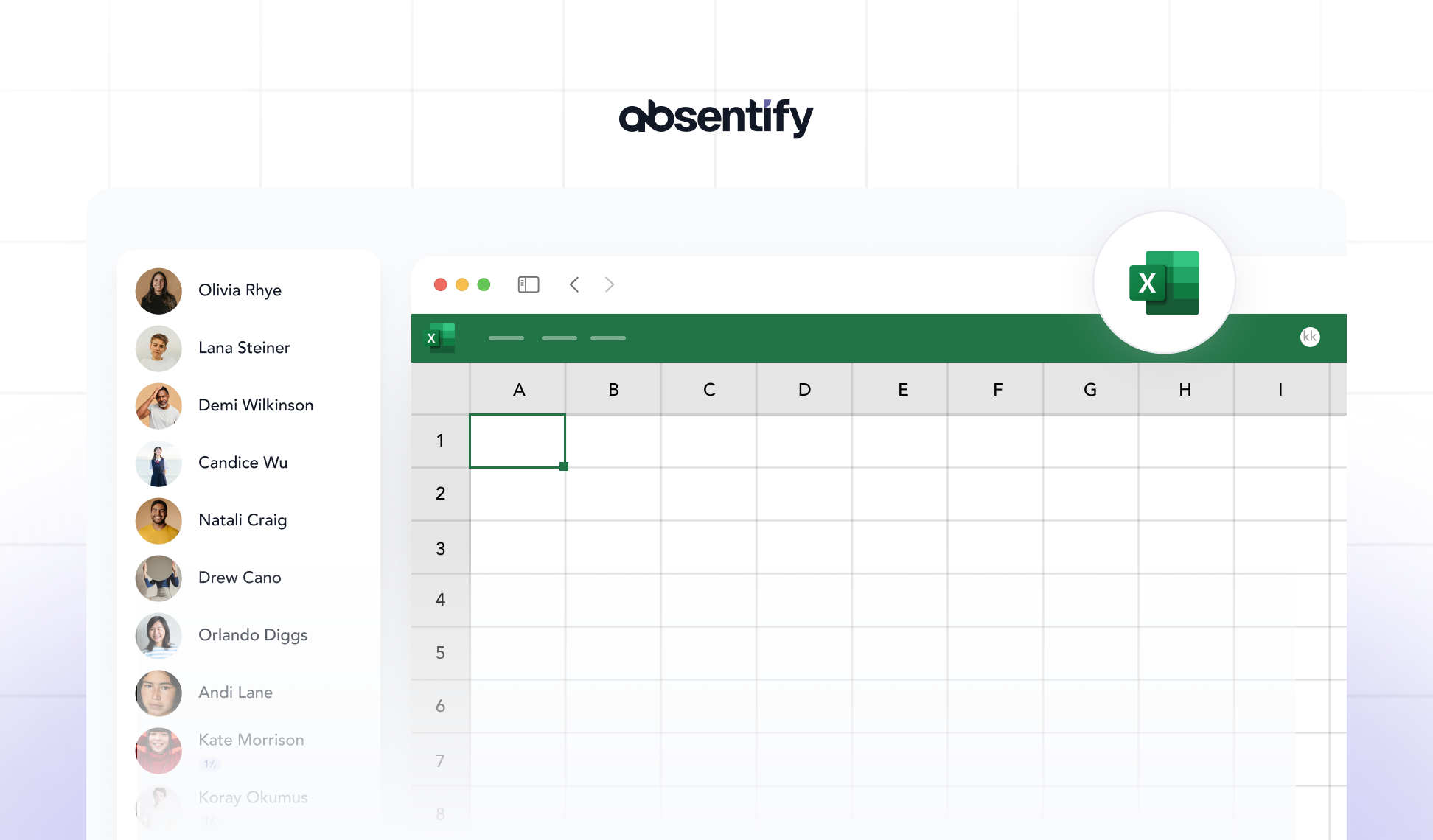
Staff planning with Excel is for many teams in Germany the fastest and most cost-effective way to plan employees, vacations, and capacities. Excel offers useful features to structure the most important HR tasks, from shift planning to the analysis of working hours.
However, often there is a lack of clean structure. Many files are expanded over the years, lose clarity and cause errors. A clear Excel template for staff planning helps to combine absences and capacity overview into a structured system.
Staff planning in Excel: The essentials in brief
-
Structured staff planning in Excel provides an overview and reduces planning errors.
-
With clearly structured tables for absences and capacities, staff planning in Excel remains comprehensible.
-
Color coding ensures quick orientation and prevents incorrect entries in Excel templates for staff scheduling.
-
Absentify offers a digital software alternative that automates and simplifies staff scheduling.

Why is staff planning in Excel sensible?
Excel is a useful tool for managing human resources processes clearly, as long as the file is well-structured. Especially for small and medium-sized enterprises, Excel offers a simple way to organize HR matters quickly.
Typical applications of Excel templates for staff planning:
-
Staff planning and shift scheduling
-
Vacation and absence management
-
Personnel requirements and capacity planning
-
Personnel cost planning
-
Human Resources Development and Training Management
How is the Excel template for staff planning used?
The simple table logic allows all values to be entered manually or expanded with formulas later if necessary. Thus, the Excel template for staff scheduling is suitable for both small teams as well as larger businesses with various working time models.
Planning shifts with dropdowns
In the template, the layers can be selected via Dropdown menus. These simplify the entry and prevent typing errors:
-
*Day off = *Regular workday
-
V = Vacation
-
H = Half Day
-
R = Request
-
Public Holiday
Adjustment of staff planning to corporate structures
The template can be easily expanded, for example to include:
-
New employees
-
other departments or teams (e.g., administration, production)
-
Shift models (e.g., weekend duty or on-call service)
-
Additional notes such as place of deployment or project assignment
Plan staffing and capacities with Excel
Thoughtful staff planning in Excel can help ensure that actual staffing needs and available capacity remain balanced. Excel is well-suited to clearly present these metrics and to identify bottlenecks early.
Calculate staffing requirements in a staffing plan template
The staffing needs arise from the planned amount of work and the required hours per task or project.
A simple table is sufficient to compare target and actual values:
| Department | Required Hours (Target) | Planned Hours (Actual) | Difference |
|---|---|---|---|
| Production | 160 | 168 | 8 |
| Sales | 120 | 112 | -8 |
| Administration | 100 | 100 | 0 |
Build a capacity overview for staff planning
With a separate table, you can evaluate capacities by days or weeks. This involves summing up the working hours of all employees and matching them with the demand:
| Day | Planned Hours | Required hours | Deviation |
|---|---|---|---|
| Monday | 320 | 300 | 20 |
| Tuesday | 280 | 290 | -10 |
| Wednesday | 310 | 310 | 0 |
This way, you can immediately identify on which days overtime occurs or staff is missing. This is very helpful in companies with fluctuating orders or seasonal workloads.
Helpful Excel functions for the staff scheduling template
Even without complicated formulas, meaningful evaluations can be created with Excel:
-
**COUNTIF(): **counts how many employees are scheduled per day
-
**SUMIF(): **sums up hours for specific departments or employees
-
AVERAGE(): displays the average effort over a period of time
This is how you recognize whether the layers are distributed evenly or individual employees are scheduled disproportionately.
Identify and compensate for bottlenecks in staff planning
Proper capacity planning clearly indicates where there is a shortage or overload of staff. If there is a consistent shortfall in the late shift, it is an indication of insufficient capacity. An overview allows for a fairer allocation of shifts, better planning of cover, and easier implementation of short-term changes.

Start for free now
No credit card required—enjoy unlimited access with our free plan. You can upgrade or cancel anytime.
7 Tips for Long-Term Use of Excel Templates for Staff Scheduling
Staff planning in Excel is only reliably sustainable if the file is clearly structured and regularly maintained. Many planning errors occur because tables become cluttered or changes are made uncontrollably. This can be avoided with a few simple measures.
1. Maintain a uniform structure
Do not change the structure of the template without good reason. Every new column or formula can result in references being lost or calculations becoming incorrect.
-
Use fixed column names (e.g., Employee_Name, Date, Shift).
-
Make adjustments only to a copy of the file.
-
Use column filters instead of sorting to search through data.
2. Regularly update data
Effective staff planning in Excel relies on up-to-date data. Outdated employee lists, incorrect department assignments, or missing vacation information can quickly lead to misunderstandings.
Pay attention to these points:
-
Add new employees immediately.
-
Delete or archive former employees.
-
Regularly reconcile vacation accounts and absences.
3. Use color logic and formatting
Color-coded cells help to understand large tables more quickly. A clear legend improves readability for the entire team.
Example:
-
Green = present
-
Yellow = Vacation
-
Red = Disease
-
Blue = Continuing education
4. Version Control and Access Protection
When multiple people are working on the Excel file, clear version control is essential:
-
Save new schedules with the date in the filename ("Staff_Schedule_WK45.xlsx").
-
Prevent unintentional changes with sheet protection or password.
-
Regularly back up the file on a shared drive or in the cloud.
5. Create copies and backups
Especially with extensive planning files, it is advisable to create a backup copy on a weekly basis. An accidentally deleted section or a corrupted formula can otherwise cost hours of work.
A simple system:
-
Monday morning: create a new copy
-
**Friday evening: **save and archive current week
6. Regular review of the formulas
If formulas are used in the file, they should be checked at regular intervals. Incorrect cell references or accidentally overwritten functions can otherwise generate false values.
7. Transparency and Stability
A well-maintained Excel template for staff planning ensures order and trust within the team. Everyone sees the same data, decisions become comprehensible, and adjustments can be communicated quickly. Thus, Excel becomes a significant tool for reliable and transparent personnel planning.
What are the limitations of Excel in personnel planning?
Excel offers many advantages, but encounters limitations with greater complexity.
Typical vulnerabilities:
-
Susceptibility to errors in manual entry
-
No integrated notifications directly in Excel
-
Limited multi-user access in older Excel versions
-
Lack of versioning in parallel processing
Manage staff planning simply and clearly in digital form
Staff scheduling in Excel works well as long as teams are small and structures are manageable. However, as soon as vacations, shifts, and capacities need to be planned simultaneously, the effort increases enormously. Files become cluttered, formulas error-prone, and coordination takes too long.
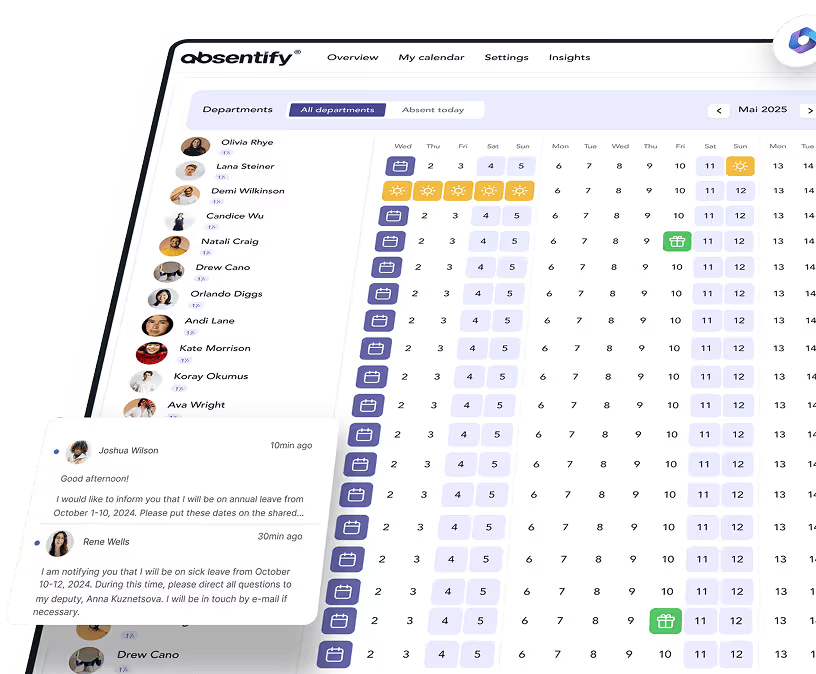
Absentify fully digitizes the planning and management process. Instead of maintaining spreadsheets, approvals are automated, absences are displayed transparently, and all parties involved keep track.
Your benefits with absentify:
-
Plan absences and vacations online – without Excel chaos
-
Automatic approval processes and reminders
-
Real-time overview of shifts, substitutions, and remaining leave
-
Direct integration into Microsoft Teams and Outlook
Would you like to simplify your absence management?
- No credit card required
- Unlimited free access
- Upgrade or cancel anytime
Staff planning in Excel – Frequently Asked Questions and Answers
About the author

Anna Keller
Content manager at absentify
As a blog author at absentify, Anna Keller explains how companies can efficiently manage absences, vacations, and working hours. In her articles, she combines HR practice with Microsoft 365 tips for Outlook and Teams and provides templates, step-by-step instructions, and software comparisons for modern, digital processes.
Share article
More interesting articles
Reducing overtime: rights, duties and the process for employers and teams
Reducing overtime means offsetting accumulated extra hours with time off or payment. Under German employment law, the six calendar months or 24 weeks specified in the German Working Time Act apply solely to offsetting an extended working day against the statutory eight-hour average. Employment contracts, works agreements or collective agreements determine how an overtime balance can be reduced. Where these rules permit time off in lieu, the employer determines its timing and process within the scope of their right to give instructions.
Anna Keller
Content manager at absentify
When does unused leave expire? Deadlines and exceptions that determine your entitlement
Under German law, unused leave expires only under certain conditions: entitlement generally lapses on 31 December, or after the carryover period on 31 March, only if your employer has given you timely and specific notice of the impending expiry and you still do not take the leave. An exception applies in cases of continuous illness.
Anna Keller
Content manager at absentify
Employee Self Service (ESS): Definition, Features, and Benefits for Leave and Absence Management
Employee Self Service (ESS) gives employees access to manage their personal data, leave requests, or absences themselves without coordinating every step with HR. The term originally comes from SAP HR modules and has become an umbrella term for self-service features in human resources. Its benefits are particularly clear in leave and absence management.
Anna Keller
Content manager at absentify